

How a draft starts
Your first change to a live agent opens its draft automatically. You don’t need to create it. Every later change, yours or a teammate’s, lands in that same draft.- One draft per agent. The whole team shares it. Two people can edit at the same time, and both sets of changes end up in the same draft.
- The draft covers the whole agent: its tasks, stages, fields, instructions and prompts, tools, cadence, reminders, meeting types, knowledge and catalog selections, the files the agent can send, and inbound routing.
- Agents still being set up save directly. If none of the agent’s tasks is live yet, there is nothing to protect: your changes apply right away, with no draft. The draft appears once at least one task is live.
Read the pill
The pill at the top of the agent’s chat shows where the agent stands.

Test the draft in the Playground
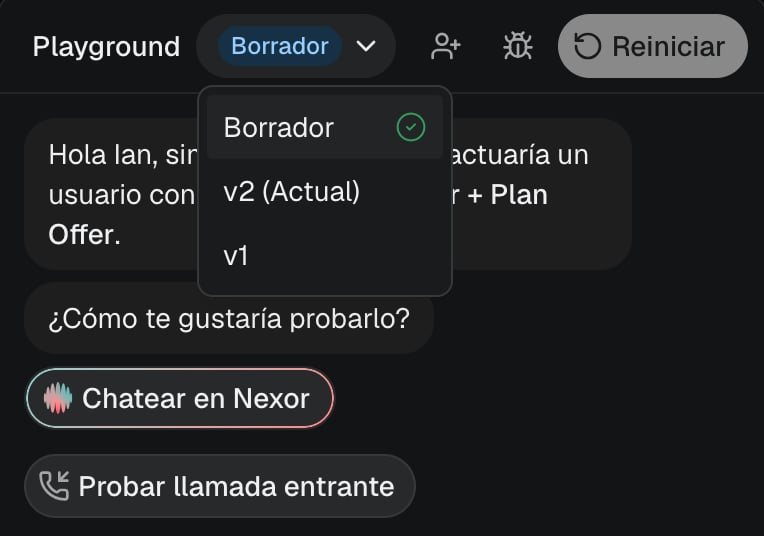
Open Test this agent. While a draft is open, the version selector in the Playground header reads Draft, and the Playground runs the draft, not the published version. Hover it to see the reminder: your leads still use the published version. The draft works on every test channel:- Chat in Nexor answers with the draft.
- WhatsApp, iMessage, SMS and Email send real messages from the agent’s own number or address. Your replies come back to the draft, not to the published agent.
- Call places a call from the agent’s number with the draft’s instructions.
Test an inbound call
To check how the draft answers when a lead calls in:- In the Playground, choose Test inbound call, below the channel options. It only appears while you test a draft.
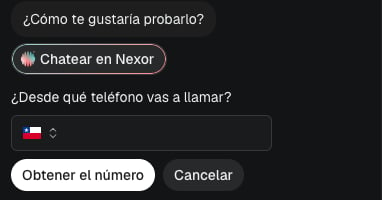
- Enter the phone you will call from and choose Get the number.
- Call the number shown, which is the agent’s real number, from that phone within 15 minutes. The draft answers, and the conversation opens in the Playground.
Prepare the draft’s voice
Some voice agents need their own test voice before you can test calls on a draft. When the Playground asks for it, choose Prepare draft voice. It can take a few minutes. If you change the draft again, prepare the voice again before the next call test.Publish the draft
- Hover the pill and choose Publish changes.
- Review the Publish draft dialog. It groups the changes by section (Tasks, Stages, Fields, Tools, Prompts and settings, Inbound routing) and counts what was added, changed and removed. Choose View changes to see each change line by line.
- Choose Publish. Your leads start using the new version right away, and it becomes the next version in the history.
Publishing never turns an agent on. A paused agent stays paused with the new version. Tasks you created in the draft are published paused: turn them on when they are ready.
Discard the draft
Open the version history next to the pill. On Draft in progress, choose Discard, then Discard changes. The draft is thrown away and the agent stays on the published version. Leads are not affected.Version history
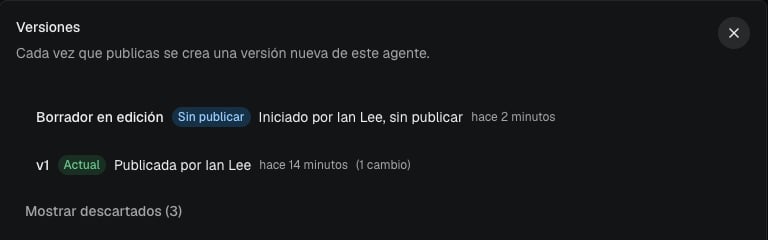
Every publish creates a new version: v1, v2, v3 and so on. Open the history with the clock button next to the pill. Each row shows the version, the date and who published it. A check marks the version your leads are using now.
Go back to a previous version
- Open the version history and choose Restore on the version you want. You can also pick it in the Playground’s Version selector.
- If a draft is already open, confirm Replace draft. Its unpublished changes are lost.
- The version is loaded into the draft. Nothing changes for your leads yet.
- Test it in the Playground, then publish it. That publish creates a new version with the old content.
What is not part of the draft
These changes apply right away, even when a draft is open:- Turning a task on or off (Set live / Pause).
- Phone numbers, WhatsApp and iMessage lines, and other channel connections.
- Turning incoming call answering on or off, and call forwarding.
- CRM connections and CRM flows.
- Webhooks.
- Deleting the agent.
With Nexor AI
When you ask Nexor AI to change a live agent, the change goes into the same draft as your own edits, and Nexor AI tells you so. It also offers a link to test the draft in the Playground.- Publishing: Nexor AI writes a short summary of what will change for your leads and asks before publishing. It publishes only after you answer yes.
- Versions: ask it to list the agent’s versions, compare them, discard the draft, or go back to a previous version. Going back follows the same steps: it loads the version into the draft, you test it, and Nexor AI asks before publishing.
- If someone changed the draft or the live agent while you were talking, Nexor AI explains what changed and asks again.
Frequently asked questions
Will my leads see my changes while I test?
No. Leads keep using the published version until you publish. Tests in the Playground use the draft, on every channel.Can two people edit at once?
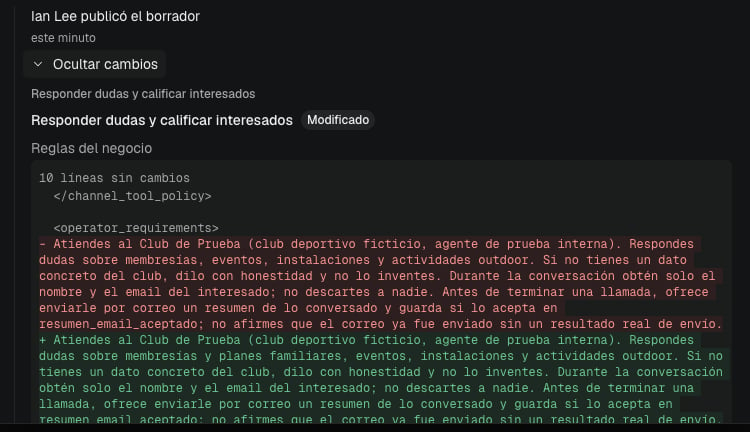
Yes. The agent has one draft for the whole team, and every change lands in it. The version timeline shows who changed what.How do I go back to a previous version?
Open the version history, choose Restore on that version, test the draft and publish it. See Go back to a previous version.I published by mistake. What now?
Restore the version that was current before and publish it. Your leads switch back as soon as you publish.Does publishing turn my agent on?
No. Publishing only changes the configuration. To start a paused task, use Set live.Why didn’t my change open a draft?
Either the agent has no live task yet, so changes apply directly, or the change is one of the settings that are not part of the draft, such as turning a task on or connecting a number.Why do calls still sound like the old version?
Some voice agents take a few minutes to switch. The pill shows Propagating… until they do. A call already in progress keeps the version it started with.Next
Test your agent
Talk to the draft as a lead on any channel before you publish.
Agent settings
Every setting you can change in an agent and its tasks.