

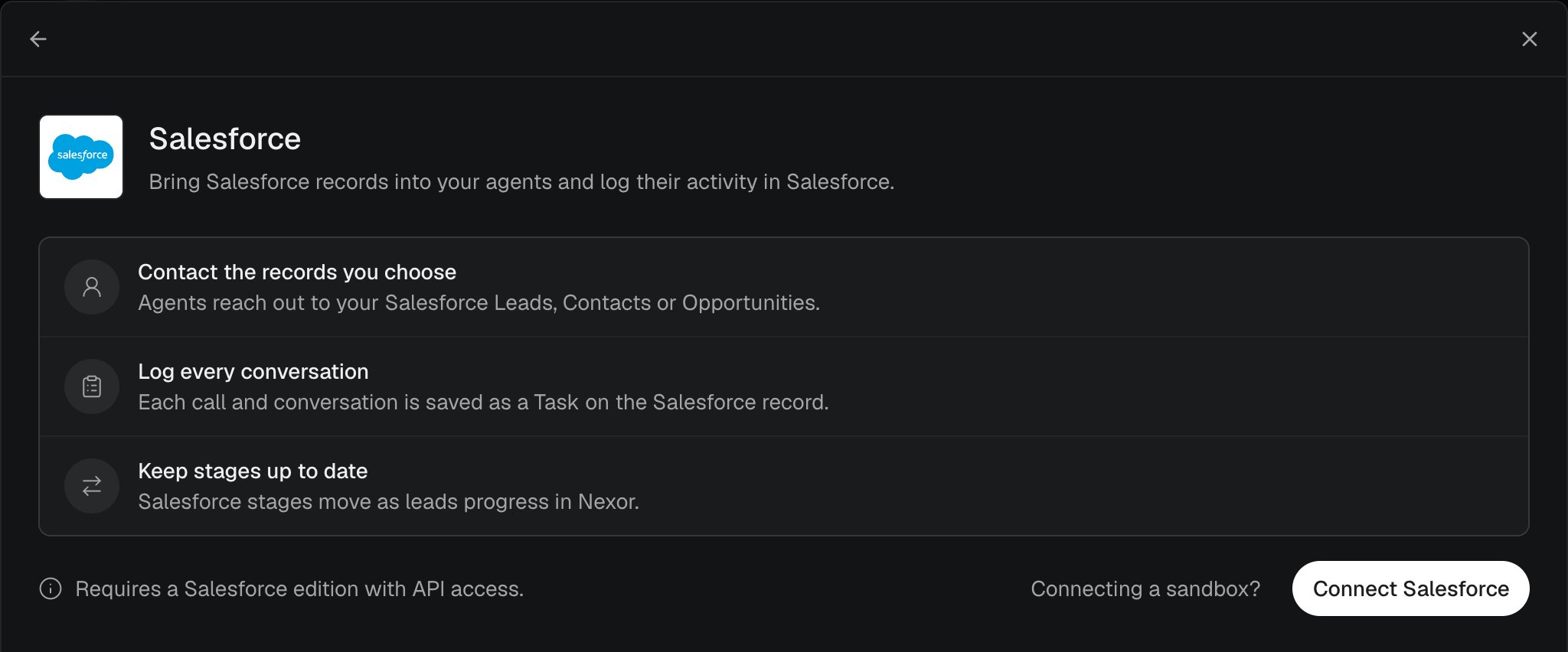
Integrations → Salesforce before connecting.
What the integration does
This is not a mirror of every Salesforce object. Accounts and custom objects are not the record Nexor contacts. A related field, such as
Account.Phone, can still fill the Nexor lead when that field is available to map.
The Salesforce card is shown when the integration is enabled for the account. If Integrations has no Salesforce card, ask Nexor to enable it.
Before you connect
The connect screen requires a Salesforce edition with API access. The person who connects must be able to sign in to that org and approve access for Nexor. Nexor then needs to:- read the chosen object, its fields, and its stages;
- read campaigns, when a task contacts a campaign;
- read Opportunity pipelines (record types) and their stages, when the object is Opportunities;
- update the stage when Keep Salesforce stage updated is on;
- read and update the opt-out checkboxes you select;
- create a Task on the record;
- convert a Lead, when a task uses Convert the Lead when it reaches.
Connecting a sandbox: on the Salesforce sign-in page, choose Use Custom Domain and enter the sandbox domain.
Connect Salesforce
1
Open Salesforce
Go to Integrations → Salesforce.
2
Connect
Select Connect Salesforce and approve access on the Salesforce sign-in page. There is no token to paste into Nexor.
3
Choose the object
Answer In Salesforce, your leads are with Leads, Contacts, or Opportunities, then select Continue.
4
Confirm the org
The page shows Connected to and the org name. Under Agents using Salesforce, confirm which tasks will contact records before you turn a task on.
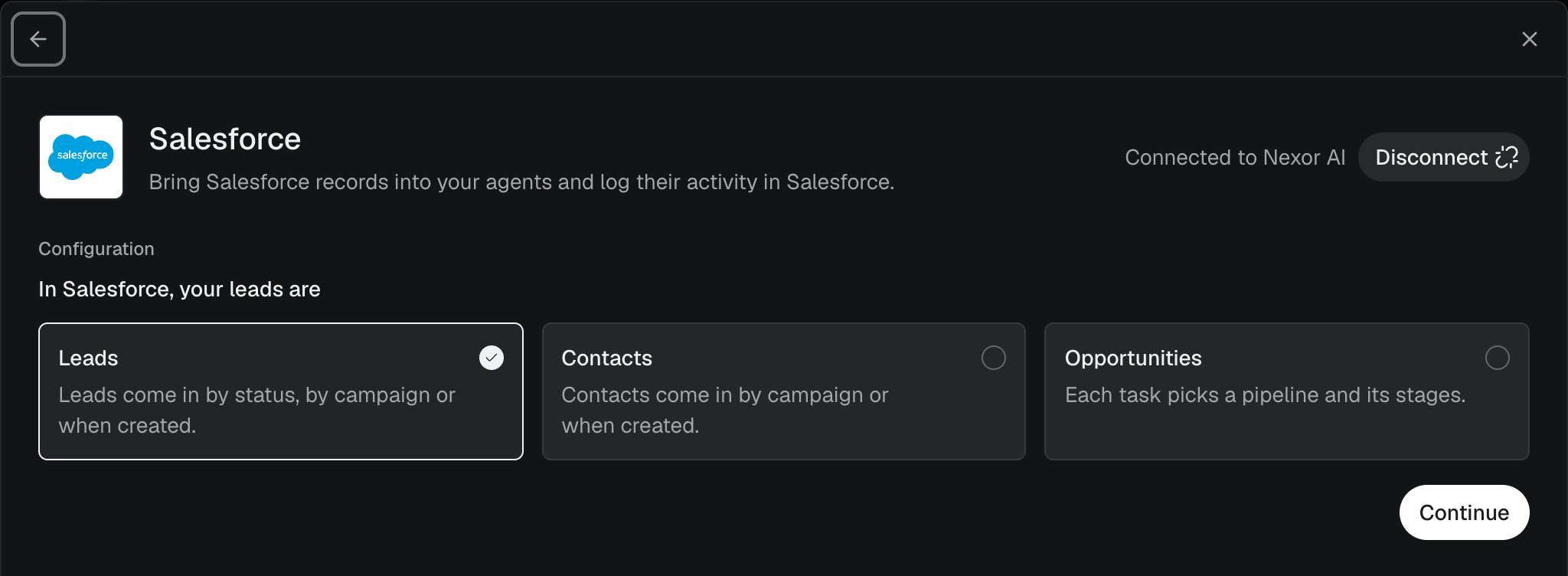
Choose whether your Salesforce leads are Leads, Contacts, or Opportunities.
Choose which records a task contacts
Open the agent, open the task, and go to Lead source. A task listed under Agents using Salesforce opens that same section. The Salesforce block there is Intake. Connection settings returns to Integrations → Salesforce. The sentence starts with Contact and the object. Then choose how records enter: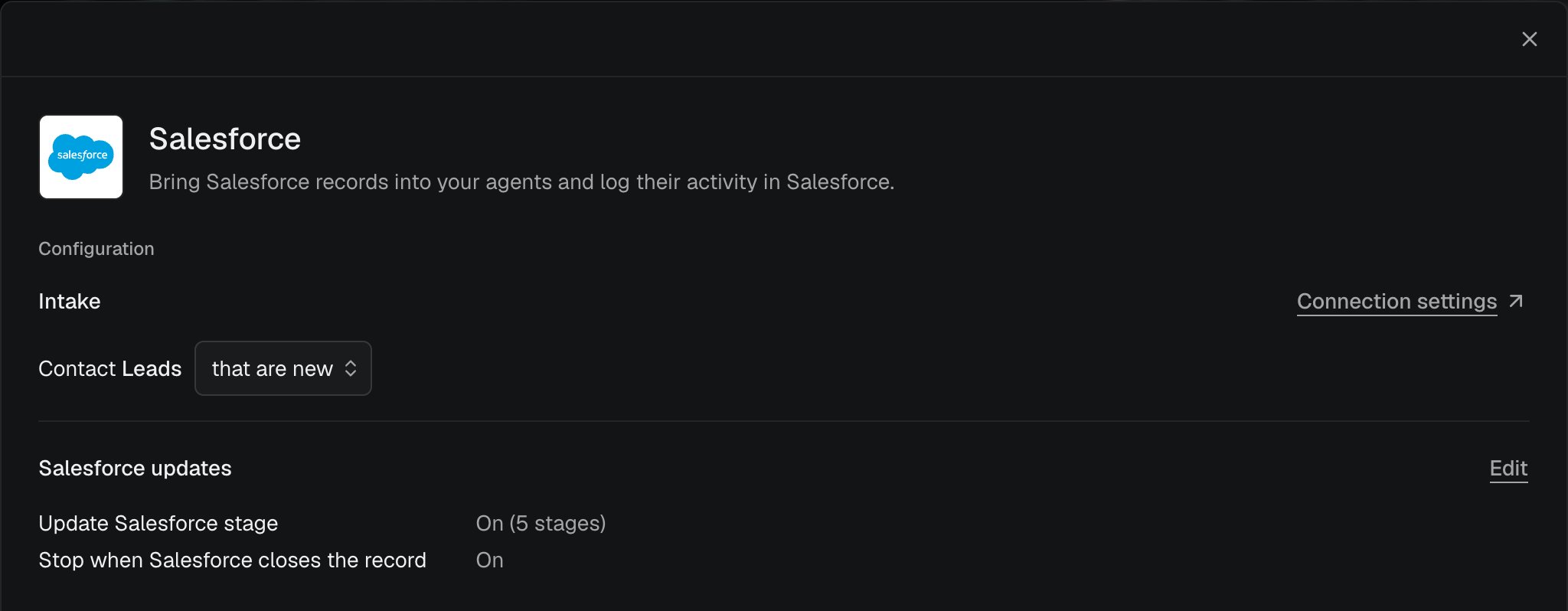
A task's Salesforce intake and its Salesforce updates.
- Only new ones contacts records that match after you save. This is the default.
- Contact them too also contacts records that already match.
Map fields
Field mapping is under Advanced on Integrations → Salesforce, and it is shared by every task. Select Edit on the field group (Lead fields, Contact fields, or Opportunity fields). Map each Nexor field to a Salesforce field:
The standard map uses those five. Point a row at another field when the org stores the value somewhere else. A related field such as
Account.Phone can be used when it appears in the list. The list does not include id, checkbox, or lookup fields. Not mapped leaves that Nexor field unset from Salesforce. Select Done to save.
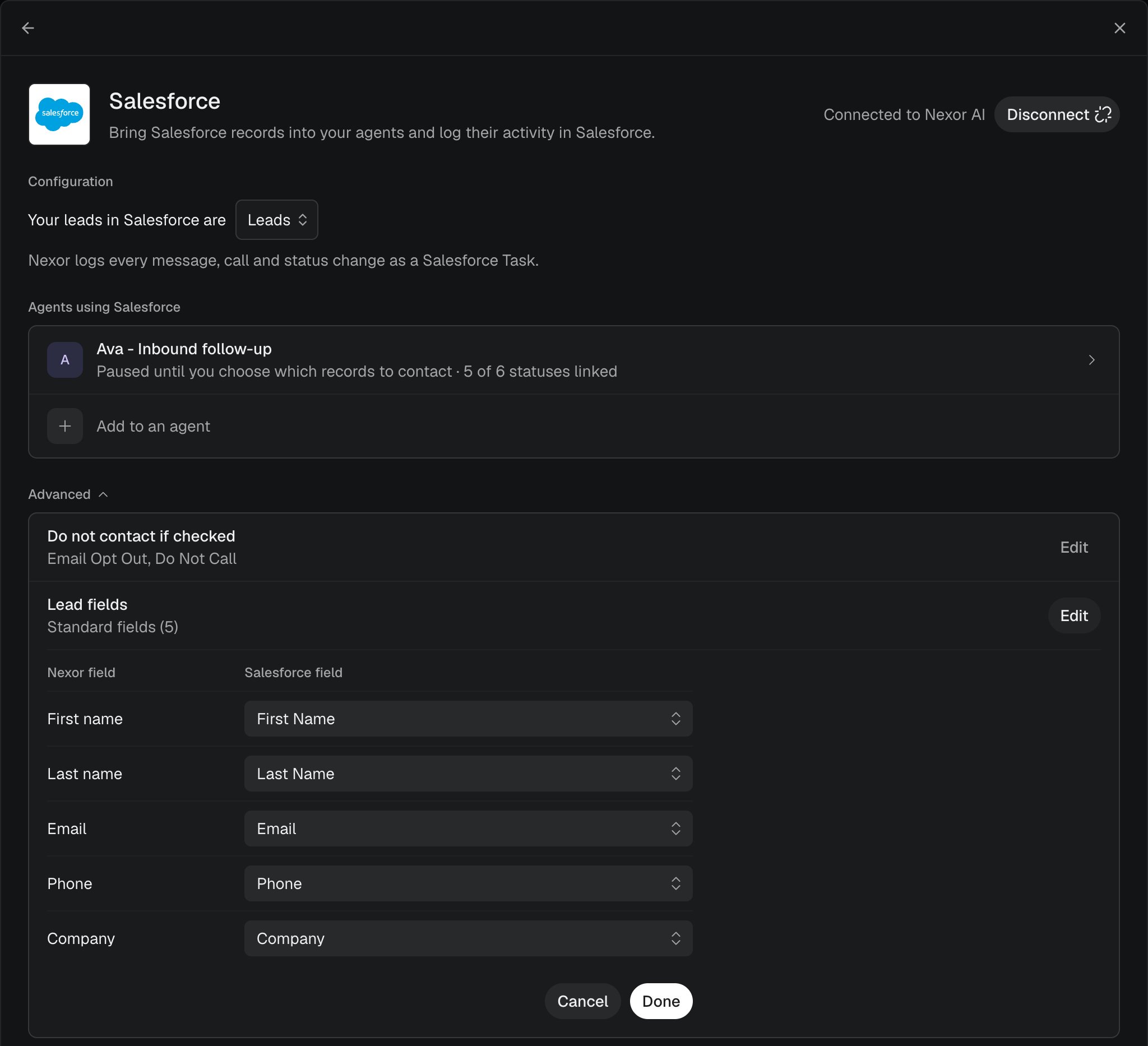
The five-field map between Nexor and Salesforce.
Keep Salesforce stage updated
On a Lead or Opportunity task, open Salesforce updates and turn on Keep Salesforce stage updated. Each Nexor status then has a Salesforce stage. Choose the stage to write, or Don’t change to leave that status’s stage alone.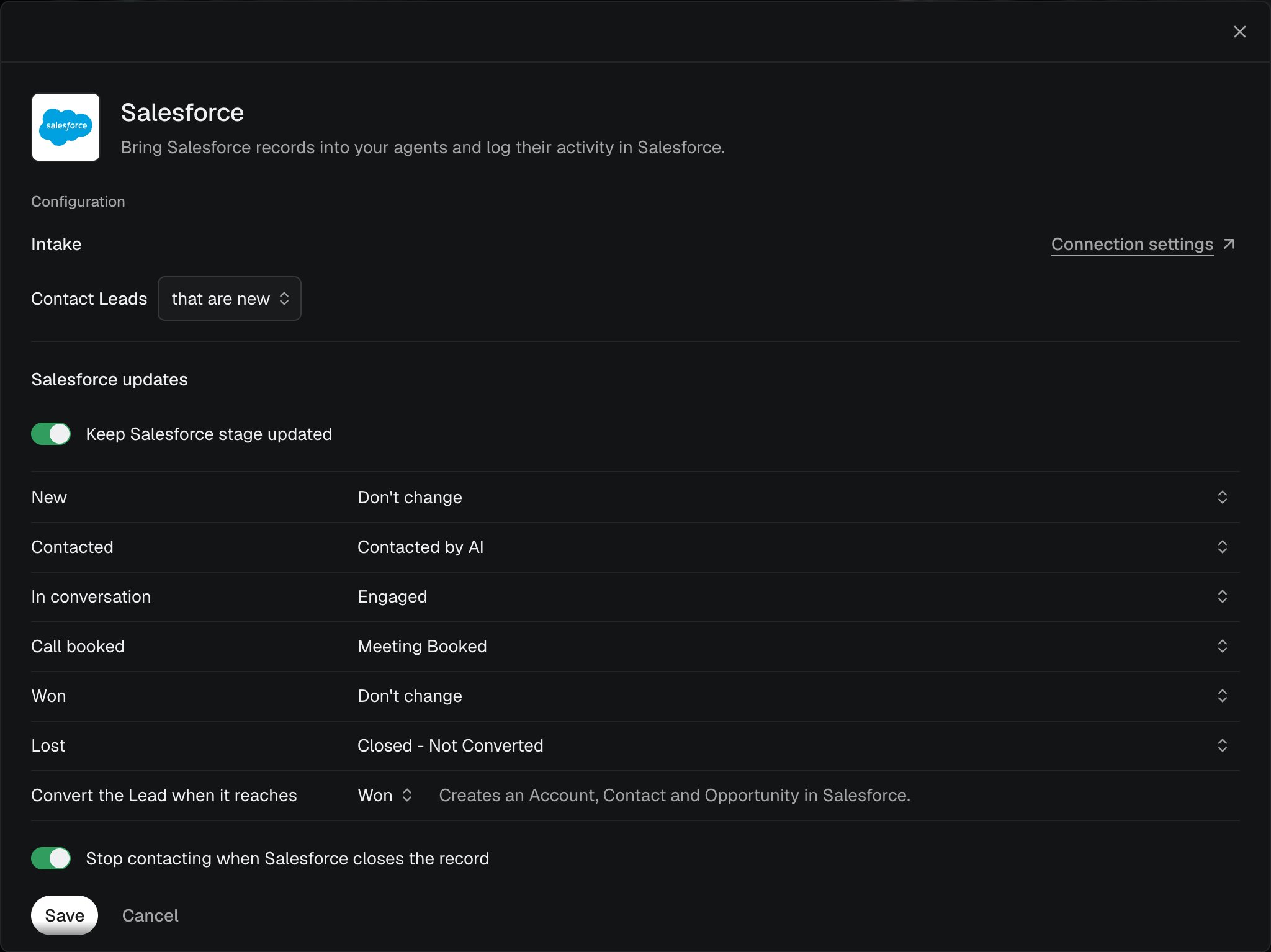
Keep Salesforce stage updated, with Convert the Lead when it reaches.
Do not contact if checked
On Integrations → Salesforce, open Advanced and edit Do not contact if checked. A record with one of the selected checkboxes checked is never contacted. When a lead opts out in Nexor, Nexor selects those same checkboxes on the Salesforce record. The fields this setting is built to use are:
These two are the defaults on a new connection whenever Salesforce shows them to the connected user. Confirm they are selected before you go live. The selector lists the checkbox fields Salesforce exposes for the connected user. None means no Salesforce checkbox is treated as do-not-contact.
Salesforce hides Email Opt Out and Do Not Call until an administrator grants field-level security on them. If they are missing from the list, in Salesforce open Setup → Object Manager → Lead (or Contact) → Fields & Relationships, open each field, choose Set Field-Level Security, and make it visible to the profile of the user who connected Salesforce. Then open the selector again.
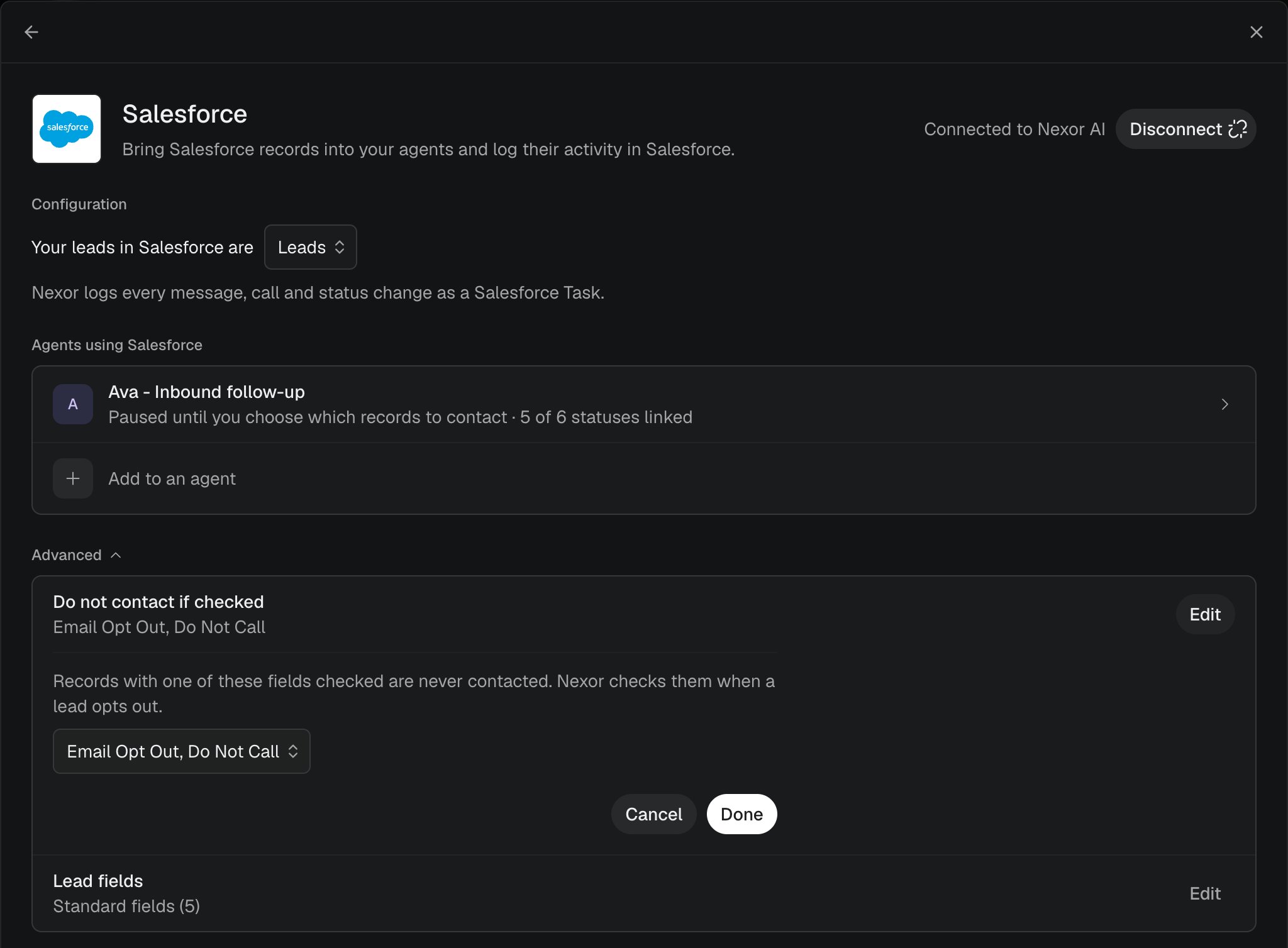
Do not contact if checked, with Email Opt Out and Do Not Call.
Tasks logged in Salesforce
Nexor logs every message, call, and status change as a Salesforce Task on the record. The connected page states this, and there is no separate switch to turn the log on. The Task is attached to the Lead, Contact, or Opportunity the task is working.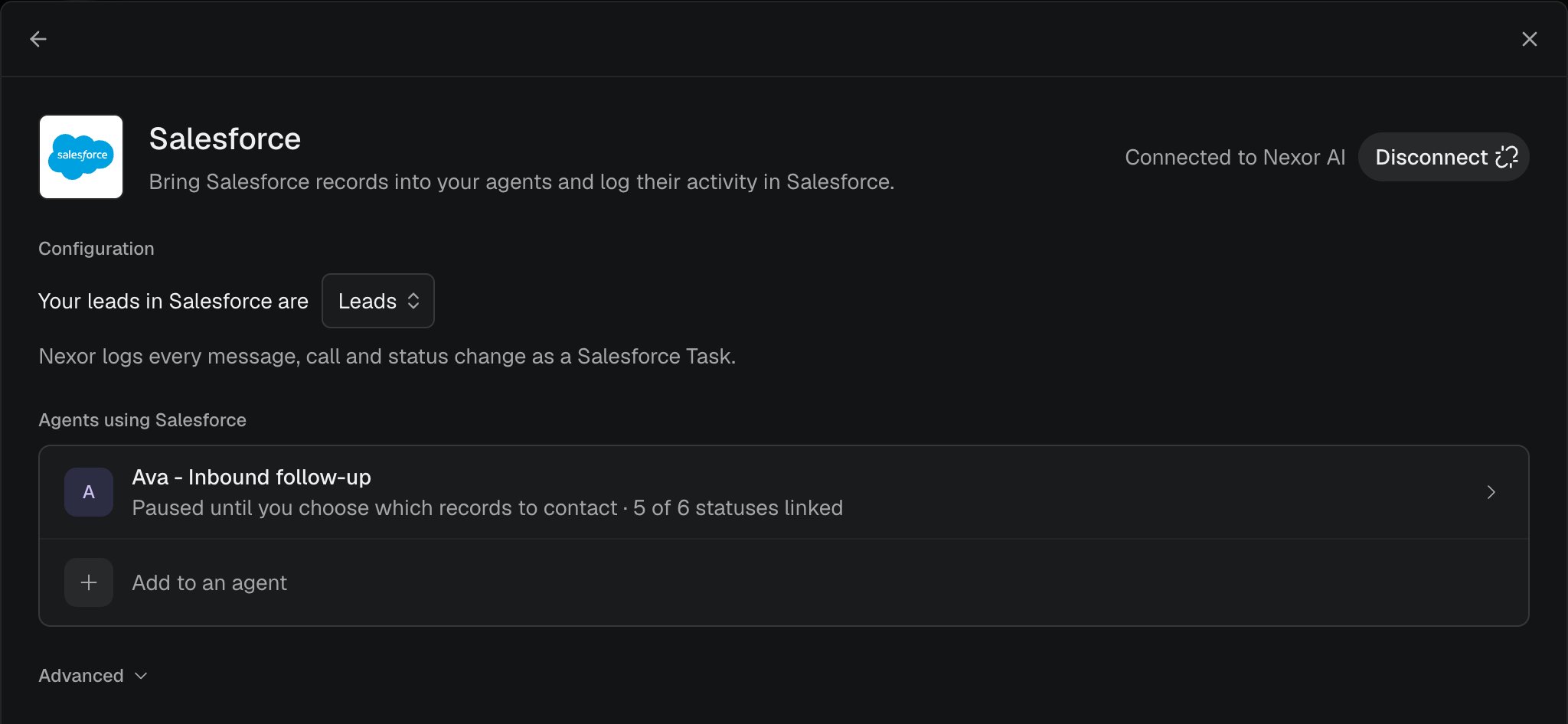
The connected org, the agents using Salesforce, and the Task logging sentence.
Troubleshooting
A record never arrives
Confirm the task’s Intake has a campaign, stages, or new records, and that the task is live. Nexor checks about every 5 minutes, and a stage wait adds more time. Records that already matched are skipped unless you chose Contact them too. Another task may already own that campaign, stage, or new-record intake. The row shows Used by.The stage in Salesforce did not change
Keep Salesforce stage updated has to be on, and that Nexor status needs a stage other than Don’t change. Contacts do not write a stage. A converted Lead Status such as Closed - Converted fails from the stage map. Use Convert the Lead when it reaches for that outcome.The Lead did not convert
Set Convert the Lead when it reaches to the Nexor status that should convert, with Keep Salesforce stage updated on. Mapping the status to a converted Lead Status does not convert the Lead. The Salesforce user who connected Nexor must be allowed to convert Leads. If conversion still does not run, contact Nexor. Do not point the stage map at the converted status as a substitute.Salesforce opt-out is ignored
Open Advanced → Do not contact if checked and confirm Email Opt Out and Do Not Call are selected. None, or a different checkbox such as Unread By Owner, does not apply those two fields.Nexor AI says Salesforce is not connected
Use Integrations → Salesforce. If that page shows the org as connected, do not reconnect from chat. Reconnecting creates another authorization.A sandbox will not sign in
On the Salesforce sign-in page, choose Use Custom Domain and enter the sandbox domain, then return to Connect Salesforce.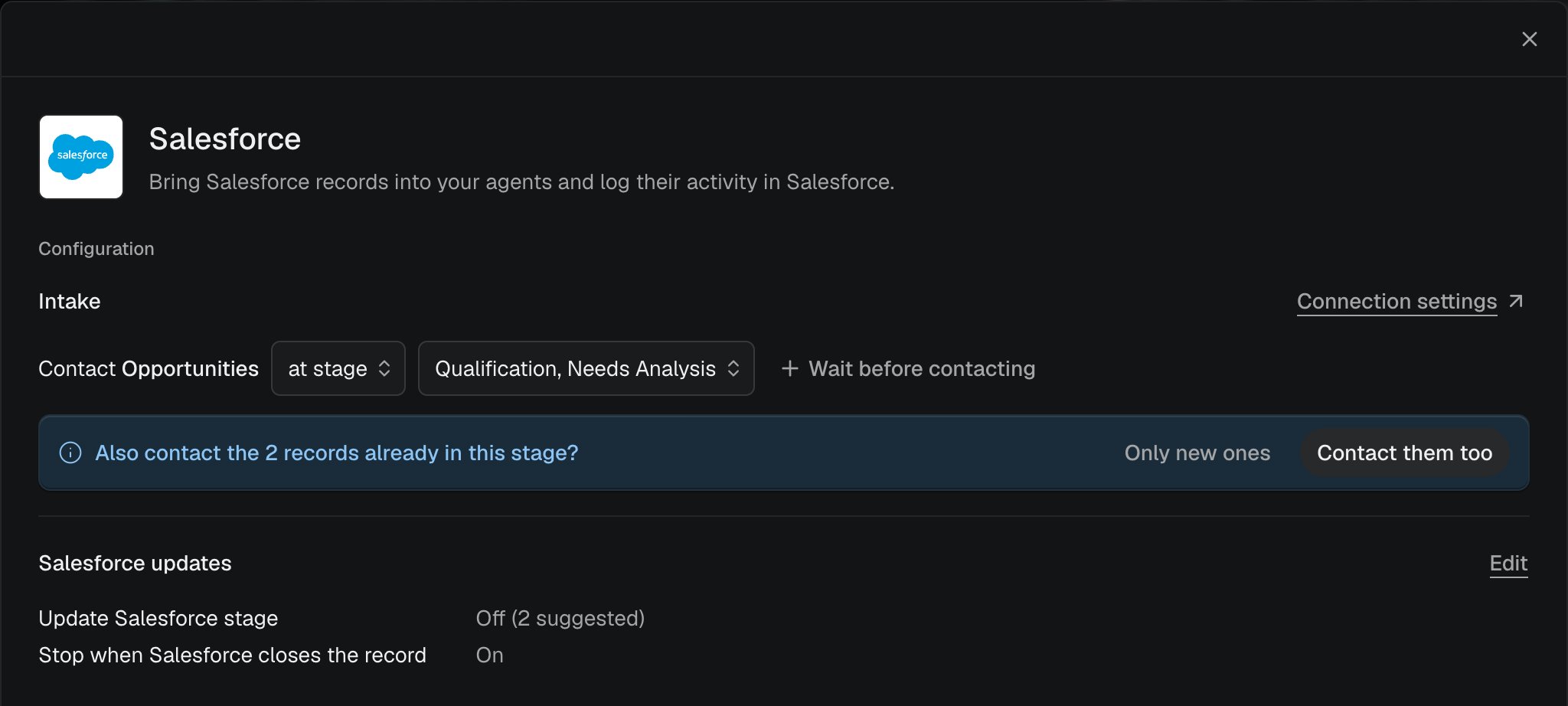
An Opportunity intake with its stages.