

This page describes the settings screens of the classic interface (
app.getnexor.ai/v1), where each task is called an “Agent”. In the current workspace, the same settings are in the right pane of the agent and of each task. See Agents and tasks and Find a setting.
Most edits show a global Save changes and Cancel bar. Leaving with unsaved edits prompts you before discarding them. Some actions, such as creating a resource, variable, or tool, save immediately; the page calls out those exceptions below.
Goal
The Goal setting shows the result the agent pursues in each conversation. It is more than a label: the goal selected when the agent is created determines the built-in tools, suggested stages, primary metric, and configuration sections that are available. The standard creation flow offers these goals. Some onboarding flows present a shorter list:Custom goal
If you chose Custom when creating the agent, its settings include What should this agent achieve? Describe an observable outcome, not a sequence of instructions. For example:Recover the overdue instalment with a concrete payment date agreed, without damaging the customer relationship.
This objective takes priority over generic preset language in the Agent’s behavior. Business rules still define the context, limits, and operating instructions.
The goal type cannot be changed after the agent is created. For a Custom goal, you can still edit the written objective, up to 600 characters. If you need a different goal type, create another agent and review its stages, required variables, and tools before processing leads.
Your agent
Under Context, Your agent defines the Agent’s identity and lead-facing language. Voice settings are configured separately under Channels → Phone → Edit, in the Phone calls sheet.Business rules
The Business rules section is your agent’s prompt: it describes how your business operates and what the agent should do in each scenario. This is where you teach it to collect relevant information, handle pushback, recognize that the goal has been achieved, and decide when to hand off to a human. Use the picker to edit one rule section at a time. It normally includes:
Each section has its own purpose and writing style. For detailed guidance and examples on filling out each one, see the Prompt best practices guide.
Agents with previously saved custom sections may show additional entries. The set is not a fixed number.
Prompt size. The counter estimates the global prompt together with channel prompts and compares it with a recommended 7,000 tokens. This is writing guidance, not a hard system limit. Shorter, non-repetitive rules are easier to test and maintain.
Prompt history. Open History to see saved prompt versions, including section-level additions, removals, the author, date, and any note. Restoring a version creates a new current version and keeps the earlier history. This history covers the global prompt, channel prompts, and AI configuration; it is not a history of every Agent setting.
Upload context is a separate flow. It accepts PDF, PNG, JPEG, TXT, and Markdown files up to 10 MB each, then analyzes them to propose prompt-section, channel-instruction, variable, deal-breaker, and style changes. These uploads are training input, not Knowledge that the Agent searches during conversations. Review the visible proposals, edit them when needed, and apply the result before testing a fresh conversation.
The consistency review can warn about actionable contradictions before a prompt/configuration save. It is advisory, not an infallible safety check: if that check is unavailable, the save can still proceed.
Channels
The Channels group defines how your Agent reaches and replies to leads. Each row shows whether that channel is connected. Open a connected channel to assign or change its resource, stop using it, and configure the controls available for that channel. For a connected outbound channel other than Web Chat, turn on First contact inside that channel’s editor to make it the first outbound channel. Only one can be selected, so choosing another channel moves the setting. It is a switch inside each channel, not a global dropdown.
When a WhatsApp number is assigned to another Agent in the same Group, this Agent can show it as inherited. That is a valid connected state, so do not reconnect or reassign the number to every member. The shared identity follows the Group, while channel behavior and the rest of the Agent configuration remain per Agent.
Incoming-message switch
Connected SMS and Instagram rows can show Reply to incoming messages. When on, this Agent may answer new inbound messages. When off, the row is configured as outbound-only and does not start an automatic Agent reply. Instagram story automations keep their campaign routing. Messenger is configured from Integrations in the current dashboard, and WhatsApp does not expose this shared switch in Agent settings.WhatsApp templates
Open the connected WhatsApp channel to configure two independent template pools:
The picker only offers compatible approved templates for the WhatsApp business account assigned to the Agent. Template language must match the Agent language at send time. If there are no eligible templates, use the shortcuts to suggest templates or create one manually.
Per-lead contact caps are different from the aggregate WhatsApp template safeguard. The aggregate limit applies across the WhatsApp business account and changes with warm-up age, quality, Meta tier, safety settings, and any more restrictive workspace setting. Do not assume a universal daily number from the cap shown for one Agent.
Existing A/B opening groups
If this Agent is already linked to an opening-message A/B group, Settings shows Opening message (A/B test) and lets you maintain its variants. The system keeps a lead on its assigned active variant and uses the group’s existing weighting for a new assignment. You cannot start or link a new A/B test, or edit its weights, from this Settings panel. If no linked group exists, the A/B controls do not appear.WhatsApp voice notes
Voice notes is opt-in and does not turn every response into audio. The Agent can still answer normally in text and may call the voice-note tool when appropriate. The current dashboard only shows the switch when Phone is active and the selected voice maps to a compatible voice. When enabled, choose Office (default), Cafe, Quiet street, Custom prompt…, or No ambient under Background ambience. A custom ambience prompt can contain up to 450 characters.Phone being active is a current Settings-panel visibility requirement for this WhatsApp control. The messaging system itself checks the Agent setting and whether the selected voice has a compatible mapping.
Long replies split into several messages
On WhatsApp, Instagram, Messenger and SMS, the agent can send a long reply as a few separate messages instead of one block. It is on by default.
If replies still arrive as one block, the reason is usually the text itself: short replies, or no blank lines between ideas. Ask for blank lines between ideas in the agent’s instructions. To turn splitting off for an agent, ask Nexor AI.
Sources
Sources is a dynamic inventory of how leads reach this agent. It combines integrations configured for the agent with source types Nexor has observed on its leads; it is not a fixed list of import methods. Open the agent, select Settings → Sources, then use Add source when a new entry point is needed. The menu offers the following options when they have not already been detected for the agent:
A configured or detected source can show Last lead received or Waiting for the first lead. Connectable source types include an Edit action; an observed source that has no dedicated setup can appear without one. Changes can take about two minutes to appear because the catalog is cached.
Add source is an entry point, not a definitive connection ledger. An API key or Zoho connection may remain in the menu until Nexor observes corresponding lead activity. Confirm the connection on its integration page.
Contactability
Outbound contacts
Outbound contacts controls when the Agent can initiate sequence outreach and how many attempts it can schedule. If the Agent has no active Phone, WhatsApp, Email, or SMS channel, these controls are hidden and the page directs you to Channels.
Every time uses the Agent’s configured time zone. With no active window, Nexor does not initiate sequence outreach.
In Custom, each configured window uses a cap from 0 to 5 for each active channel. The screen multiplies that per-window value by the number of windows to show a daily total. On later cadence days, the schedule can reduce custom limits toward the stored minimum. Zero turns off sequence contact for that channel. For Phone, requested calls and meeting reminders bypass its sequence cap. The page warns when Email is set above one per day.
Contacts requested in another time zone
When a lead asks for a future contact, Nexor interprets the requested local date and time in the lead’s known time zone. A zone explicitly named in the conversation takes priority. If the lead’s zone is unknown, the Agent’s configured zone is the fallback. Contact windows still use the Agent’s zone. For example, 10:00 in Peru on September 10, 2026 is 12:00 in Santiago. The scheduled contact represents the same instant; it should not become 10:00 Santiago. Date-based requests use the offset for the requested day, including daylight saving changes. An ambiguous or nonexistent local time requires clarification. Keep a lead’s location up to date. For countries with several time zones, specify the actual zone instead of relying only on the country or phone prefix. Avoid fixed GMT offsets in Agent instructions.Follow-up
The Follow-up section controls how persistently your agent follows up with a lead who stops replying, until it achieves the goal outcome or exhausts the attempts.
With the values above, the agent re-contacts the lead up to 5 times. The first follow-up goes out 3 hours after the lead stops replying, and each later attempt is spaced at least 24 hours apart. Once those attempts are exhausted, the configured re-engagement sequence stops.
Under Customize by stage, you can enable rules for eligible middle stages, write per-stage AI instructions, and set a different first wait, interval, and maximum number of attempts. Initial, terminal, paused, and already-achieved goal stages are not offered for re-engagement.
Variables
Under Goal, Variables defines what the Agent may collect from a lead. Variables are available for every goal. Conversation values take priority over metadata prefill. Each variable has these properties:
Below are common variables used to qualify a lead:
You can create up to 12 variables in the dashboard and reorder them when more than one exists. Creating one first persists an Untitled row; edit its fields and use the page Save bar for later changes. Deleting is irreversible and the confirmation reports how many stored data points will become orphaned.
The Metadata picker suggests keys from recent leads and shows an example and coverage. You can also type the expected key or nested path before any matching lead arrives. If a mapped key does not arrive, the Agent can ask for the value normally. An empty recent sample does not prove that a mapping is broken.
If HubSpot is connected and this Agent has the compatible HubSpot tool, Map to HubSpot can link a variable to an existing writable contact property. Nexor does not create that HubSpot property. Each mapping can be enabled or disabled.
Variables power qualification and stage transitions: a stage can require all variables or selected variables before a lead advances.
Stages
Pipeline
The pipeline defines the stages each lead moves through, from first contact to a closed outcome. As your Agent talks to a lead, it moves them between stages based on the criteria and controls you set here. The stage builder is under Settings → Stages. For the day-to-day board, pause controls, card signals, and Agent actions, see Pipeline and Agent operations.Initial stages by goal
Every pipeline begins with three core stages whose roles are managed by Nexor:
The stage that represents success changes with the Agent’s goal:
You can also add custom working or terminal stages to match the process, such as a “Demo completed” stage.
Stage groups and protected behavior
The builder and board organize stages under In progress, On hold, and Terminal. These stage types have different controls:
Removing Escalated to executive does not stop Human Assistance cases from reaching Inbox. An escalated lead remains in its commercial stage on the board while the escalation is handled in Inbox.
Configuring a stage
Select an editable stage to open its settings. The fields shown depend on the stage’s role:1
Name and color
Set how the stage appears in the Agent and Pipeline views. Core stages keep their automatic role even if their visible name changes.
2
Role or outcome
For an eligible custom stage, choose from the roles currently offered. Each automatic role can belong to only one stage, so a role already used by a core or goal stage is not offered elsewhere. A new terminal stage is classified as a won or lost outcome.
3
Entry criteria
Describe in plain language when the Agent should move a lead into the stage. Reference collected variables with
@, for example @budget or @company_size.4
Required variables
For an eligible non-terminal stage, require all variables or selected variables before a lead can enter. Qualification stages also expose their qualification rules.
5
Owner assignment
For an eligible non-terminal stage, turn on Assign an owner on entry. Nexor assigns in round-robin order across the whole eligible team or a selected member pool. Only one ordinary stage can own this automatic assignment at a time.
6
Time in stage
For an eligible non-terminal stage, turn on If the lead does not reply, set 1 to 9,999 hours, and choose another destination stage. Despite the label, the system counts from when the lead entered the current stage. A reply that does not change the stage does not reset that clock.
7
Completion, pause, or handoff
The goal stage can expose Complete the pipeline here. A terminal stage can pause Agent replies or use Continue with another task to continue in a task belonging to the same Agent. Tasks from other Agents are not offered as destinations. The destination task must be active to receive live transfers. Conversation context, relevant call and appointment summaries, and currently collected fields carry to the destination task.
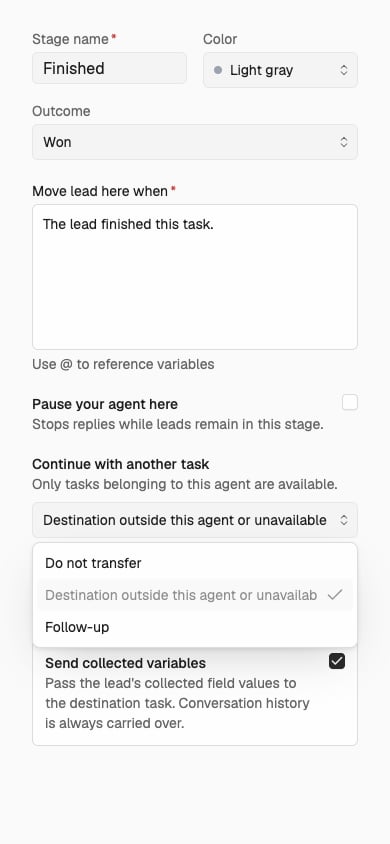
Reorder stages
Drag an eligible stage by its handle to change its order, then save the section. Core stages, Escalated to executive, and Discarded do not have a reorder handle. The goal stage stays protected from deletion even when its order or completion behavior is editable. Review recontact rules after changing the order because stages at or beyond the goal do not qualify for ordinary re-engagement.Delete a stage
Select an eligible custom stage and choose Delete in its editor. Before confirming:- If active leads are in the stage, choose another stage under Move leads to. Nexor moves those leads and deletes the old stage in one operation.
- Review Config impact when it appears. The dialog can identify recontact rules, transitions, moments, and pending follow-up tasks that reference the stage.
- Treat deletion as irreversible. Core stages, the goal stage, and Discarded do not expose this action.
Quote
This section only appears when the goal is Generate a Quote.
Documents
This section only appears when the goal is Document Collection.
snake_case key, a team-facing description, instructions for how the AI should request it, whether it is required, and accepted formats. You can accept any file or restrict it to JPEG, PNG, PDF, HEIC, WebP, DOC, and DOCX.
Once all required documents arrive, the lead moves to Documents collected and the agent pauses for human review. Human approval completes the goal in Documents approved.
Meeting booking
This section only appears when the goal is Book a Meeting.
- Meeting name, event title and description, duration, buffer, minimum notice, booking window, and per-slot limit.
- Assigned hosts, round-robin selection criteria, or a compatible custom assignment tool.
- Default attendees and an optional additional Nexor confirmation email.
- The provider-specific event type, link, address, or booking tools required by the selected type.
Reminders & alerts
Use Meeting reminders to contact the lead through WhatsApp, Voice Call, or SMS when the account and channel qualify. Timing can be relative to the scheduled meeting, immediately after booking, or after the Agent phone call for the post-call voice option. Only WhatsApp reminders require an approved Meta template. Use Host notifications to email the assigned host after a booking. Cancellation, reschedule, no-show, and lead re-engagement behavior use their corresponding meeting-event controls. See Reminders and alerts for the supported timings, channel prerequisites, host-email delay, and test procedure.Knowledge base
Under Context, Knowledge controls what this Agent can search while answering. It contains two separate pickers:
Open a picker to choose individual resources. Search, Select all, and Clear all appear when there are more than five choices. Use Add to create content without leaving Agent settings.
Creating or editing a resource is saved immediately and a newly created Knowledge resource is selected in the draft. Changing which resources the Agent can use takes effect when you save Agent settings. A resource that is not selected is not available to this Agent.
Tools
The Tools group in the settings menu lists the capabilities available to this Agent. The main section is labeled MCP Tools, but it contains two kinds of tool:- Internal tools are maintained by Nexor and appear when they are available for the Agent’s goal. You can turn one off after confirming the impact, but you cannot remove it.
- Client tools include custom HTTP functions and supported integration tools. You can enable or disable them, edit a custom tool, remove it from this Agent, or create an Agent-specific configuration when supported.
Tool automations
Automation sections appear only when the Agent has the required active tools and stages:
A tool marked On entry under Pre-agent hooks cannot also be stage-gated. Stage actions run without waiting for the Agent to decide to call the tool and should not be described as exactly once over the lead’s lifetime.
If there are no eligible tools, Settings shows Add a tool to unlock automations instead of the automation editors.