

ctx, where you can inspect and transform it, update the lead, call any external HTTP API, and return a result for the run history.
Use a Cloud Function when an integration needs custom logic, not just a copy of an event. For example, you can reshape a qualified lead for your CRM, notify a team only for high-value conversions, or send meeting data to your own backend without hosting a separate event handler.
If the same code should run on a cron schedule over a selected lead cohort, use a Scheduled Function.
Cloud Functions are available under Integrations → Developers → Cloud Functions. Each function listens to one trigger, and the trigger determines the shape of
ctx.How it works
- An event occurs in Nexor, such as a lead changing status.
- Nexor invokes the active Cloud Functions mapped to that trigger.
- The function receives the trigger-specific event object as
ctxand runs in a sandboxed JavaScript environment. - Nexor stores its console output, HTTP requests, return value, lead changes, status, and duration in the run history.
ctx fields and return early when they do not match. Nexor dispatches at most 25 matching active functions per event; if more are active, the excess functions are skipped.
Cloud Functions are intended for bounded event handlers. Each execution can run for up to five minutes and make up to 20 outbound subrequests.
Create a function
In the dashboard, organization Owners, Admins, and Partners can create, edit, test, publish, pause, or delete Cloud Functions.
1
Name the function and choose a trigger
Go to Integrations → Developers → Cloud Functions, click New function, enter a descriptive name, and select the event that should run your code.
2
Inspect the payload
Open the Payload tab in the editor. It shows a sample
ctx for the selected trigger, including example values. Click a field to insert it into your code, and handle fields that may be null or absent in a live event.3
Write the integration logic
Use the event data, the built-in lead helpers, and
axios or fetch to implement the action. Add API keys, tokens, and endpoint URLs as environment variables instead of placing secrets in the code.4
Save and test
A new function starts paused, and its first save becomes version 1. After that, Save (⌘S) keeps code changes in a draft. Choose Test (⌘↵) to run the draft with an editable sample
ctx, then review the output, requests, return value, and previewed lead changes.5
Publish, activate, and monitor
Choose Publish changes when the draft is ready, then turn on Active and save to run the published version on every matching event. Open Logs to inspect later executions, or pause the function without deleting its code.
The dashboard does not let you change the trigger after creation because it shapes the event subscription and
ctx payload. If you work only in the dashboard, create a new function for a different event. The Public API can update trigger_event; revalidate the payload assumptions and code before activating that change.Available triggers
Each function maps to one of the following 23 events.Leads
Information
Conversations
Conversions
Meetings
Tasks and agent runs
Work with the event object
The shape ofctx depends on the trigger. It can contain top-level identifiers and event fields as well as nested objects such as lead, statuses, changes, metadata, attendees, or a task payload. Common fields include lead_id, client_id, workflow_id, and timestamps, but fields can be null or absent depending on how the event occurred.
Use the Payload tab to explore the sample object, then inspect Input (ctx) in the run output or logs to see the payload received by a specific execution. Guard optional fields in production code instead of assuming every sample field is present.
The function can use the following values, helpers, and language features. The runtime built-ins require no imports.
updateLead and updateMetadata change the sandbox’s lead copy and buffer the corresponding effects. Nexor applies them only after a successful automatic execution. They are not applied when the function throws, times out, or runs as a test.
Send an event out of Nexor
This example mapslead.status_changed to a CRM endpoint. It filters for the qualified status, creates the external payload from ctx, sends it with a secret token, and records the successful sync on the Nexor lead.
Environment variables
Admins manage organization-level variables under Integrations → Developers → Environment Variables. The dashboard list shows names, not values; this screen does not display a stored value again. Cloud Functions and Scheduled Functions share this registry. Read a variable in code asenv.NAME, for example env.CRM_API_TOKEN.
A function can read stored values at runtime. Creating, replacing, or deleting a variable redeploys every active Cloud Function and Scheduled Function in the organization. A paused function picks up the change when it is turned on.
An organization can store up to 128 variables. Names must start with an uppercase letter and contain only uppercase letters, numbers, or underscores, with a maximum of 64 characters. Each non-empty value can contain up to 5 KiB.
Save a draft
Saving code in the editor stores a draft. Matching events keep running the published version until you publish the draft.- The editor shows Unpublished changes with the time the draft was saved, and the functions list shows an Unpublished changes badge.
- Each function has one draft, shared by everyone who edits it, the API, and Nexor AI. The last save replaces it.
- Only the code is a draft. The name, description, and Active save immediately when you choose Save.
- Saving code identical to the published version leaves no draft.
- To drop the draft, open ⋯ and choose Discard draft. The published version stays live.
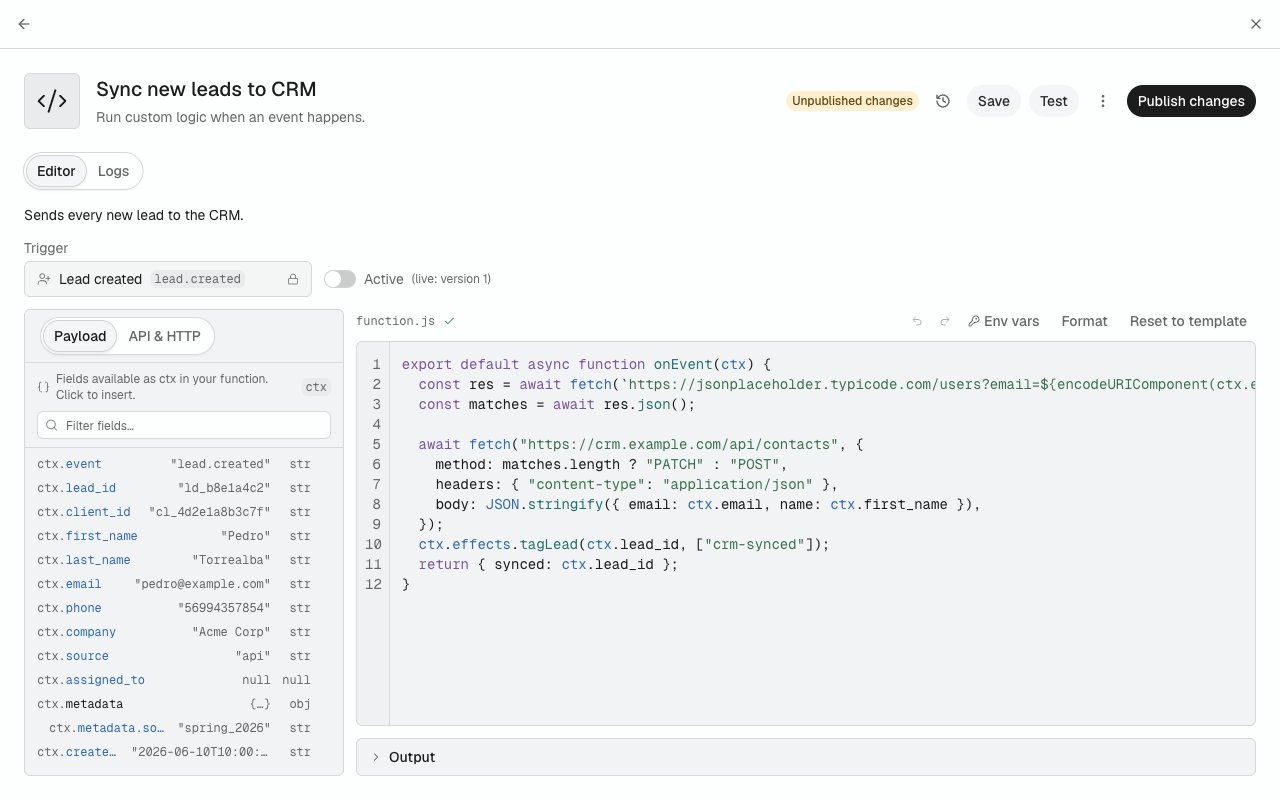
Test without real effects
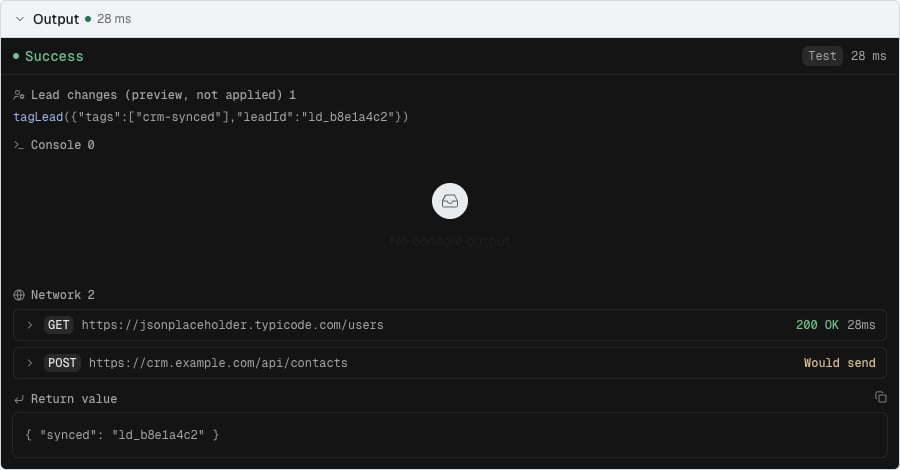
Choose Test (⌘↵), or Test now in Logs. Unsaved edits are saved to the draft first. Without a draft, Test runs the published version. In the Test your draft dialog, edit the samplectx or load a real lead, then choose Run test.
The test runs on a test copy of the function:
A test has the same limits as a real execution: up to five minutes and 20 outbound subrequests. It appears in Logs with the origin Test, but it does not change the run count or the last run. A test of new code can take a few seconds longer because the test copy is prepared first.
Publish changes
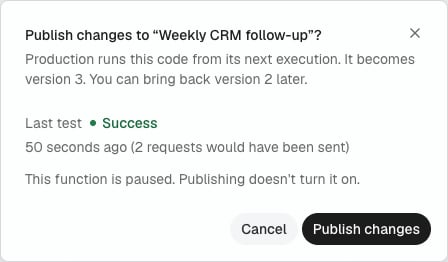
Choose Publish changes when the draft is ready. The dialog says which version it becomes and shows the last test of this draft. It warns when the draft was not tested or its last test failed, but it does not block publishing.- The next matching event runs the new version. Executions already in progress finish on the previous one.
- Publishing a paused function does not turn it on.
- If someone saved the draft after you opened the dialog, it asks you to review the draft and publish again.
- If the new version cannot be deployed, nothing is published and your draft is kept. Try again in a moment.
Restore a previous version
Every publish creates a numbered version. Open Version history in the editor to see each version, who published it, and when. Published marks the live version. Public API marks versions published with an API key or Nexor AI, and Before versions marks the code the function had when version history started. Choose View to read a version’s code, then Restore to draft to copy it into the draft. Restoring never changes production: test the draft and publish it to roll back. If a draft is open, Nexor asks before replacing it. Restoring the live version clears the draft.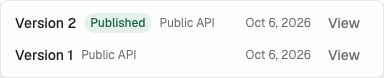
Turn a function on
When Save turns on a function that has a draft, Nexor asks first: the function runs the published version, and your unpublished changes aren’t included until you publish them. If the published version could not be deployed, the function shows Not live in the list and a warning in the editor. Every execution tries to deploy it again before it runs and stops if it still fails.Review executions
The editor output and Logs page help you follow each execution. A run includes:- its origin and trigger;
- success, error, or timeout status;
- duration and timestamp;
- the input
ctx; - console output and uncaught errors;
- redacted HTTP request and response previews, with body previews capped at 16 KiB;
- the returned result; and
- lead and metadata effects produced by the function.
Use Nexor AI, the MCP, or the API
Nexor AI and MCP clients follow the same flow.update_cloud_function saves code changes as a draft and returns its draft_hash. test_cloud_function runs the draft and lists the calls that would be sent; run_cloud_function now does the same. publish_cloud_function requires confirm: true after you approve, and the draft_hash that was tested. discard_cloud_function_draft, list_cloud_function_versions, get_cloud_function_version, and restore_cloud_function_version manage the draft and the history.
With the public API, MCP keys need workflows:read for reads and versions, and workflows:write for every other call. Sending code to the update endpoint still publishes it immediately and records a version. POST /cloud-functions/{id}/run keeps its behavior: it runs the published version without applying effects, and its HTTP requests are real.
Save a draft
Change the code without changing what production runs.
Test a Cloud Function
Run the draft with reads sent, writes held back, and effects previewed.
Publish a draft
Make the tested draft the published version.
List versions
Read the published versions and restore one into the draft.
Cloud Functions or webhooks?
Use a Cloud Function when the event needs code: filtering, transformation, branching, calls to multiple systems, or a write back to the Nexor lead. Use a webhook when you only need Nexor to deliver a signed event to an endpoint you already operate. Use a Scheduled Function instead when the code should run on a cron schedule and receive a lead cohort, active AI agents, or human hosts selected by a lookup. Cloud Functions and webhooks use different event names and payload contracts. For example, the Cloud Function trigger islead.status_changed, while the related webhook event is workflow_run.status_changed. Do not parse ctx as a webhook envelope.