

The short answer
Turning it on
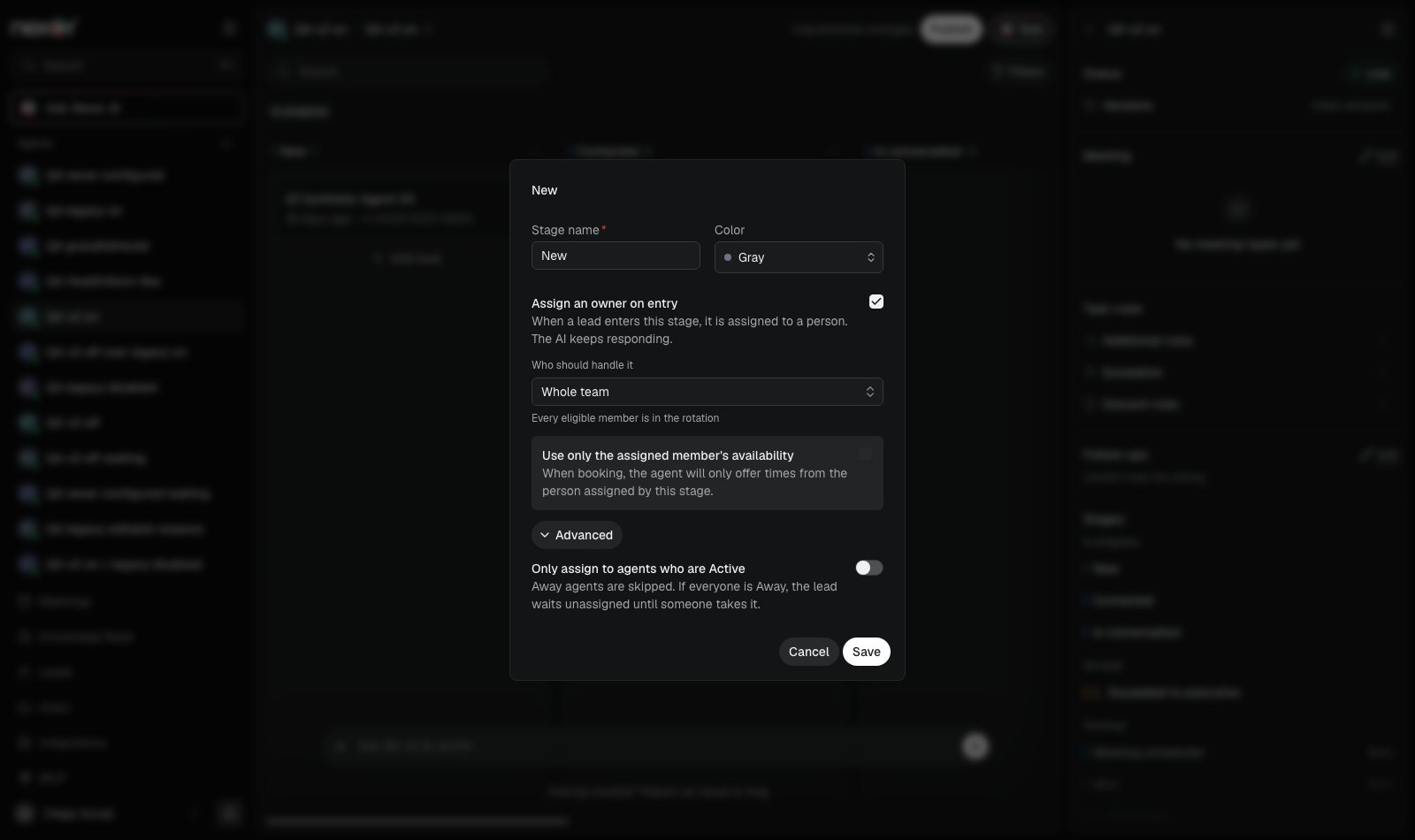
- Open the agent, then the stage in Stages.
- Turn on Assign an owner on entry (on the escalation stage: Executives who respond).
- Open Advanced and turn on Only assign to agents who are Active.
- The first time in a workspace, a confirmation explains that the whole team gets an Active / Away switch. Choose Turn on, then Save.
- On a live task the change is saved in the draft. Publish to apply it.
The Active / Away switch
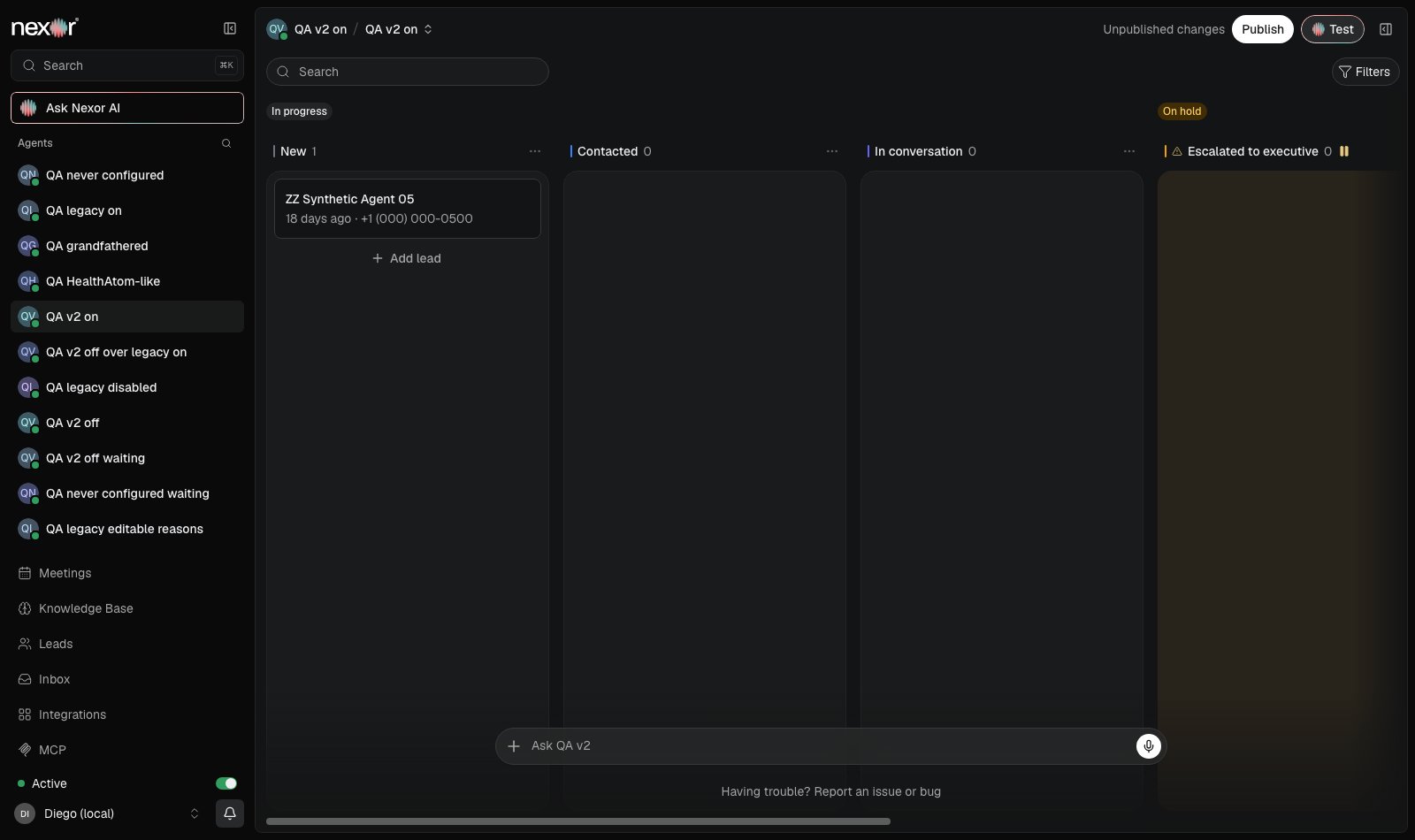
- New members start Away. Members who were already in the workspace keep their status.
- Turning the switch on sets you Active: stages with this setting can give you leads. Off sets you Away: they skip you.
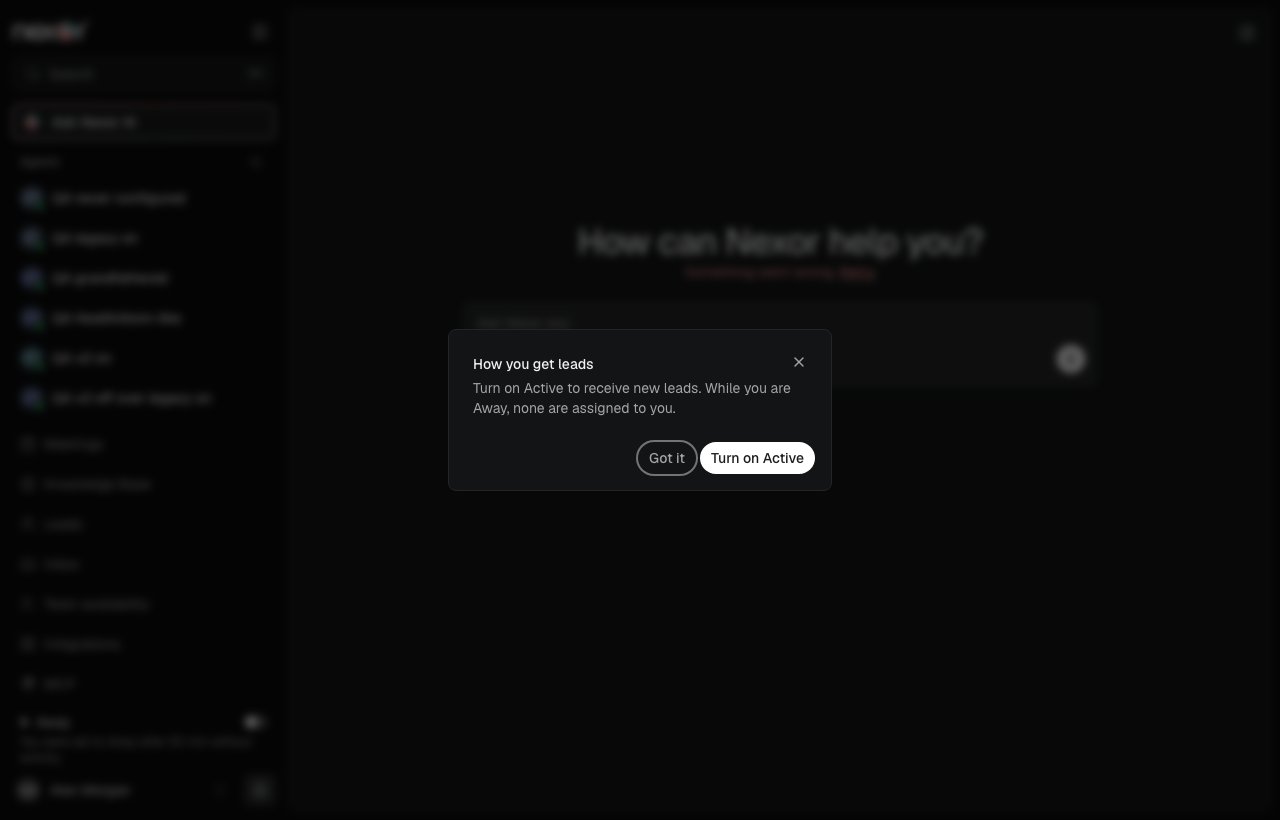
- The first time you see the switch, a window called How you get leads explains it: “Turn on Active to receive new leads. While you are Away, none are assigned to you.” Choose Turn on Active or Got it. It does not show again.
- If you went Away automatically, a line under the switch says so: “You were set to Away after 50 min without activity.”
- Your status is per workspace. Being Away in one workspace does not change another.
Automatic Away
- While you use Nexor, the app tells Nexor you are still there. Using it means the Nexor tab is visible on your screen and you clicked, typed, touched, or scrolled in the last 2 minutes.
- After the idle time without that (50 minutes by default), you go Away. Nexor checks every 5 minutes, so it can take up to 5 minutes more.
- A tab left open with nobody at the desk does not count as using the app.
- On a long phone call without touching Nexor, you can go Away. That is why the default is 50 minutes. Owners and admins can set anything from 10 to 480 minutes for the workspace.
- When this first turns on in a workspace, the idle time counts from that moment. Nobody working at that moment goes Away right away.
- Automatic Away never sets anyone Active and never moves leads you already own.
Team availability screen
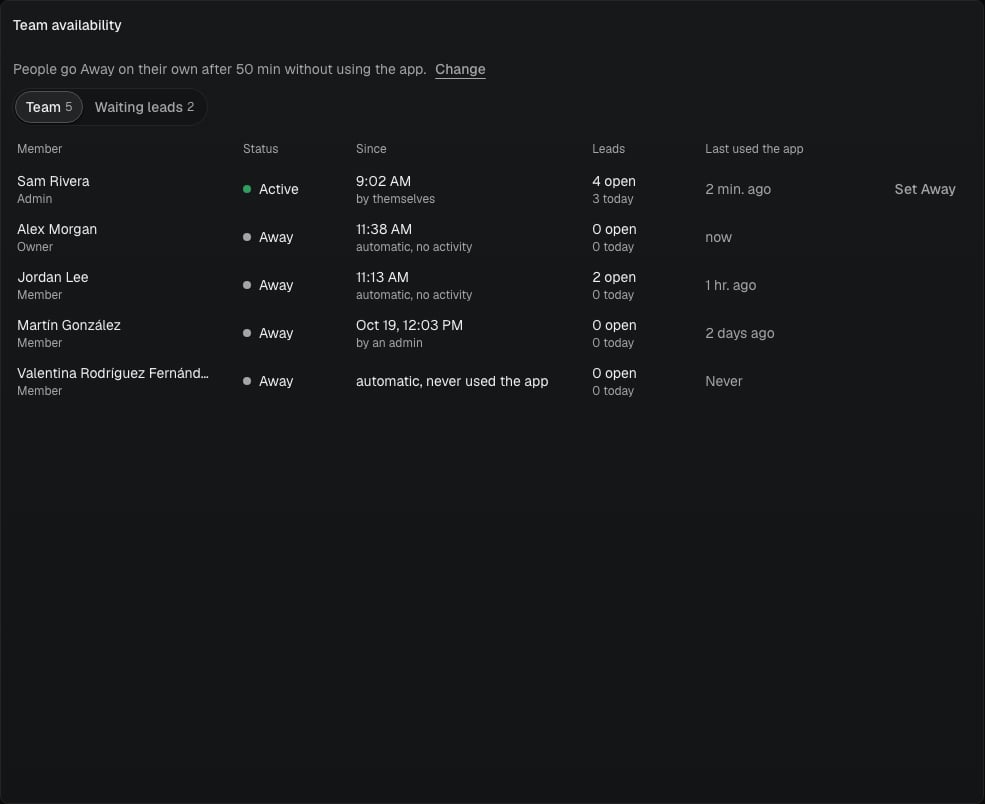
- Set Away shows on Active members. It asks to confirm, then sets them Away. There is no Set Active.
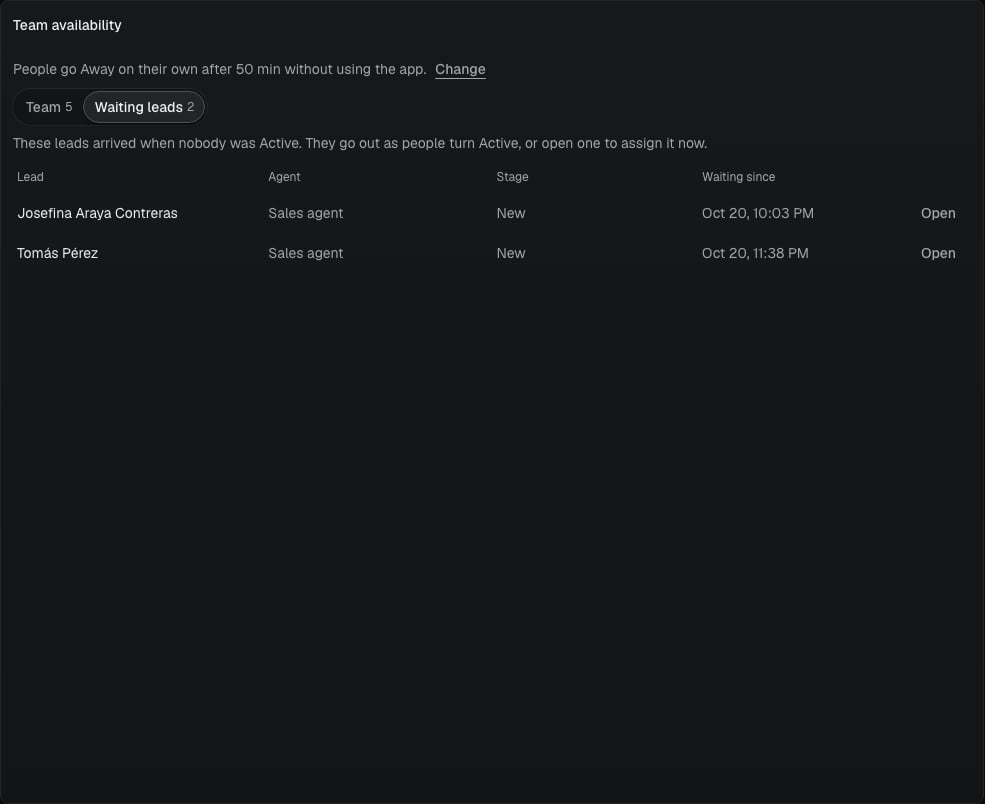
- The line at the top shows the idle time: “People go Away on their own after 50 min without using the app.” Choose Change to set it between 10 and 480 minutes, then Save.
- The screen refreshes every 60 seconds and when you come back to the tab.
How the rotation works
- The stage keeps its mode (taking turns or least busy) among the Active members of its list.
- When the last person who got a lead goes Away, the next lead goes to the next Active person in the list, not back to the first.
- With nobody Active, new leads wait unassigned. When people turn Active, Nexor hands waiting leads out every 5 minutes: in each stage, at most one per Active person, oldest first, with the stage’s usual rotation. The first person back does not get the whole pile at once.
Ask Nexor AI
Owners and admins can ask Nexor AI about availability. Before it changes anything, it says what will change and asks you to confirm. For example:- “Who is Active right now?”
- “Which leads are waiting for a person?”
- “Why didn’t Ana get this lead?”
- “Which stages only give leads to Active people?”
- “Only give leads to Active people in all my agents.”
- “Set Ana Away.” (Away only. Nexor AI cannot set someone Active.)
- “Change the idle time to 30 minutes.”
- “How does Away work?”
From the MCP
Owners and admins can read and change availability from the Nexor MCP. The tools return the same lists as the screen.
The public API has the same operations: Get team availability, Change the idle time, and Set a team member Away.