

Set up Slack
1
Open Slack in Integrations
Go to Integrations and, under Other, select Connect next to Slack.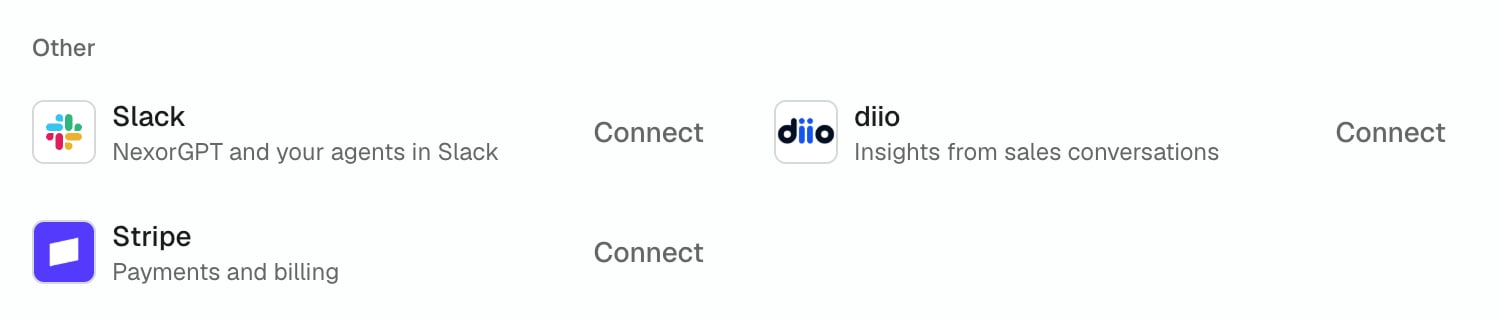
2
Select Add to Slack
On the Slack page, select Add to Slack. Slack opens to ask for access.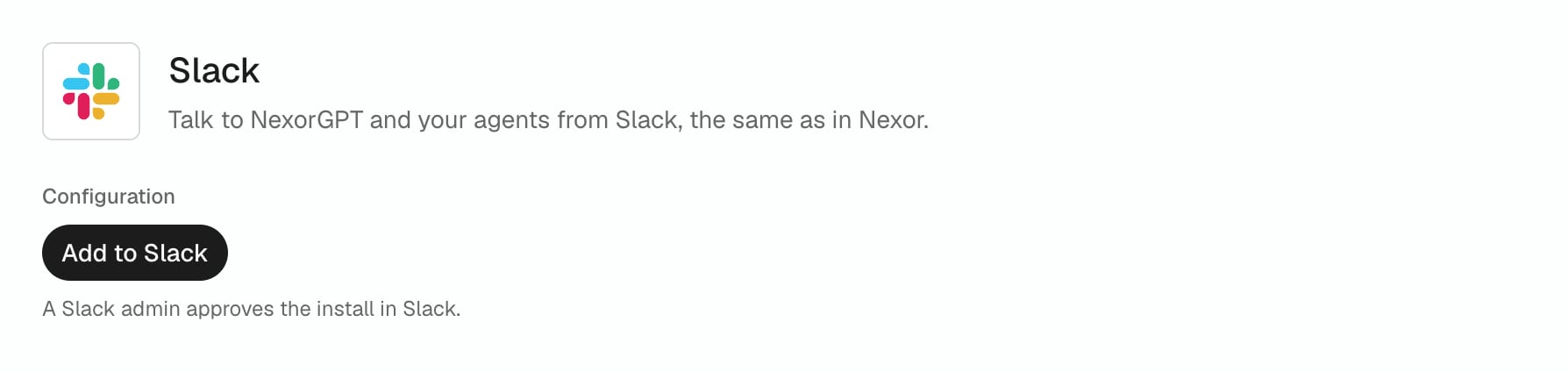
3
Allow NexorGPT in Slack
Choose your Slack workspace and select Allow. If Slack shows App is not approved by Slack, that is expected and does not block the install.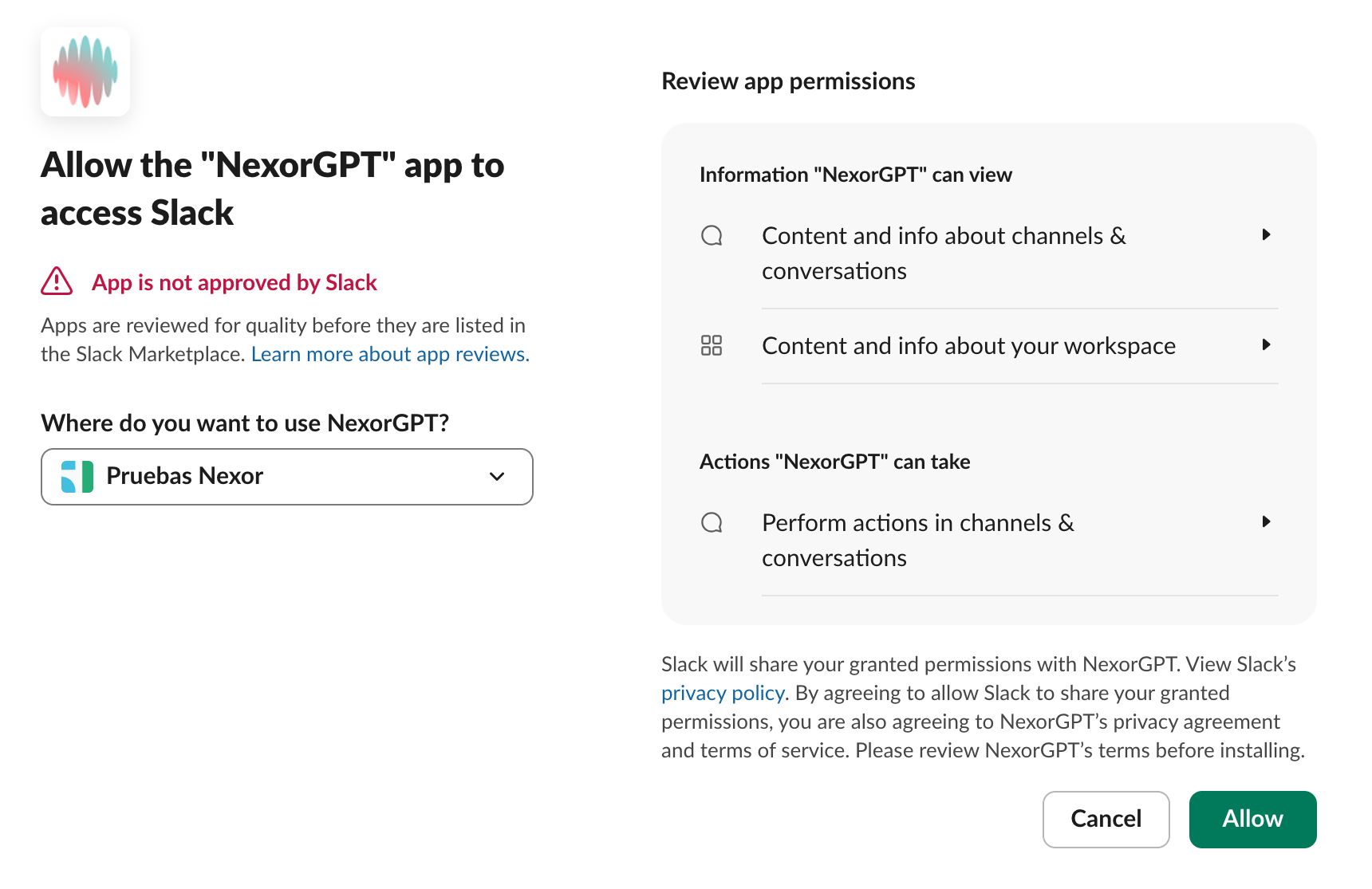
4
For a private channel, invite NexorGPT first
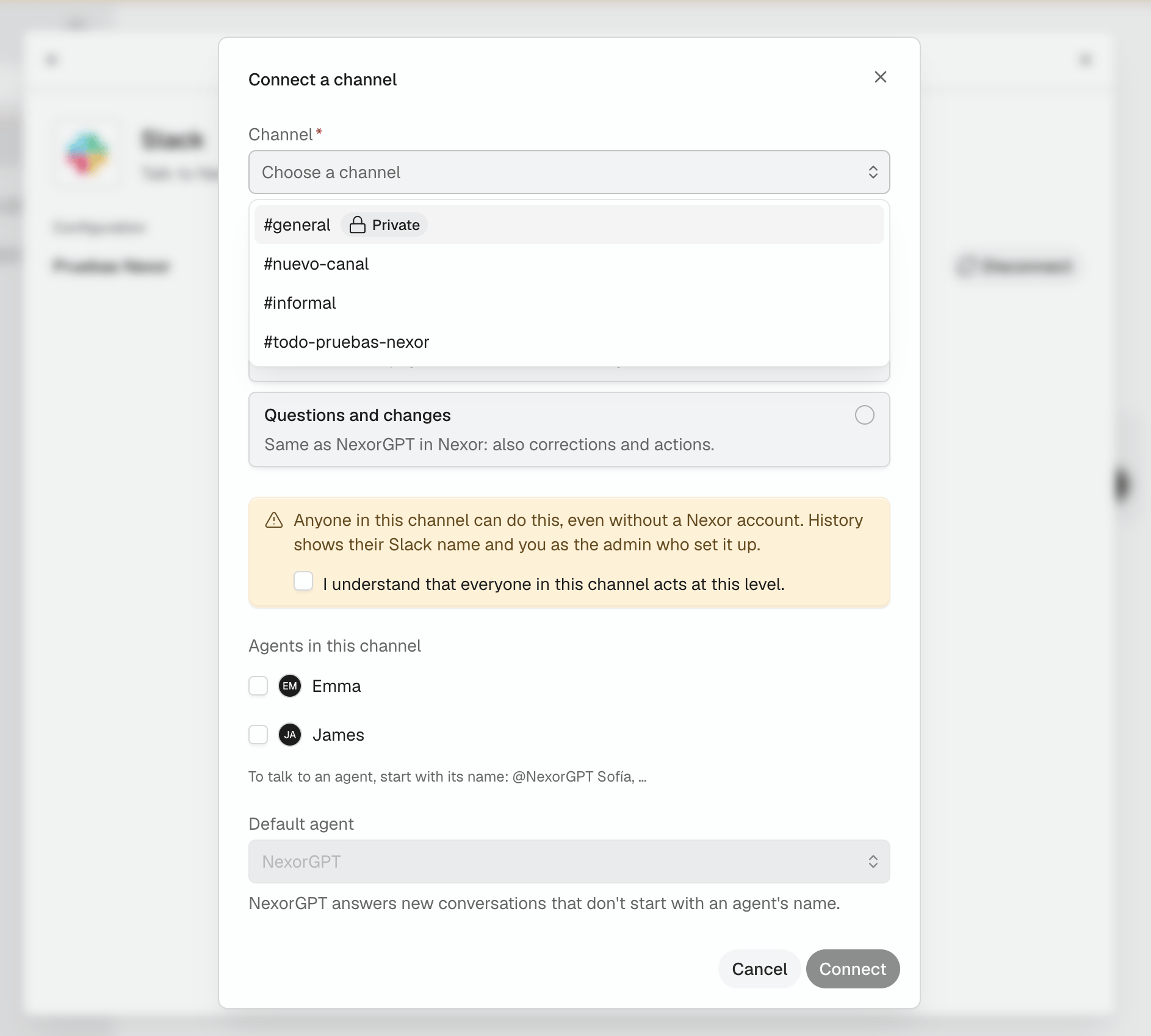
In Slack, open the private channel, type 
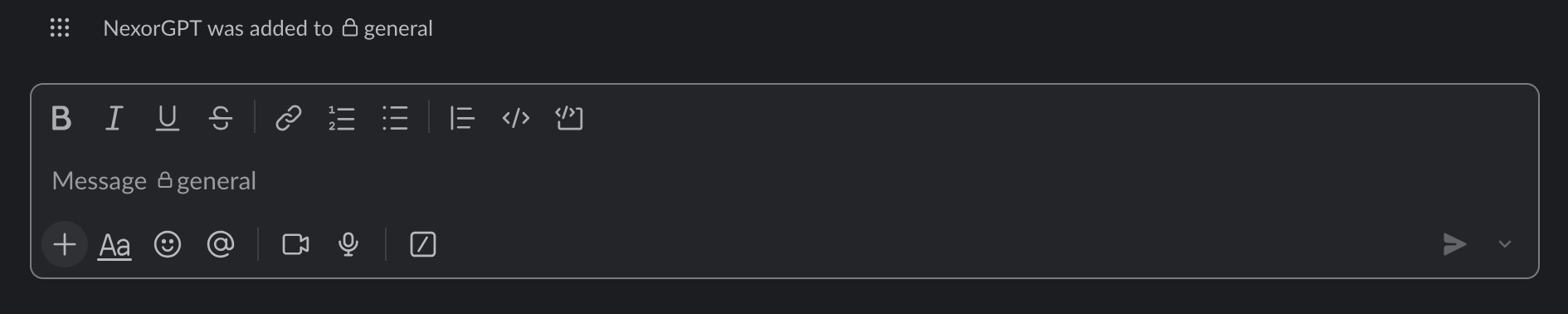
/invite @NexorGPT and press Enter. A public channel does not need this: NexorGPT joins it by itself.If the channel is private, do this in Slack before you choose it in Nexor. The Connect a channel dialog opens by itself after Allow: invite NexorGPT first, then open the channel list.5
Connect a channel
Back in Nexor, select Connect a channel on the Slack page. After the install it opens by itself.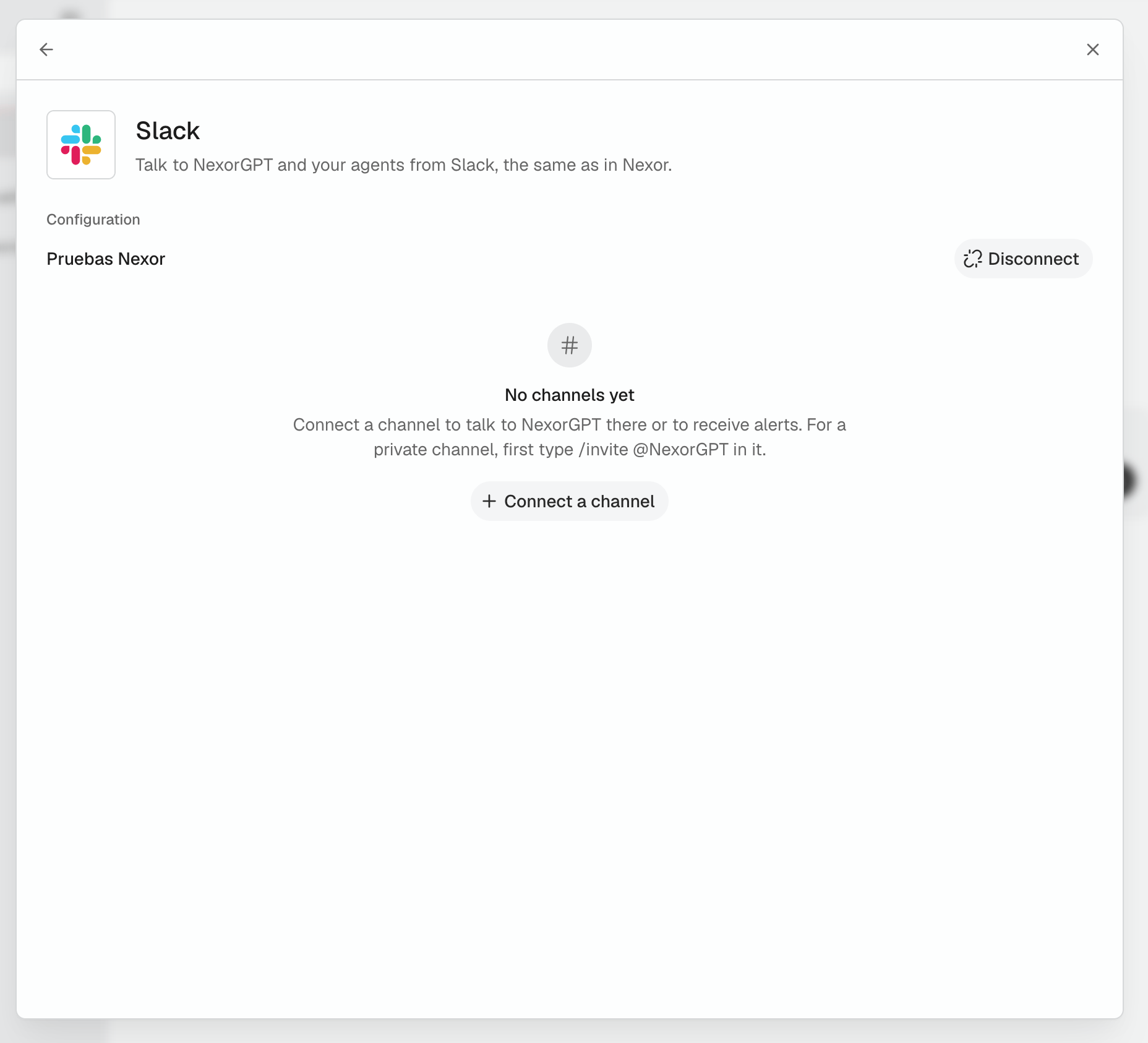
6
Choose your Slack alerts
Open Settings → Notifications and, in the Slack column, choose the channel for each alert, for example Lead needs a person.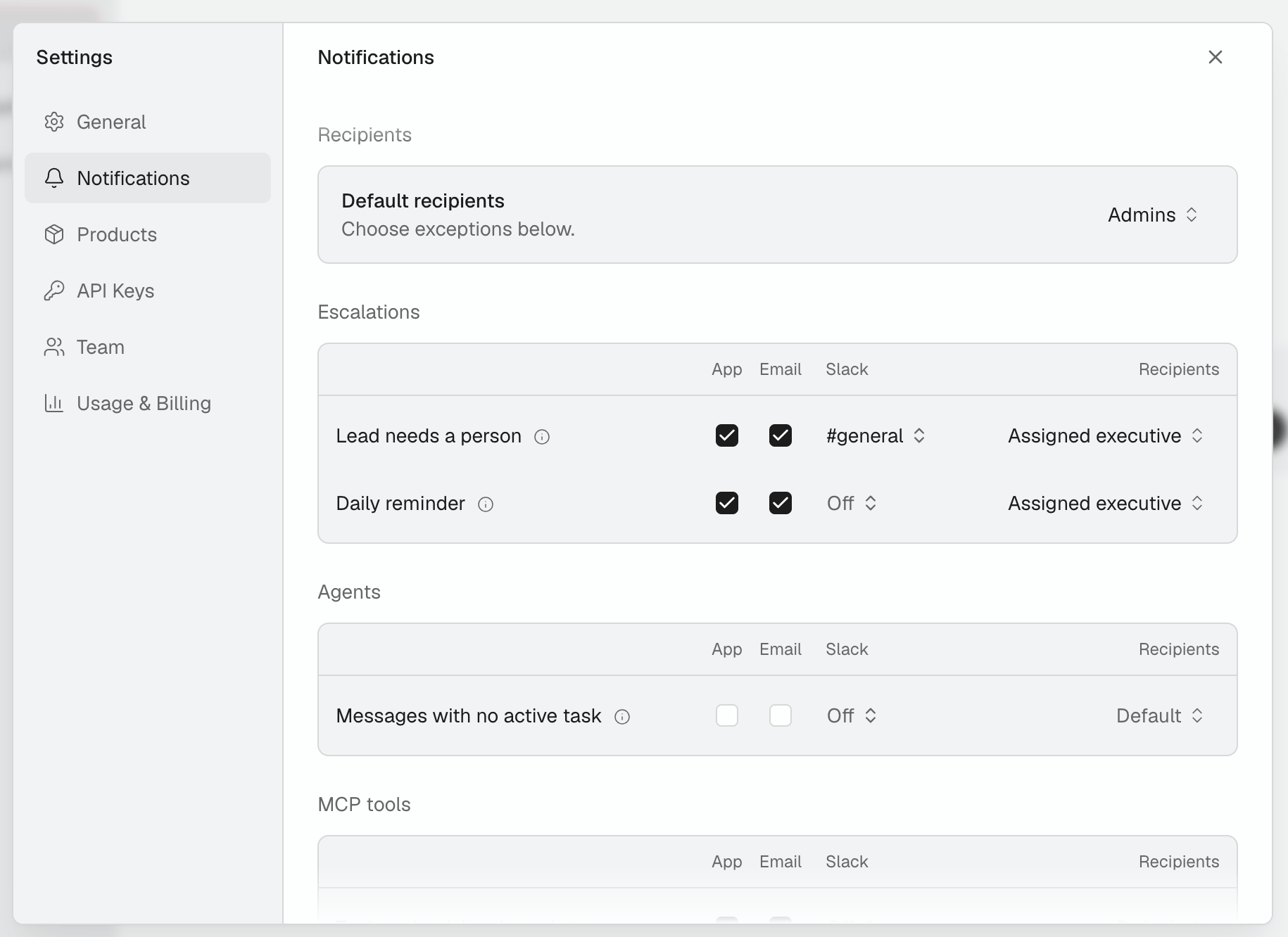
Slack alerts
- Choose a channel, or Off, for each alert in Settings → Notifications. See Notification settings.
- Alerts are posted from 9:00 to 21:00 in the account’s time zone (Tool server error is posted at any hour).
- To ask about an alert, reply in its thread and mention @NexorGPT.
Use NexorGPT and your agents
- To start, mention @NexorGPT in a connected channel, for example
@NexorGPT how many leads came in this week?It answers in a thread. - To talk to an agent, include its name anywhere in your message, with no comma or set order needed, for example
@NexorGPT have Sofía check this. The agent must be added to the channel. - If you don’t name anyone, the channel’s default agent answers, or NexorGPT if the channel has none.
- In a thread where NexorGPT or an agent already answered, anyone on your team can keep going without mentioning @NexorGPT. Guests and people from other companies cannot ask.
- NexorGPT stays quiet when people talk to each other. Without the mention, nothing is changed until the person NexorGPT asked confirms it.