

If you don’t see Sub-accounts in the account menu at the bottom of the sidebar, contact Nexor Support to request access. Only Owners and Admins of the main account see it.
What a sub-account is
A sub-account is a separate Nexor account that belongs to your account, the main account. It has its own team, agents, numbers, conversations, and leads. Its team never sees the main account or the other sub-accounts. The main account sees and manages all its sub-accounts, and pays for them through one plan. A sub-account is not the way to:- Add teammates. To give someone access to your own account, invite them from Settings → Team. See Members and roles.
- Add agents. To add an agent to your own account, create it in your account. A sub-account is a whole separate account, not an extra agent.
How billing works
Billing is unified in the main account:- Every lead a sub-account contacts counts toward the main account’s plan. Each lead counts once, in the account where it was contacted.
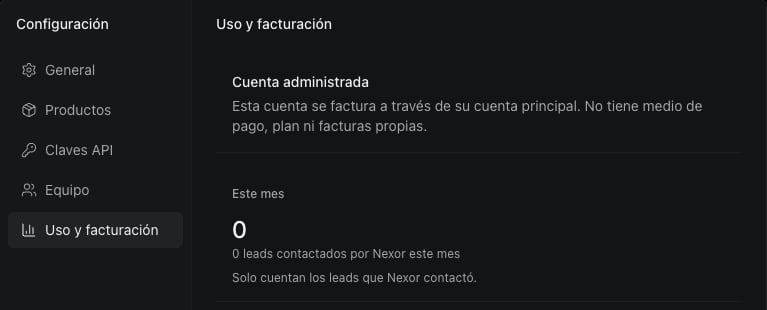
- A sub-account has no card, plan, or invoices of its own. In the sub-account, Settings → Usage & Billing shows Managed account and the leads Nexor contacted this month.
- In the main account, Settings → Usage & Billing adds a By account breakdown with the leads each account contacted.
Create a sub-account
1
Open the account menu
Select your name at the bottom of the sidebar. Under Sub-accounts, select Create sub-account.
2
Describe the account
Enter the Company name, Country, Language, and Time zone of the sub-account.
3
Name the owner
Under Sub-account owner, enter the Name and Email of the person who will run the sub-account. The email cannot belong to a member of your main account.
4
Create it
Select Create. Nexor creates the sub-account and emails an invitation to its owner.
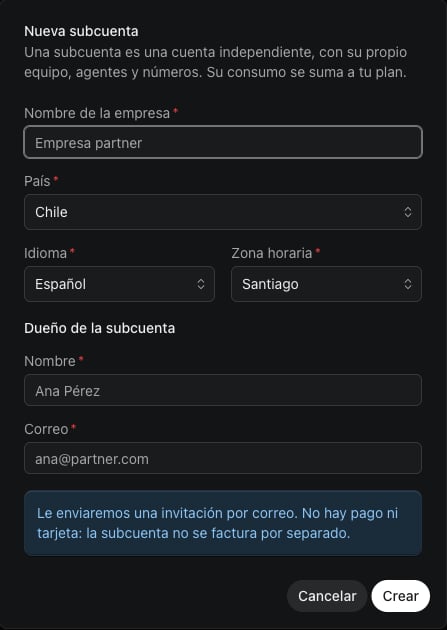
The owner invitation
The invitation is valid for 7 days. Until the owner accepts it, the sub-account shows as invited.- If the email could not be sent, Nexor shows the invitation link so you can copy it and share it yourself.
- If the invitation could not be created, the sub-account still exists. Send the invitation again from the list.
- To send a new link, open the three-dot menu next to the sub-account and select Resend invitation. The new link is also valid for 7 days.
Open and work inside a sub-account
Select a sub-account in the account menu to open it. You work there as an Owner, without being added to its team. The account line at the bottom of the sidebar shows which account you are in. Inside a sub-account it reads, for example, Partner (sub-account). To go back, open the account menu and select your account under Parent account.Copy an agent to a sub-account
1
Choose the sub-account
In the account menu, open the three-dot menu next to the sub-account and select Copy an agent.
2
Choose the agent
Pick the agent to copy. An agent is copied with all its tasks.
3
Copy it
Select Copy. The copy appears in the sub-account, paused.
Pause, deactivate, and reactivate
Open the three-dot menu next to a sub-account to change its state.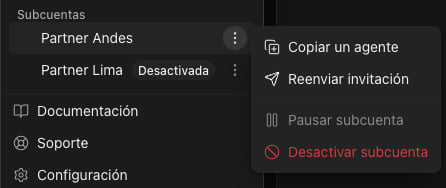
Limits
- One level. A sub-account cannot have sub-accounts of its own.
- No delete. Deactivate a sub-account instead. Its data is kept.
- Existing accounts. To link a Nexor account that already exists as a sub-account, or to detach a sub-account from its main account, contact Nexor Support.
- Who can manage them. Only Owners and Admins of the main account.
Manage sub-accounts by chat or API
Nexor AI can do all of this from the chat (open it with Ask Nexor AI at the top of the sidebar): list your sub-accounts and their usage, create one and invite its owner, resend an invitation, copy an agent, and pause, deactivate, or reactivate a sub-account. Any AI connected to the Nexor MCP server can do the same with these tools:list_sub_accounts, create_sub_account, resend_sub_account_invitation, copy_agent_to_sub_account, pause_sub_account, deactivate_sub_account, and reactivate_sub_account.
Developers can use the public API. Start with List sub-accounts.