

What the integration does
- Each seller (meeting host) connects their own Zoom account to Nexor.
- An Owner or Admin sets a meeting type to Zoom.
- When the agent books a meeting, Nexor creates a Zoom meeting on the host’s Zoom account and puts its link in the calendar event, the confirmation email, and the reminders.
- When the meeting is rescheduled in Nexor, Nexor moves the same Zoom meeting, so the link does not change. When it is canceled in Nexor, Nexor deletes the Zoom meeting.
Before you connect
Each host who receives Zoom meetings needs:- A Zoom account.
- A connected Google Calendar or Outlook Calendar. A connected calendar is required: Nexor reads availability from it and writes the meeting event there.
- A weekly schedule in My availability. See Calendars and availability.
Connect Zoom
Each seller connects their own Zoom account while signed in to Nexor. Nobody can connect Zoom on behalf of a teammate.1
Open My availability
Open Meetings, or Calendar if you are a Member, and select My availability.
2
Save your schedule first
The Zoom section is at the bottom of the window. If you changed your hours, select Save first. Connecting Zoom leaves the page, and Nexor shows Save your availability before connecting Zoom. while there are unsaved changes.
3
Connect
In the Zoom section, select Connect.
4
Approve access in Zoom
Sign in to the Zoom account you use for meetings and approve every permission Nexor requests.
5
Return to Nexor
Zoom sends you back to Nexor, which shows Zoom connected. The Zoom section now shows the connected Zoom email and Disconnect Zoom.
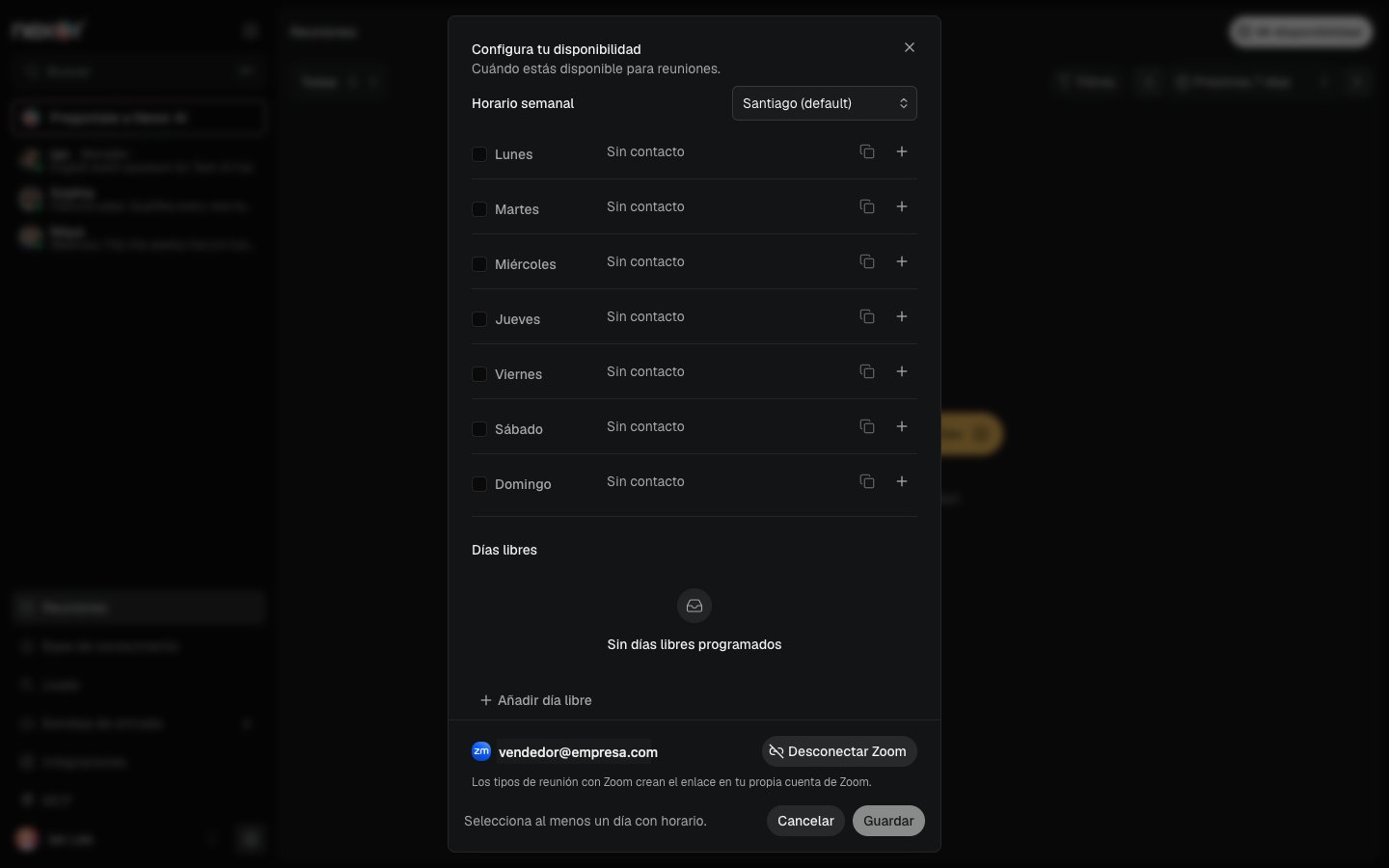
The Zoom section at the bottom of My availability, with a connected account. Shown in the Spanish interface.
Connect from Integrations
Owners and Admins also see Zoom in Integrations, under Calendar & booking. Opening it shows the same connection for the signed-in user, with Connect or Disconnect Zoom.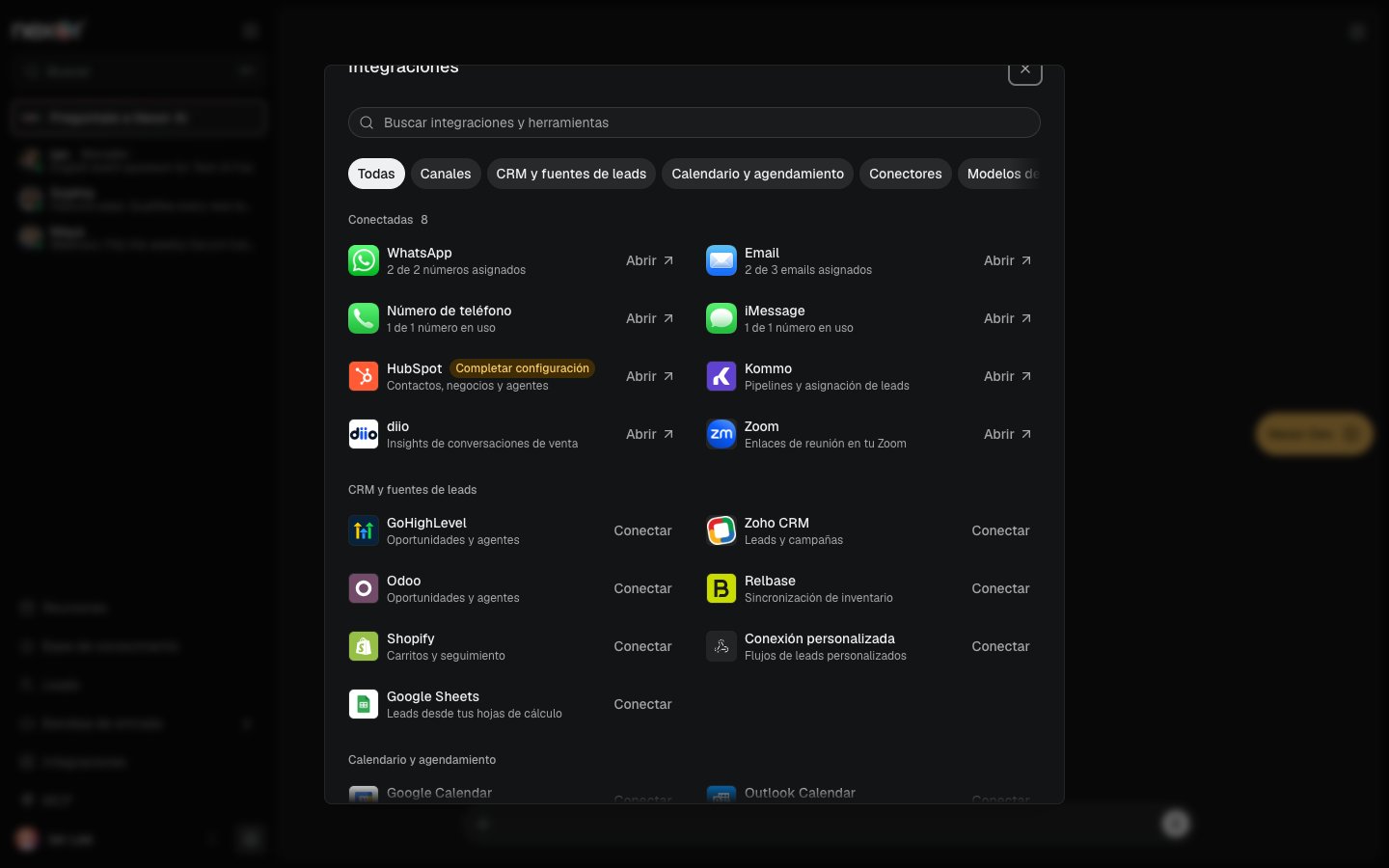
Zoom in the Integrations list, under connected integrations. Shown in the Spanish interface.
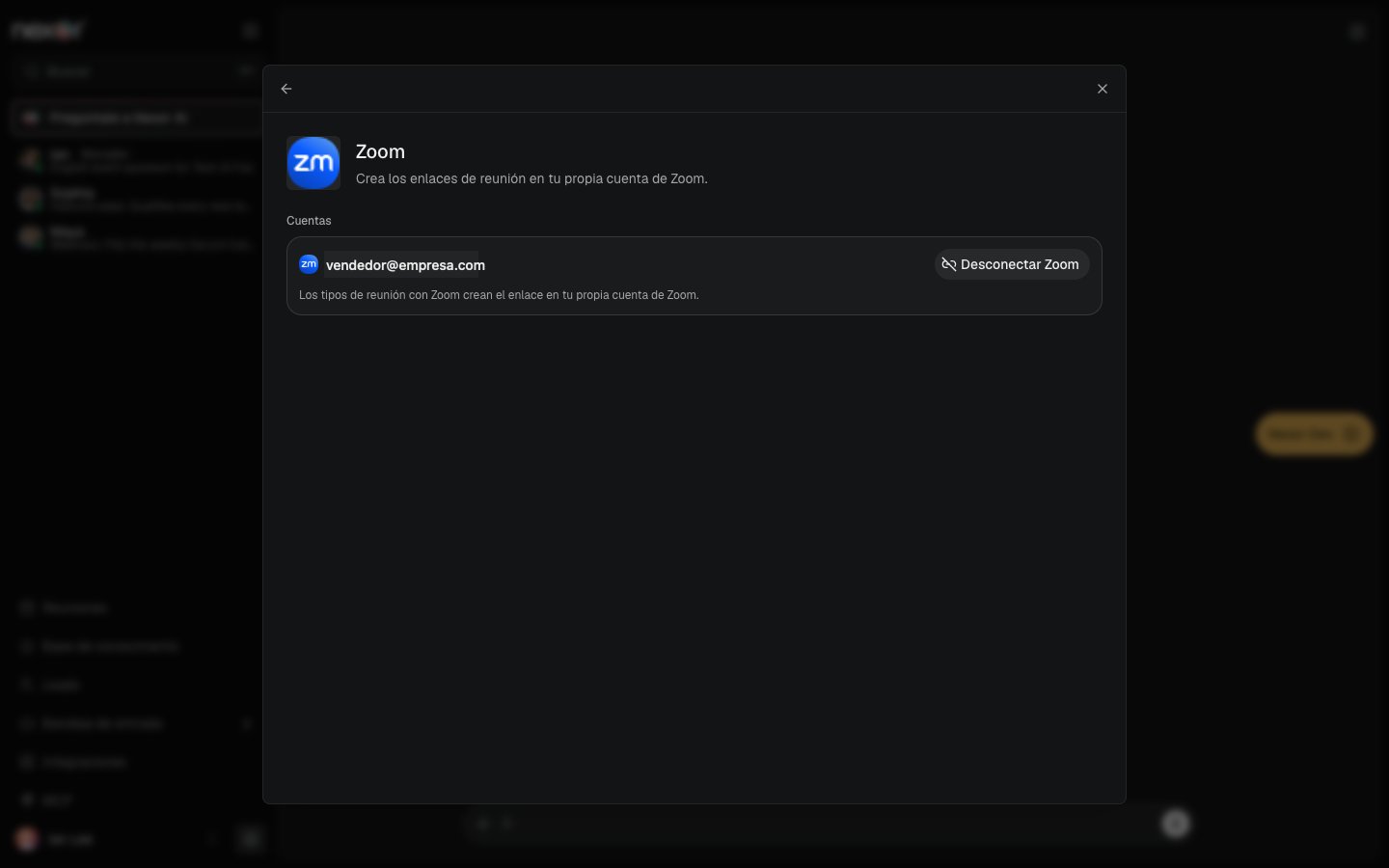
The Zoom detail page with a connected account. Shown in the Spanish interface.
Use Zoom in a meeting type
An Owner or Admin chooses Zoom in the task that books meetings.1
Open the Meeting section
Select the agent and open the task that books meetings. In the Meeting section of the right pane, choose Edit.
2
Set the type to Zoom
In Type, choose Zoom.
3
Check the hosts
Under Who takes your meetings?, confirm that every assigned host has connected Zoom, then select Save.
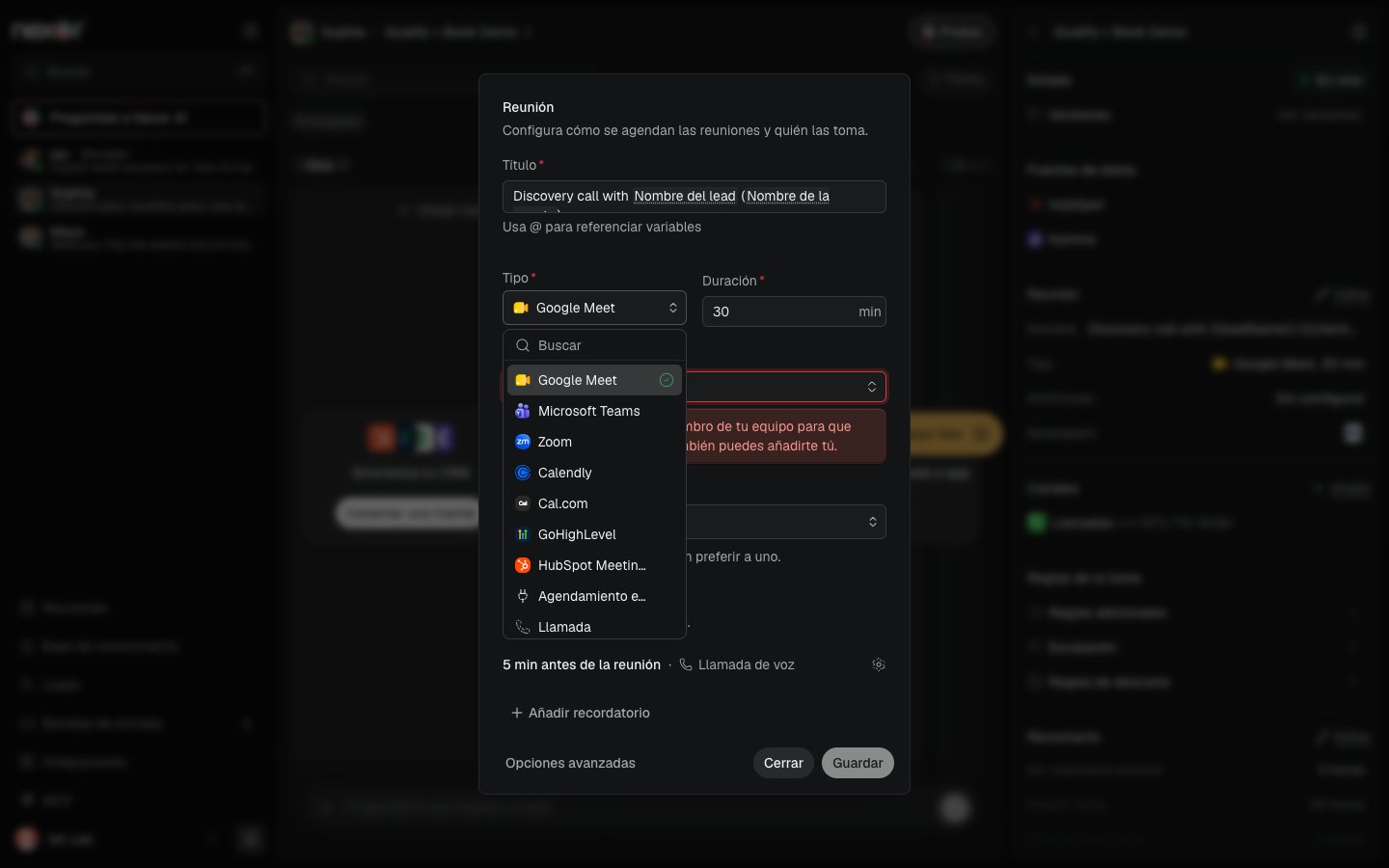
The Type menu of the Meeting window, with Zoom next to Google Meet and Microsoft Teams. Shown in the Spanish interface.
- No host has Zoom connected. Meetings will use each host’s calendar video link until they connect Zoom.
- 1 host doesn’t have Zoom connected. Their meetings will use their calendar’s video link.
What happens when a meeting is booked, moved, or canceled
If the calendar event cannot be created, Nexor deletes the Zoom meeting it just created, so no orphan meeting stays in Zoom.
Reschedule and cancel meetings from Nexor. Nexor does not watch Zoom for changes, so editing or deleting the meeting directly in Zoom does not update the Nexor meeting.
If a host has not connected Zoom
The booking still goes through. Nexor falls back to the video link of the host’s own calendar: Google Meet for Google Calendar, or Microsoft Teams for Outlook. The same fallback applies when:- The host’s Zoom connection needs a new sign-in. Nexor shows Sign in to Zoom again. Until then, your meetings use your calendar’s video link. and an Authenticate button in the Zoom section.
- Zoom cannot create the meeting at booking time.
Disconnect Zoom
You can disconnect in Nexor or in Zoom.In Nexor
Open My availability, or Integrations → Zoom, and select Disconnect Zoom. Nexor asks Disconnect Zoom? and explains that new meetings will use your calendar’s video link instead. After you confirm, Nexor asks Zoom to revoke its access and deletes the stored Zoom tokens.In Zoom
Sign in to the Zoom App Marketplace, open Manage → Installed apps, find Nexor, and remove it. Zoom notifies Nexor, and Nexor deletes the stored Zoom tokens and the Zoom email for that account. If the same Zoom account is connected in more than one Nexor workspace, removing the app disconnects it in all of them.After disconnecting
- New meetings use the video link of your calendar.
- Zoom meetings that Nexor already created stay in your Zoom account and keep working. Nexor can no longer move or delete them, so reschedule or cancel upcoming Zoom meetings in Nexor before you disconnect, or update them in Zoom yourself.
- To use Zoom again, connect it again from My availability.
Permissions and data
When you connect, Nexor requests permission to:- Create, update, and delete the Zoom meetings that your agent books.
- Read your basic Zoom profile (Zoom user ID and email), to show which Zoom account is connected.
Troubleshooting
Zoom does not appear in Nexor
Zoom is enabled on request. Nexor shows Zoom isn’t enabled for your account yet. Contact support to turn it on. Contact Nexor Support.Zoom didn’t grant every permission
Nexor shows Zoom didn’t grant every permission Nexor needs. Connect again and approve all permissions. Connect again and approve every permission on Zoom’s screen.The Zoom sign-in did not finish
Nexor shows Zoom sign-in couldn’t be completed. Try again. Start again from My availability.Meetings use Google Meet or Teams instead of Zoom
Check that the meeting type is set to Zoom and that the assigned host’s Zoom section in My availability shows a connected account, not Needs attention. If it needs attention, select Authenticate and sign in to Zoom again.Configure meeting types and hosts
Choose the meeting type and assign the hosts who take meetings.
Set calendar availability
Configure weekly hours, time off, and the host’s timezone.