

Watch the walkthrough
Use the steps below for the current Google, Outlook, and weekly-availability behavior.Before you start
- The workspace needs an Agent that can book appointments. Otherwise, Meetings may not appear in the navigation.
- The calendar button is available to workspace Owners, Admins, and Members who host meetings.
- A host connects their own Google or Outlook account while signed in. The button in Meetings always configures the current user.
- Choose the provider that matches the meeting’s video setting: Google Calendar for Google Meet, or Outlook for Microsoft Teams.
/meetings page.
Connect a calendar
1
Open Meetings
Open Meetings. If you are signed in as a Member, open Calendar instead.
2
Start the connection
Click Connect your calendar. Choose Google or Outlook.
3
Authorize the provider
Sign in to the calendar account the host uses for meetings and approve the requested access. Google opens Google’s consent screen. Outlook opens Microsoft’s authorization flow.
4
Return to Nexor
After authorization, Nexor returns you to Meetings. Outlook briefly shows Connecting Outlook Calendar… while it finalizes the connection.
Check the connection status
Open My Availability to see the active provider, the connected account email when available, and Connected since with the connection date. If the date is unavailable, Nexor shows Calendar connected instead. The connection belongs to the signed-in person and may appear in more than one of that person’s Nexor accounts. This does not guarantee that every account will use it for new bookings: the meeting type and each workspace’s calendar setup still determine where Nexor creates an event. If Nexor no longer recognizes any active calendar connection, Meetings shows Connect your calendar again. Start the same provider flow to authorize it again.Disconnect or switch providers
Open Integrations, choose Google Calendar or Outlook Calendar, and select Disconnect. To switch providers, disconnect the active one and then connect the other. A personal calendar applies to all your Nexor accounts, so disconnecting it disconnects it everywhere. After a connection is removed, Nexor stops using that removed connection for new bookings, but it does not delete calendar events that were already created. Review any upcoming meetings before you disconnect.Set your weekly schedule
After the calendar is connected, the button in Meetings changes to My Availability.1
Open your availability
Click My Availability. The dialog shows the connected provider and, when available, the account email and connection date.
2
Choose a timezone
Use the timezone menu beside Weekly schedule. Keep the option marked default to use the workspace timezone, or choose the host’s own timezone.
3
Choose available days
Select each weekday when the host accepts meetings. Enabling a day adds a 09:00 to 17:00 range that you can change.
4
Adjust the time ranges
Change the start and end time as needed. You can add more than one range to a day, remove a range, or copy a day’s ranges to the next day.
5
Save
Click Save. At least one day must have an active time range.
Some hosts may already have weekday hours after connecting. These hours are not a confirmation of the host’s real schedule. Review and change them before accepting bookings.
Add time off
Use Time off in the same dialog to remove a full date from the weekly schedule.- Click Add time off.
- Choose today or a future date.
- Save the availability dialog.
Meetings across time zones
The Agent’s zone defines the date range used to search for meetings. A host’s own zone controls their working hours when their personal timezone setting is enabled. A host in another country does not extend the requested search into an extra day. The lead can use a different local clock from both the Agent and the host. Confirm the zone when discussing a time across countries, especially around midnight or a daylight saving change. If a selected time becomes unavailable, replacement suggestions use the same part of the day in the booking’s reference zone.What Nexor checks when offering times
To contribute times in Nexor’s native booking flow, a host needs:- an active assignment to the meeting type
- an active weekly schedule with at least one time range
Choose how meetings are assigned
Open the booking task and, in the Meeting section of the right pane, choose Edit. In the Meeting window, use Meeting assignment to choose a mode:- Based on availability: offers available times from assigned hosts without preferring one.
- Round robin: rotates among hosts with available times. The agent does not choose the host.
- Rules by variable: assigns one host, or prevents booking, for each answer to a selected variable.
- Custom: reveals a required instructions field. The agent chooses an available host according to what you write.
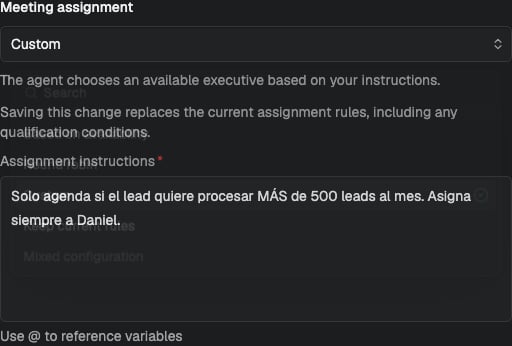
Set rules by variable
Use this mode for Nexor-managed meetings when the host depends on a known answer, such as product, location, or eligibility.- In the Agent’s Variables, configure an options variable or a Yes/No variable. Free-text and numeric variables are not listed in this editor.
- Choose Rules by variable, then select the Variable. An options variable shows its saved choices; a Yes/No variable shows Yes and No.
- For every displayed answer, choose one assigned host or Do not book. For example, Product A can go to Alex and Product B to Sam; an eligibility variable can send Yes to Alex and No to Do not book.
- Select the page’s Save changes action. Every answer needs a decision before the rules can be saved.
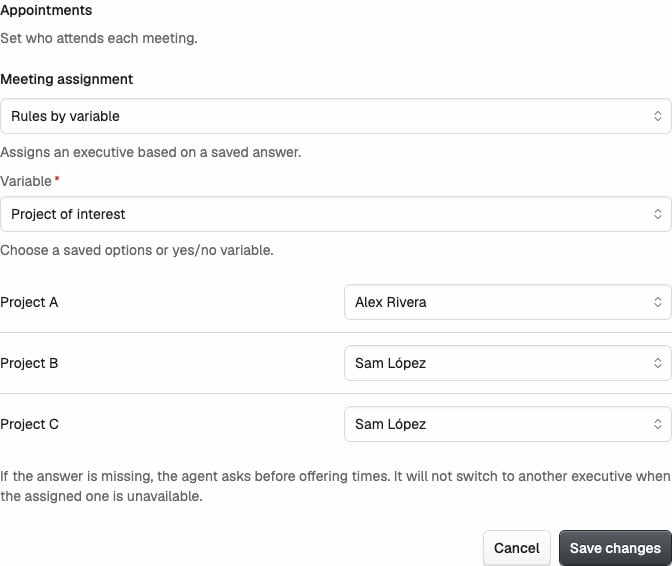
Troubleshooting
Meetings is missing from the navigation
Confirm that the workspace has an appointment-booking Agent. Meetings stays hidden for workspaces whose Agents do not book meetings.Connect your calendar is missing
Confirm that you are signed in as an Owner, Admin, or Member who hosts meetings. The connection belongs to the signed-in user, not another team member.The other provider cannot be selected
The host already has an active personal calendar provider. Disconnect it from Integrations before connecting the other one.No times are offered
Open My Availability and check that:- at least one weekday is selected
- every selected range has an end time after its start time
- the timezone is correct
- the date is not under Time off
- the host is assigned to the active meeting type
The connection needs attention
Reconnect the provider if access expired, permissions were removed, or Nexor reports that reauthorization is required.Google Calendar
Connect Google and understand the Google-specific authorization flow.
Outlook Calendar
Connect Outlook and understand how Nexor creates Microsoft Teams meetings.