

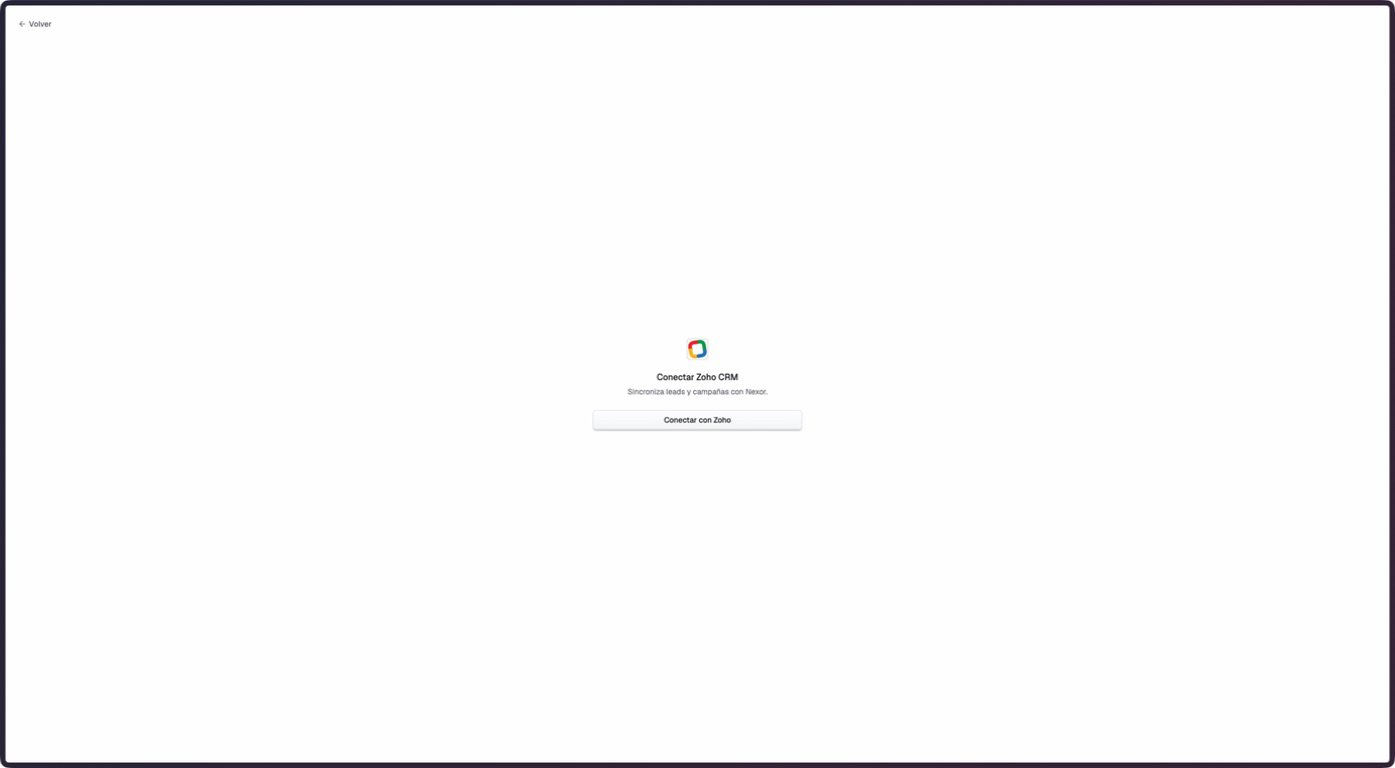
The Zoho OAuth entry point in staging on September 7, 2026. The connected workspace was not available for capture.
Before connecting
Use a Zoho account that can authorize access to the selected Leads or Accounts module and let Nexor read the field and organization settings needed to configure the integration. The exact Zoho plan that includes this access is not established by the Nexor product or API.Connect Zoho
1
Open Zoho CRM
Go to Integrations → Zoho CRM.
2
Start OAuth
Select Connect with Zoho. There is no client ID, client secret, or grant code to copy into Nexor.
3
Approve access in Zoho
Review the permissions on Zoho’s consent screen and approve the connection. Nexor returns to the Zoho integration after the callback completes.
4
Review Outputs
Open Outputs and confirm the data and status mappings before relying on the connection.
Update existing organizations
Open a task’s Zoho output editor and choose Organizations as the module. This mode uses the same OAuth connection and requires no Cloud Function. The connection needs permission to search and update Accounts and read their fields.- Choose the identifying Variable and its Zoho field. For a Chilean RUT, select formatting without dots and with a hyphen; K is uppercased.
- Choose the Zoho stage field and the stages where updates are allowed. Names and options come from your account; a similar label is not sufficient.
- Map captured Variables to existing fields. For an address including municipality and a separate municipality field, capture and map both values independently. Sales software must use an exact Zoho dropdown option; location count must contain a valid number for the selected field.
- For a booking task, optionally choose the stage after a confirmed meeting. Nexor requires a saved, noncancelled meeting for the same contact and task run; a Nexor status change alone is not booking evidence.
- Save. Organizations output is paused. Select a contact and preview the proposed fields. If this task has no contacts yet, execution data is not available for a preview.
- Activate after reviewing the settings. The account’s global Zoho output must also be enabled. Activation affects future events and does not replay history.
When the stage belongs to a Deal
If company data lives in Organizations and commercial progress lives in Deals, choose Where is the stage? → Related deal. Then select Stage and its actual options for eligible stages and the booked stage. The identifier and company data mappings still target Organizations; do not move those mappings to Deals. This mode requires exactly one Deal associated with the organization. Nexor counts all associated Deals before checking their stages. No match, multiple matches, or an incomplete lookup blocks writes to both records. Nexor does not choose the newest Deal or create one. The connection needs read and update permissions for Deals as well as Organizations. Nexor checks the Deal stage before updating company data. When a saved meeting exists, it verifies the Organization fields first and then changes the Deal’sStage. These are two independent writes: if the second fails, company data may already have changed, but Nexor does not mark the full operation successful. A retry checks both records again.
The preview separates Organization fields, the Deal identifier, and its proposed stage change. Saving configuration pauses output and does not write Zoho records.
You can ask NexorAI: “For this task, keep the seven Organization mappings. The stage is Stage on its unique related Deal. Use Universo and Prospeccion (No Agendado) as eligible stages and Prospeccion (Agendado) after a saved meeting. Read Zoho’s options, save paused, and confirm the saved settings without using contacts or writing CRM records.” NexorAI must inspect both module catalogs and reuse your already-confirmed choice to use one related Deal.
Configure through NexorAI
You can ask: “Configure this task to update Organizations by RUT only in Universo and Prospeccion (No Agendado). Map legal name, organization name, full address, municipality, sales software and location count. After a confirmed booking, move it to Prospeccion (Agendado). Save paused and show me a preview.” NexorAI can inspect real fields and options, configure required Variables through its Variable tools, save mappings and preview a run. It must report missing access, Variables or test contacts. The same permissions and revisions apply as in the interface. Group changes require reviewing every member task. Activation requires an explicit instruction. A preview is a read, not a verified update. Last verified execution evidence identifies the task, run, organization and verification time. Before retiring an earlier Cloud Function, review its triggers, pause that output with authorization and verify a real native write to avoid duplicate automations.Import organizations into a task
Open the task’s CRM → Zoho → Organization intake. First configure its Organizations output, identifying field, captured Variables and allowed stages in the related Deals.Stage field. Intake reuses those settings.- Choose the contact source explicitly: the contact linked through the deal’s Contact_Name, the organization itself, or Deal contact, then organization.
- Select the phone and name fields from that source’s actual catalog. Email and surname are optional. Nexor does not fall back to a different contact source.
- Save paused, review the settings, then select Activate intake. Activation can start contacting both existing and future eligible organizations; it is separate from activating output.
- Review the latest batch: scanned, imported, already existing and skipped records, with reasons or an error. No activity means the importer has not yet recorded a scan, not that the connection is broken.
get_agent_zoho_intake and change_agent_zoho_intake, and requires a separate activation instruction. It must distinguish saved settings from a completed import.
What Nexor sends to Leads
Nexor can enqueue a Zoho update after a supported lead creation, captured-field change, profile update, or Nexor status change. This is not a general trigger for every database edit.
If the lead already stores a Zoho record ID, Nexor updates that record. Otherwise, it uses phone or email for the Zoho upsert when either value is present. Do not assume deduplication when both are missing.
The current synchronization does not write the Zoho Owner field.
Configure Outputs
Basic data and attribution
When the connection is created, Nexor tries to create or reuse these text fields in Zoho:gclidfbclidctwa_clidutm_sourceutm_mediumutm_campaignutm_termutm_content
landing_url, page_url, source_url, and referrer. Nexor does not automatically provision those four fields, so choose an existing compatible Zoho field as the destination.
At send time, Nexor reads a configured attribution value from the lead’s current ad context first and then from its top-level metadata. A newer valid WhatsApp attribution can replace an earlier value, so this output is not guaranteed to represent first-touch attribution.
Data captured by agents
Map a field collected by a Nexor Agent to an available Zoho field. A configuration can contain up to 100 mappings, with one Zoho destination for each source field.First_Name, Last_Name, Email and Phone come from the lead’s profile automatically. Do not map captured Variables to those destinations. Lead_Source, Lead_Status and id are also unavailable as custom field destinations. Configure status mappings in Statuses. A captured phone Variable can map to Mobile when that field is available in the Zoho catalog.
For a Zoho picklist, Nexor sends only a value included in the field’s saved options. An invalid value is omitted without blocking the rest of the lead update.
Save Leads mappings through Nexor AI
Ask Nexor AI to change the named task’s output and preserve its existing attribution mappings. A shared Zoho connection does not require changing every task. Saving mappings does not activate a paused task or prove that a Zoho record was updated. For MCP clients,change_agent_zoho_flow with action=configure and section=fields requires both field_map and agent_fields. Read the current flow first and retain every mapping that should remain. Empty collections clear that part of the task’s mappings. Do not include target_module or status settings in this patch. Save statuses separately using a fresh revision. section=all is only for action=inherit.
Saving creates task-specific field mappings, including any copied attribution mappings. Later account-default changes do not replace them. Restore the shared field settings with action=inherit and section=fields when that is the intended change.
If a save fails, inspect the rejected request and reread the task’s configuration. Do not retry it as an account-wide change. A revision conflict requires reviewing the current settings before retrying.
Statuses
Map each Nexor status that should update Zoho to a currentLead_Status option. A Nexor status without a mapping leaves Lead_Status unchanged.