

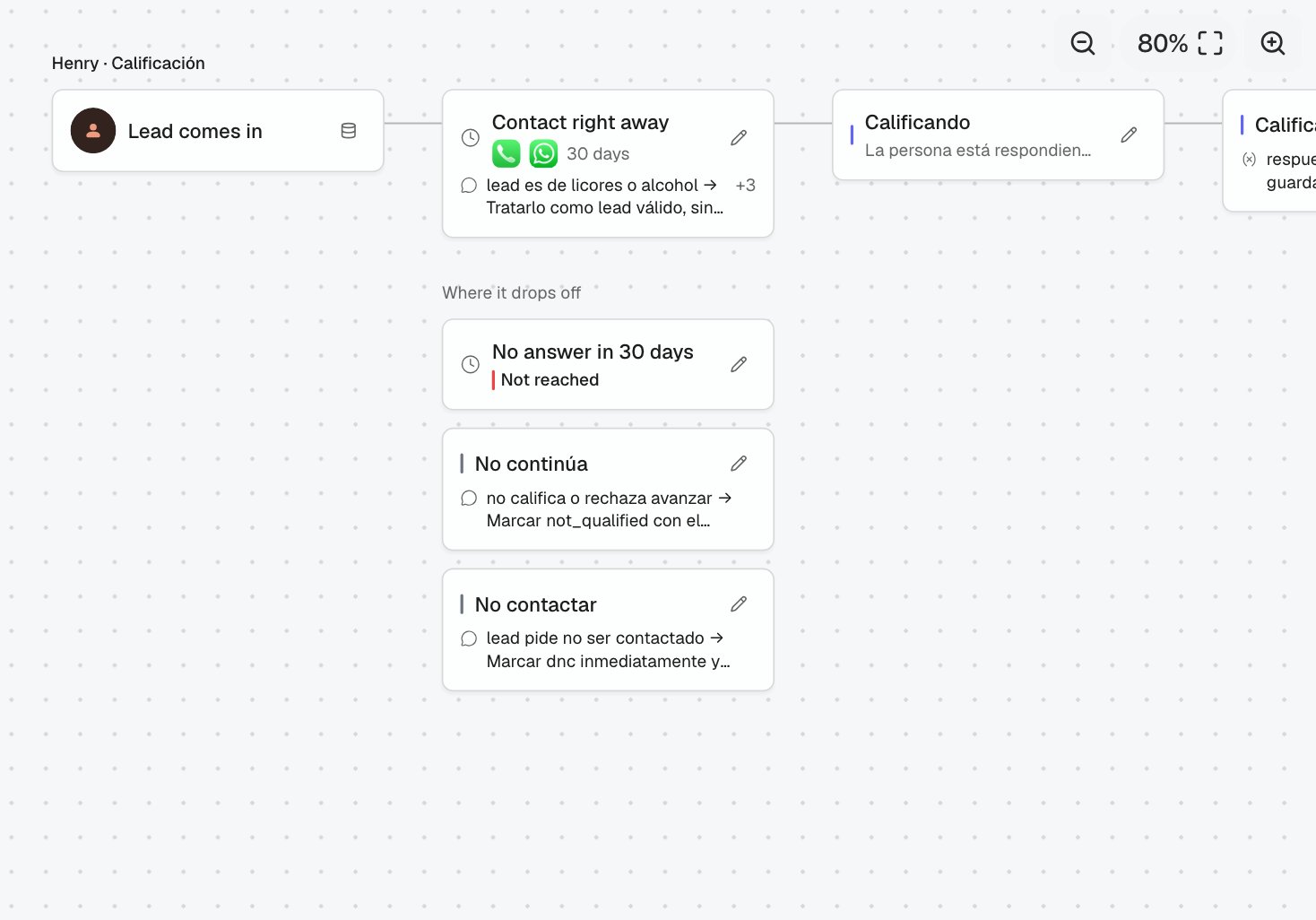
Open the map
- In the agent’s right pane, open Agent map → What happens when a lead comes in.
- In Nexor AI, ask “How does my agent work?”. Nexor AI explains it in a few sentences and offers the map under its answer.
Read the map
Each task is a row, read from left to right.
When a stage hands the lead to another task, that task starts right under the stage, joined by a dashed arrow.
See where a data point changes the conversation
Open Lead comes in, or any card, and tap one of the chips under Data it uses. Every card that does not use that data point fades, so the cards that stay lit are the ones where it changes what the agent says or where the lead goes. Each prompt rule in the side panel shows the exact words of the prompt it comes from.Change a stage from the map
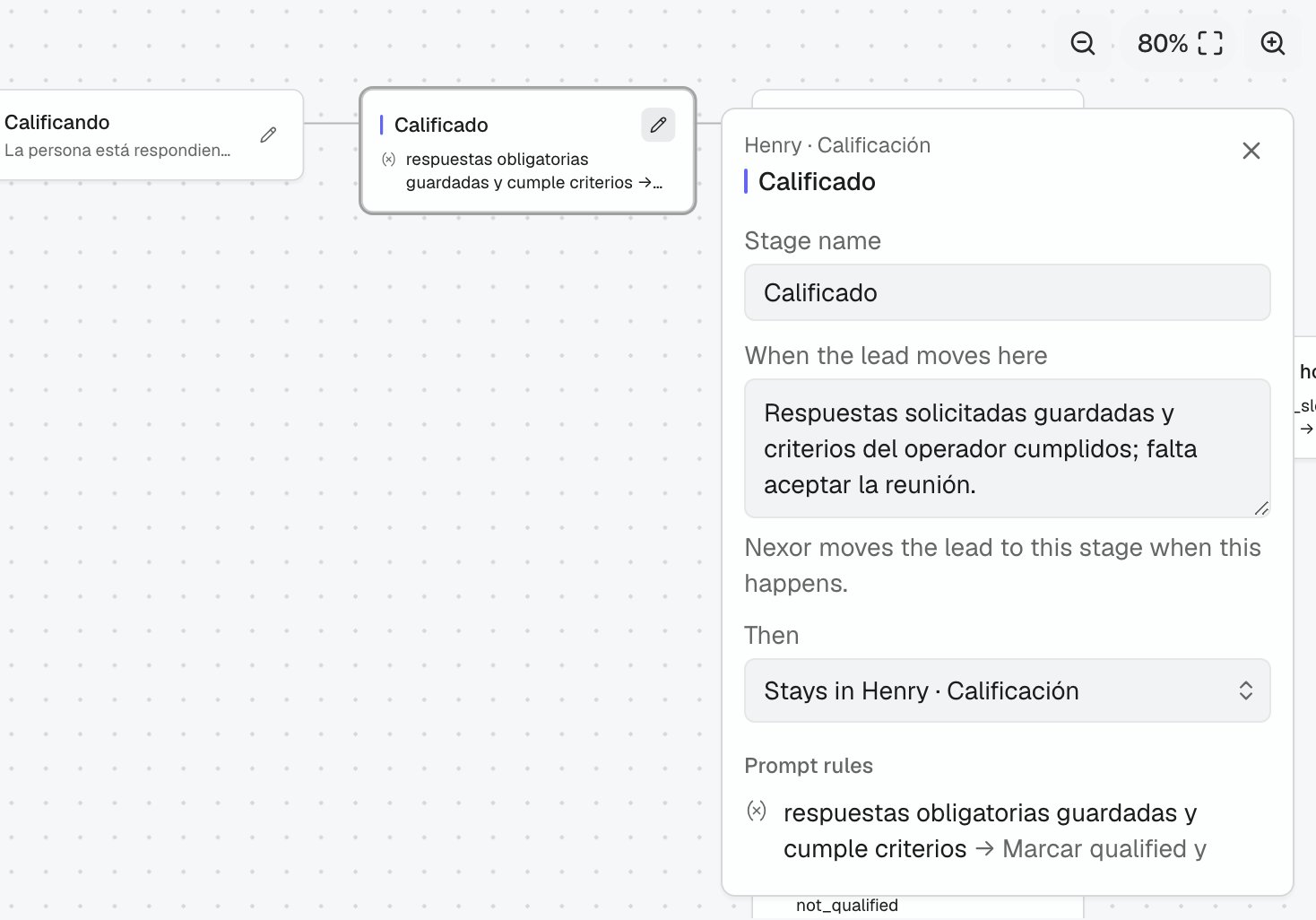
1
Open the stage
Tap the stage card or its pencil. The panel opens on the right.
2
Edit it
Change the Stage name, When the lead moves here (what Nexor reads to move the lead to this stage) or Then, the task the lead hands off to.
3
Save
The map redraws with the change. Inside an agent with a draft, the change goes to the draft like any other setting.