

Saving code saves a draft. The schedule keeps running the published version until you choose Publish changes. Test runs the draft without applying lead changes and without sending writes. Run for real… and Run now in the logs run the published version for real, after a confirmation that shows how many leads they touch.
Create a function
In the dashboard, organization Owners, Admins, and Partners can create, edit, test, publish, run, pause, clear history, or delete Scheduled Functions.1
Choose a starting point
Open Integrations → Developers → Scheduled Functions and select New job. Start blank or choose Re-score stale leads, Tag inactive, or Round-robin unassigned.
2
Set the schedule
Enter a name, choose a frequency, confirm the timezone, and continue. You can edit the cron expression and timezone later.
3
Define the lookup scope
Select the leads, AI agents, and hosts that the code needs. Narrow the lead query and set the maximum number of leads loaded per run.
4
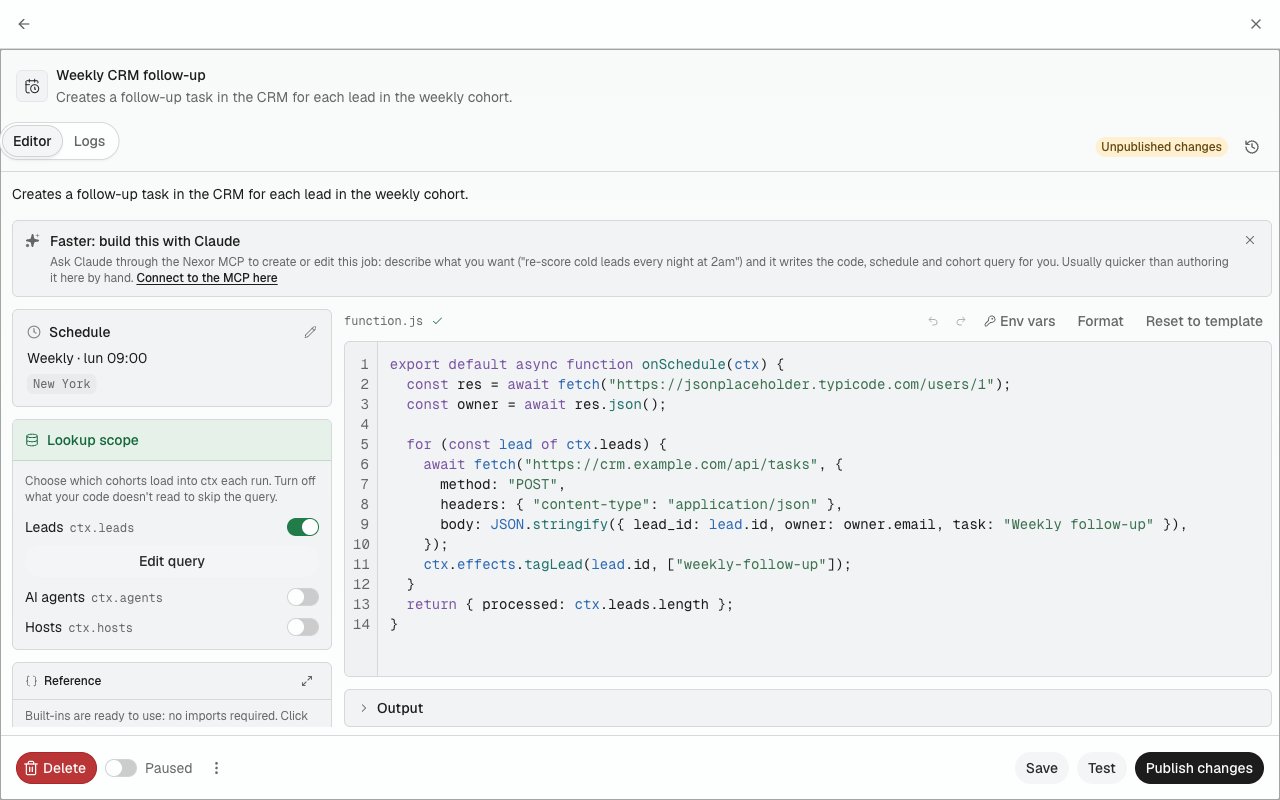
Write and save the code
Implement
onSchedule(ctx) and add environment variables for secrets. A new job starts paused, and its first save becomes version 1. After that, Save (⌘S) keeps code changes in a draft.5
Test, publish, and turn it on
Preview the cohort and choose Test (⌘↵). When the result, logs, requests, and previewed effects match your intent, choose Publish changes and turn on Active.
Configure the schedule
The editor provides presets for every 5 minutes, every 15 minutes, hourly, every 4 hours, and daily execution. Select Custom to enter a five-field cron expression. The timezone controls when calendar-based expressions run. For example,0 9 * * * means 09:00 in the function’s selected timezone, not necessarily the browser’s timezone. The schedule preview asks the server to calculate the next occurrences so you can verify both values together.
Select the lookup scope
Nexor resolves the lookup scope immediately before each tick. The function receives data from the same organization only. The lead lookup can filter by:- active, historic, or all leads;
- Agent and stage;
- campaign;
- assigned user or unassigned leads;
- name, email, or phone search;
- a moving created-at window in hours or days; and
- sort order and a per-run lead limit.
ctx.leads during a run.
AI agents and human hosts are optional lookup groups. Include them only when the code reads ctx.agents or ctx.hosts; otherwise those arrays are empty.
Read the run context
Every scheduled tick receives actx object with this structure:
The runtime also provides
env, axios, fetch, console, and helpers. helpers.uuid() creates a UUID, helpers.now() returns the current timestamp, and helpers.daysAgo(n) returns a timestamp relative to the run.
Write controlled effects
Effects are buffered while the JavaScript runs. Nexor applies them after a successful execution and scopes every mutation to the organization that owns the function.
If the function throws or times out, its buffered effects are not applied. Calls already made with
axios or fetch cannot be rolled back, so make external writes idempotent.
Use environment variables
Cloud Functions and Scheduled Functions use the same organization-level environment variables. Read a value asenv.NAME, and never place a token directly in the function source.
The dashboard masks stored values after save; the list shows the name, not the value. Creating, replacing, or deleting one redeploys every active Cloud Function and Scheduled Function so their bindings stay current. A paused function picks up the change when it is turned on or run.
Save a draft
Saving code in the editor stores a draft. The schedule, Run for real…, and Run now keep using the published version until you publish the draft.- The editor shows Unpublished changes with the time the draft was saved, and the jobs list shows an Unpublished changes badge.
- Each job has one draft, shared by everyone who edits it, the API, and Nexor AI. The last save replaces it.
- Only the code is a draft. The name, description, schedule, timezone, lookup scope, lead cap, and Active save immediately.
- Saving code identical to the published version leaves no draft.
- To drop the draft, open ⋯ and choose Discard draft. The published version stays live.
Test without real effects
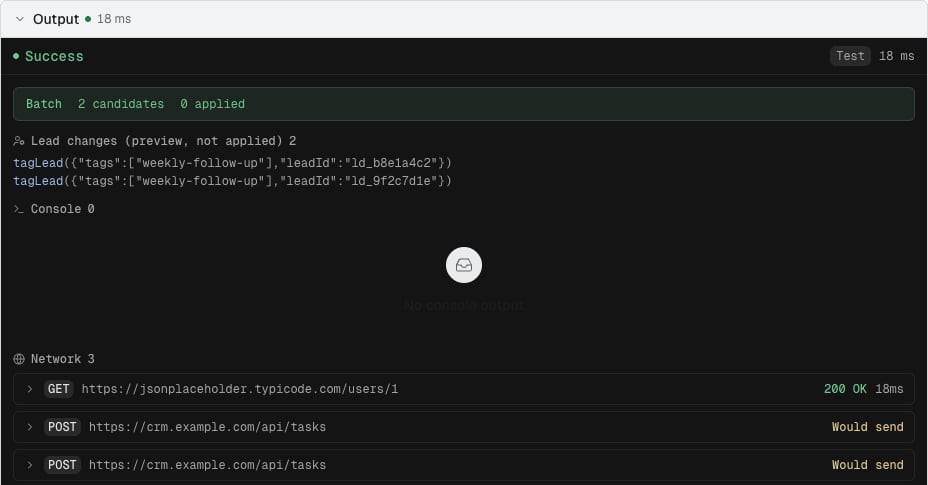
Choose Test (⌘↵). Unsaved edits are saved to the draft first. Without a draft, Test runs the published version. The Test your draft dialog offers two inputs:- Live cohort loads the leads your lookup scope matches now. Loading them only reads data.
- Custom ctx sends the JSON you provide instead.
A test has the same time and request limits as a real run. It appears in the logs with the origin Test, but it does not change the run count, the last run, or the health summary. A test of new code can take a few seconds longer because the test copy is prepared first.
Publish changes
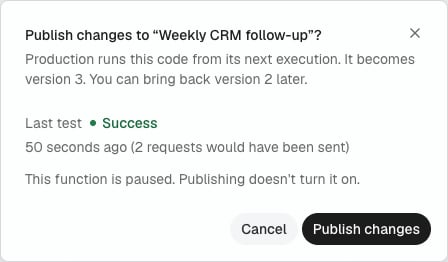
Choose Publish changes when the draft is ready. The dialog says which version it becomes and shows the last test of this draft. It warns when the draft was not tested or its last test failed, but it does not block publishing.- The next execution runs the new version. Executions already in progress finish on the previous one.
- Publishing a paused job does not turn it on.
- If someone saved the draft after you opened the dialog, it asks you to review the draft and publish again.
- If the new version cannot be deployed, nothing is published and your draft is kept. Try again in a moment.
Restore a previous version
Every publish creates a numbered version. Open Version history in the editor to see each version, who published it, and when. Published marks the live version. Public API marks versions published with an API key or Nexor AI, and Before versions marks the code the job had when version history started. Choose View to read a version’s code, then Restore to draft to copy it into the draft. Restoring never changes production: test the draft and publish it to roll back. If a draft is open, Nexor asks before replacing it. Restoring the live version clears the draft.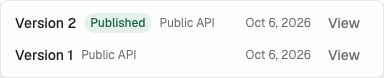
Run for real
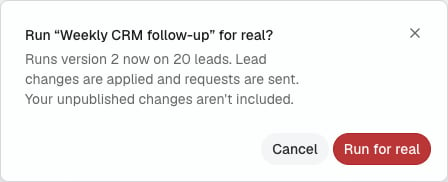
Run for real… runs the published version now and applies its effects. Find it in the editor’s ⋯ menu, in the job’s row menu, and as Run now in the logs.- Nexor counts the leads the lookup scope matches. If it cannot count them, nothing runs.
- A confirmation shows the version and the number of leads, for example “Runs version 4 now on 37 leads. Lead changes are applied and requests are sent.” With a draft open, it adds that your unpublished changes aren’t included.
- Choose Run for real to start it.
Turn a job on
Turning on Active asks for confirmation. With a draft open, the confirmation says the job runs the published version and that your unpublished changes aren’t included until you publish them. If the published version could not be deployed, the job shows Not live in the list and a warning in the editor. Every execution tries to deploy it again before it runs and stops if it still fails.Read the run history
The run history records the origin, status, duration, candidate count, applied and failed effects, console output, HTTP request previews, returned result, and errors. The health summary uses recent scheduled executions; manual runs and tests remain visible but do not change the scheduled uptime calculation. Clearing history deletes every stored run for that function permanently. Deleting a Scheduled Function also deletes its run history and versions, and cannot be undone.Use Nexor AI or the MCP
Nexor AI and MCP clients follow the same flow.update_scheduled_function saves code changes as a draft and returns its draft_hash. test_scheduled_function runs the draft and lists the calls that would be sent. publish_scheduled_function requires confirm: true after you approve, and the draft_hash that was tested. discard_scheduled_function_draft, list_scheduled_function_versions, get_scheduled_function_version, and restore_scheduled_function_version manage the draft and the history. run_scheduled_function runs the published version for real and requires confirm: true.
Use the public API
REST keys can use the Scheduled Functions endpoints. MCP keys needworkflows:read for reads, previews, and versions, and workflows:write for creation, updates, drafts, tests, publishing, restores, execution, deletion, and clearing history. Sending code to the update endpoint still publishes it immediately and records a version.
List Scheduled Functions
Read the functions available to the organization.
Create a Scheduled Function
Create code, schedule, timezone, and lookup configuration.
Preview a schedule
Validate cron and timezone against the next occurrences.
Preview a cohort
Count and sample the leads selected by a lookup.
Save a draft
Change the code without changing what production runs.
Test a Scheduled Function
Run the draft with reads sent, writes held back, and effects previewed.
Publish a draft
Make the tested draft the published version.
List versions
Read the published versions and restore one into the draft.
Run a Scheduled Function
Run the published version now, with real effects.
List runs
Inspect execution history programmatically.