

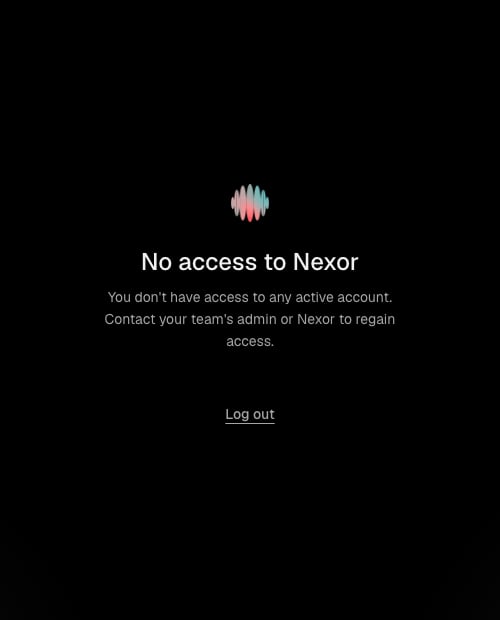
What each person sees
Reactivate the plan
1
Sign in as the Owner
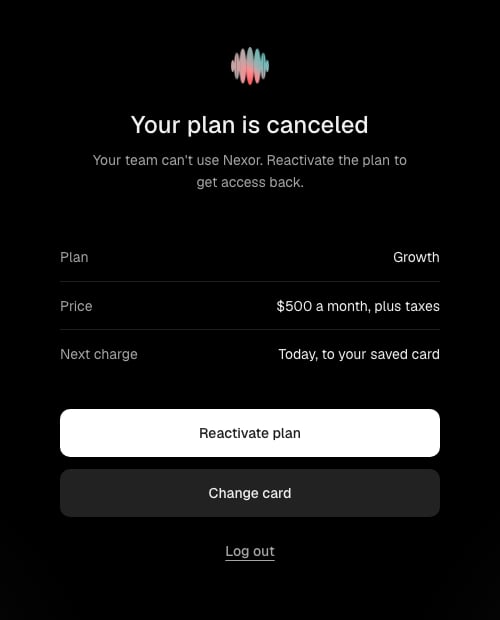
The Your plan is canceled screen opens instead of the app.
2
Check the summary
Plan is the plan you had before the cancellation. Reactivation always restores that plan. Price is its monthly price in US dollars, plus taxes. Next charge says when you are charged.
3
Reactivate
Select Reactivate plan. When no saved card can be used, the button reads Pay and reactivate.
4
Open the workspace
On the Plan reactivated confirmation, select Go to Nexor.
To choose a different plan, reactivate first and then contact your Nexor account team.
Change the card before reactivating
Select Change card to open the Stripe customer portal. Update the card there, return to Nexor, and select Reactivate plan. The charge uses the card you set.If the charge does not go through
When the saved card cannot be charged, nothing is charged. The screen says why and offers Pay and reactivate, which opens a payment page hosted by Stripe.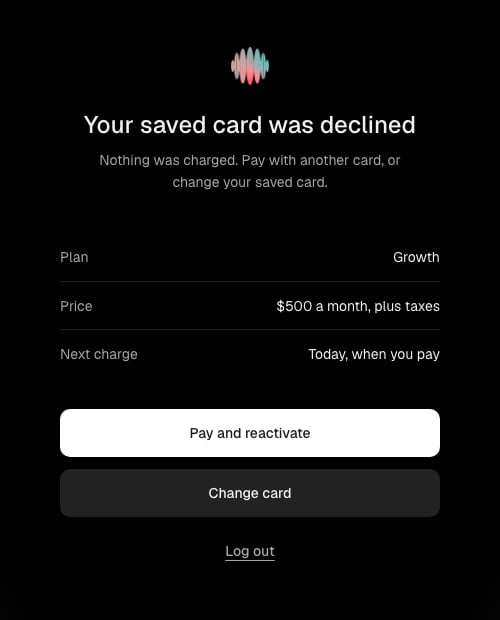
After reactivation
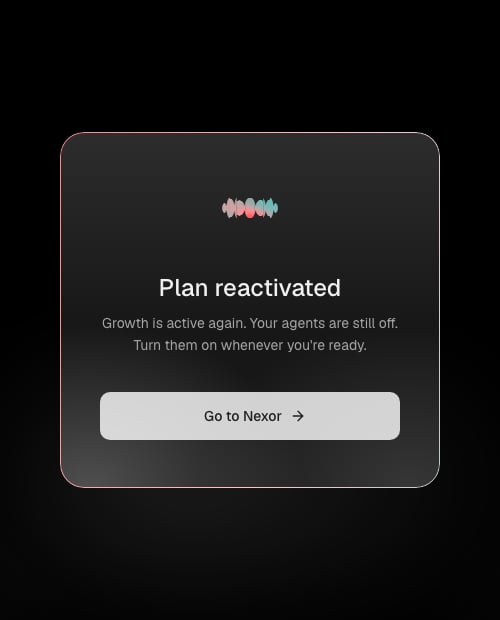
- The whole team can sign in again. Agents, tasks, leads, and settings are as you left them.
- Your agents stay off and do not contact leads. When you are ready, open each task and select Set live.
- Nexor sends an email confirming that the account is active again.