

Before you start
- An account in the app you want to connect, with permission to authorize it.
- For a custom server: its address, starting with
https://.
Connect an app from Integrations
1
Open Apps
Go to Integrations → Apps. Each row shows the app, what Nexor AI can do with it and Connect.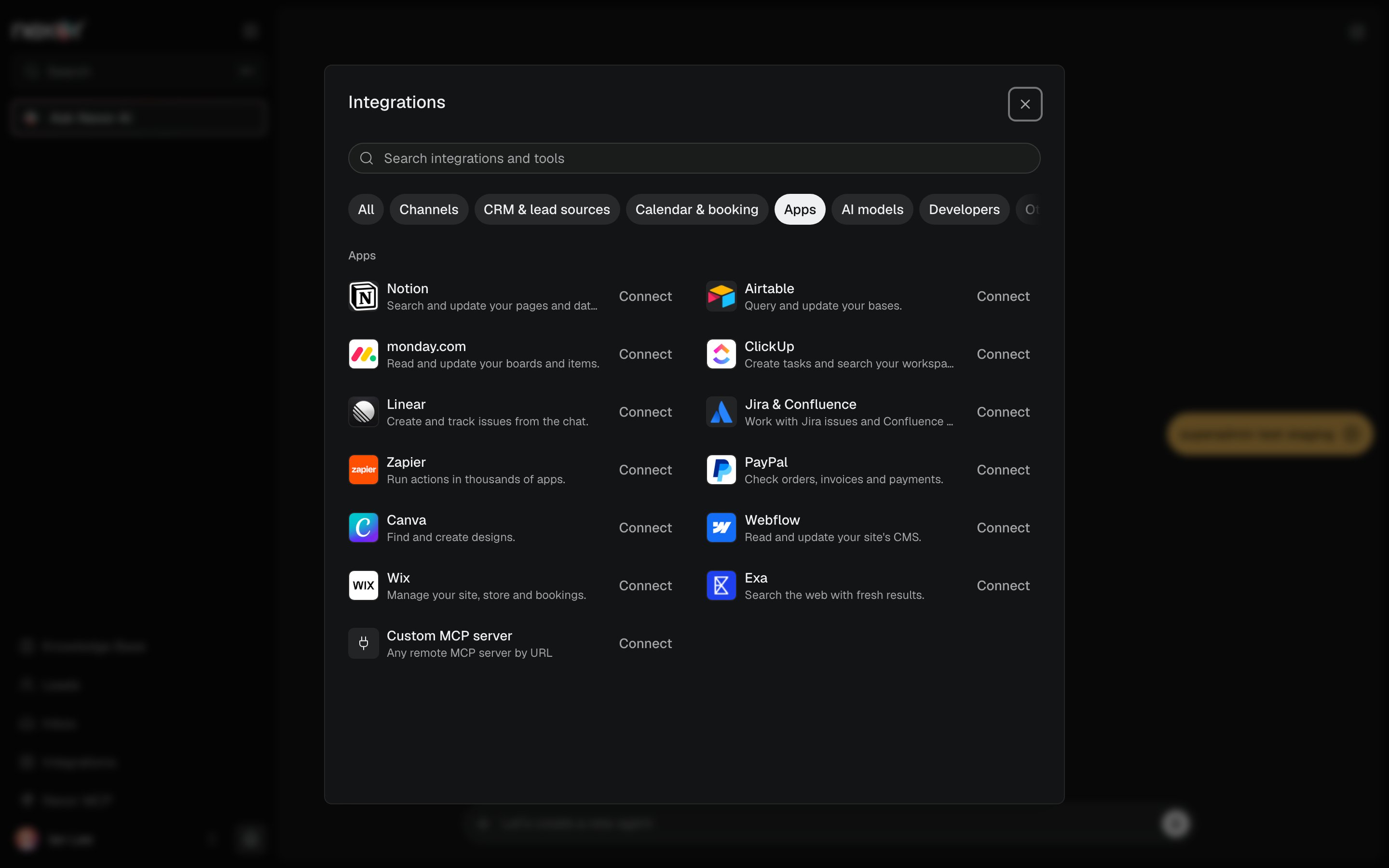
2
Sign in on the app
Select Connect. The app’s sign-in page opens in the same tab. Approve the access and you come back to the app’s page in Nexor. Nexor never sees your password.
3
Check the tools
The app’s page lists its tools with a switch each. Tools marked Reads only look things up; tools marked Can change data write to your app. Turn off the ones you don’t want Nexor AI to use.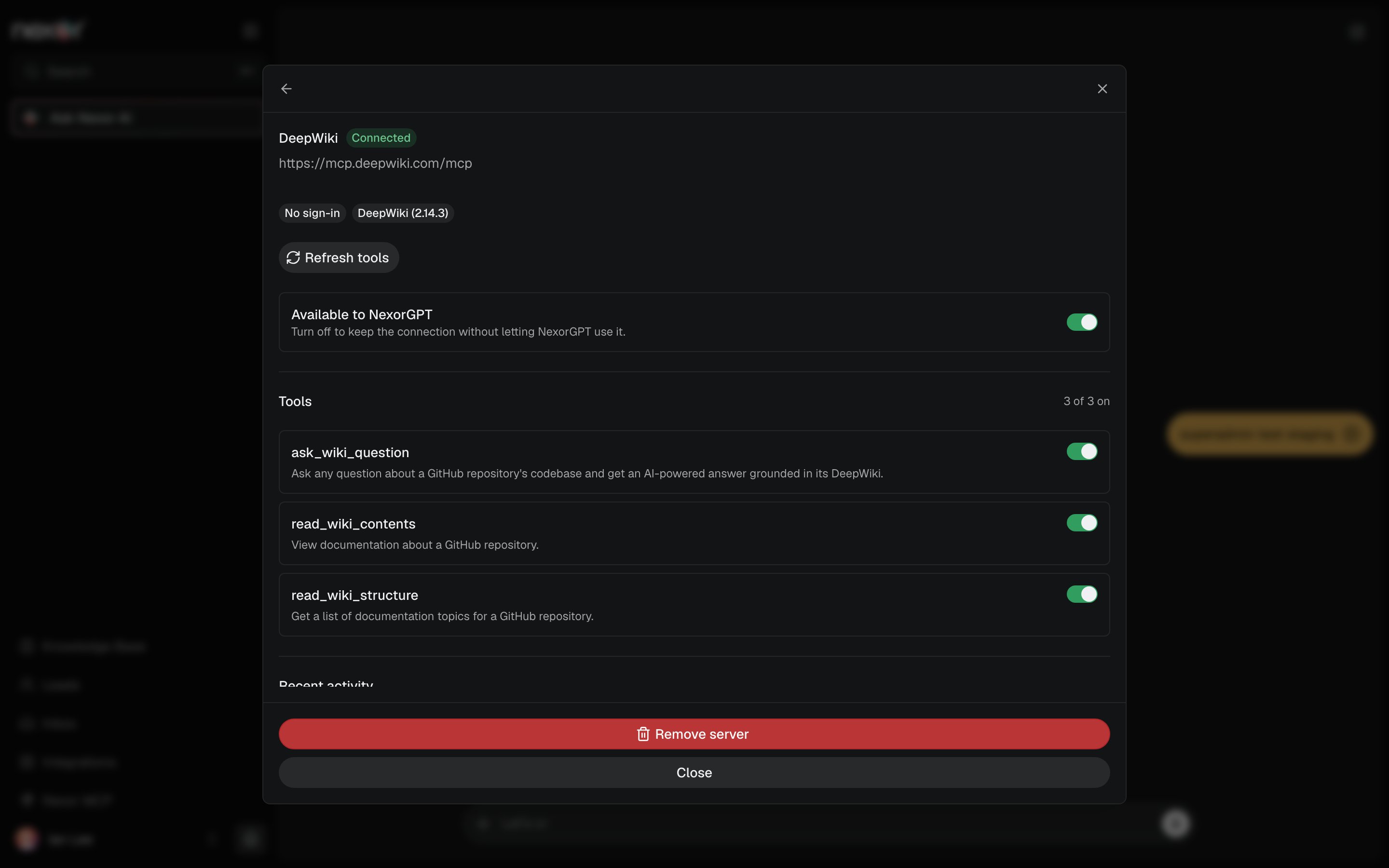
Connect from Nexor AI
Ask Nexor AI, for example “Connect Linear” or “Add this MCP server: https://mcp.example.com/mcp”. It shows a card with the app’s name and a Connect button. Press it. If the app asks you to sign in, you do it on its page and come back; if the server wants an API key instead, the same card asks for it. The tools are ready from your next message. You can name a product instead of an address (“Connect my Granola notes”): Nexor looks for the product’s MCP server by itself and asks for the address only when it cannot find one. If you asked for something in the same message (“and bring my notes from today”), Nexor AI continues with it as soon as the connection is confirmed, without you having to ask again. If the app is already connected but turned off for Nexor AI, the card says so instead of offering to connect it again.Connect any MCP server
For a server that is not in the catalog, select Custom MCP server → Connect MCP server, give it a name and paste its address. Nexor checks the server, sends you to its sign-in page only if it asks for one, and lists its tools. If the server wants a key in a header, choose API key and paste it; the key is stored encrypted and you can replace it later with Update API key.Use an app from the chat
Ask in your own words: “Search my Notion for the onboarding checklist”, “Create a Linear issue for this bug”, “Which Airtable records changed this week?”. Nexor AI picks the tool and shows Using Notion while it runs.- A read runs right away.
- A tool that changes data in your app first tells you what it will do and waits for your yes.
- If the app returns an error, Nexor AI tells you what failed. It never claims that something happened when it didn’t.
Run a tool when a lead reaches a stage
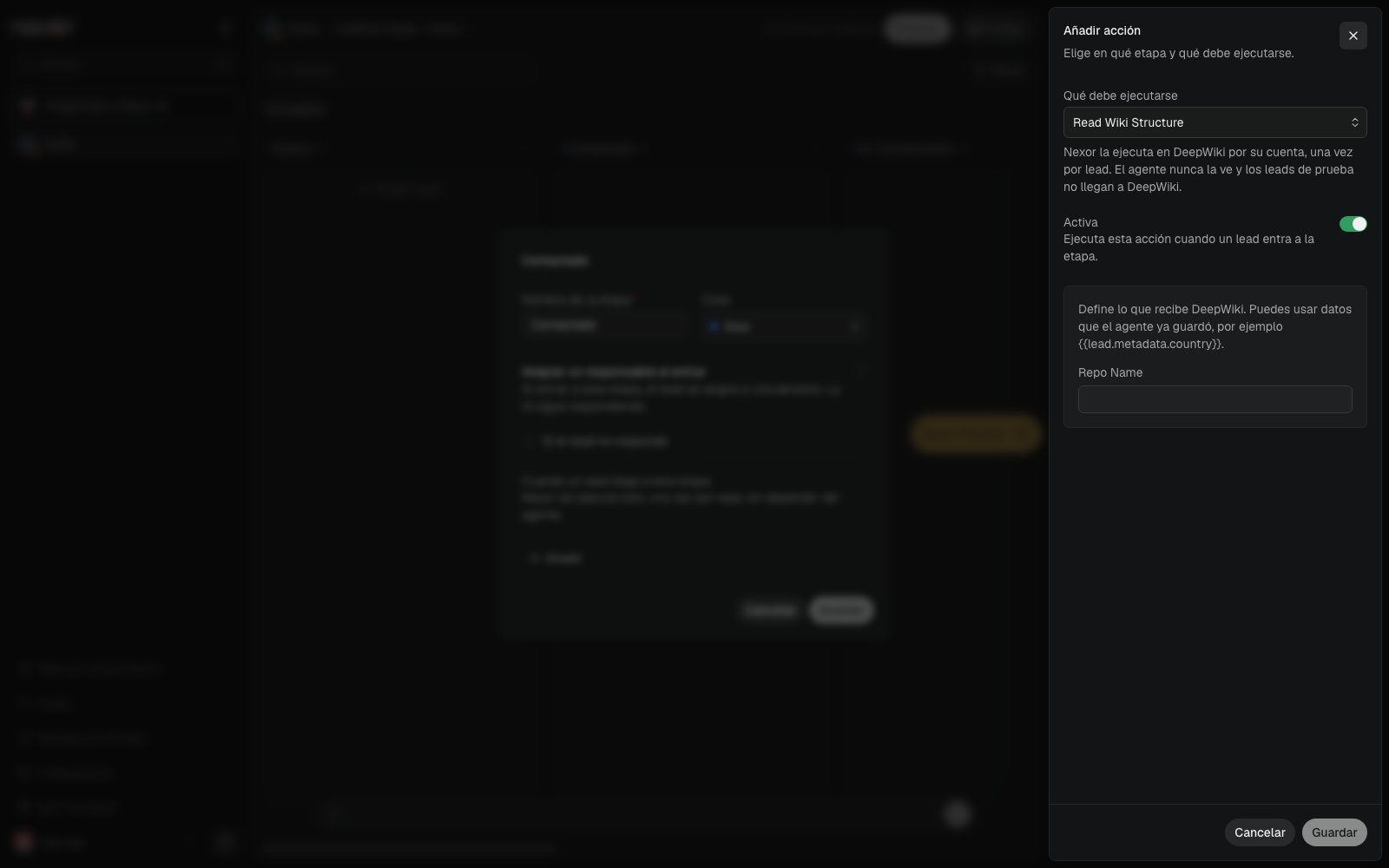
In a task, open a stage and select Add under When a lead reaches this stage. Choose the app’s tool under From and fill in what it receives. You can use data the agent already saved, for example{{lead.metadata.country}}.
Let an agent call a tool
In a task, open Tools → Add and pick the tool under From . It is added turned off; turn it on in the tool’s settings when you want the agent to use it during text conversations. Tools that can change data are labelled in the menu.Manage connected apps
Limits
- Up to 20 connected servers per account.
- Only
https://addresses. Private or internal addresses cannot be reached from Nexor. - Nexor AI does not use these apps when it answers in Slack.
- Voice calls never use these tools.