> ## Documentation Index
> Fetch the complete documentation index at: https://docs.getnexor.ai/llms.txt
> Use this file to discover all available pages before exploring further.
# Connect WhatsApp
Connecting WhatsApp lets your Nexor agent talk to leads on WhatsApp. It takes about 5 minutes through Meta's embedded signup.
## Before you connect
You need a Facebook account. During signup you can create a Meta Business Portfolio and WhatsApp Business Account (WABA), or use ones you already have. If you already have them, make sure you have:
* access to the right Meta Business Portfolio and WABA, with capacity for another number
* complete business info in Meta (legal name, address, business phone, and a public HTTPS website)
* no unresolved status, verification, billing, or payment prompts in [WhatsApp account settings](https://business.facebook.com/latest/settings/whatsapp_account) or [WhatsApp phone numbers](https://business.facebook.com/latest/whatsapp_manager/phone_numbers)
Connecting a number doesn't bypass Meta's checks. Display-name review, business verification, WABA review, payment eligibility, template review, and country or account restrictions can still block production sending.
## Start in Nexor
You connect a number from two places in Nexor:
* From an agent: open the agent's settings, go to the **WhatsApp** channel, and click **Connect**.
* From **Integrations → WhatsApp**.
Either one opens the same flow: pick how you want to connect below, then Nexor hands off to Meta's embedded signup.
## Connection options
| Option | Best for | Requirements |
| --------------------------------------------------------------- | ------------------------------- | ---------------------------------------------------- |
| [**Instant setup**](#instant-setup-digital-number) | Getting started immediately | Facebook account |
| [**WhatsApp Business App**](#whatsapp-business-app-coexistence) | Keeping the app alongside Nexor | Active WhatsApp Business App number and phone access |
| [**Bring your own number**](#bring-your-own-number-sim) | Using your own phone number | A SIM or line you can verify |
## Instant setup (digital number)
Get a pre-verified US number without SMS verification. Choose **Instant setup**, then click through to open Meta's embedded signup.
Log in with the Facebook account that manages your business, review what you'll share, and click **Continue**.
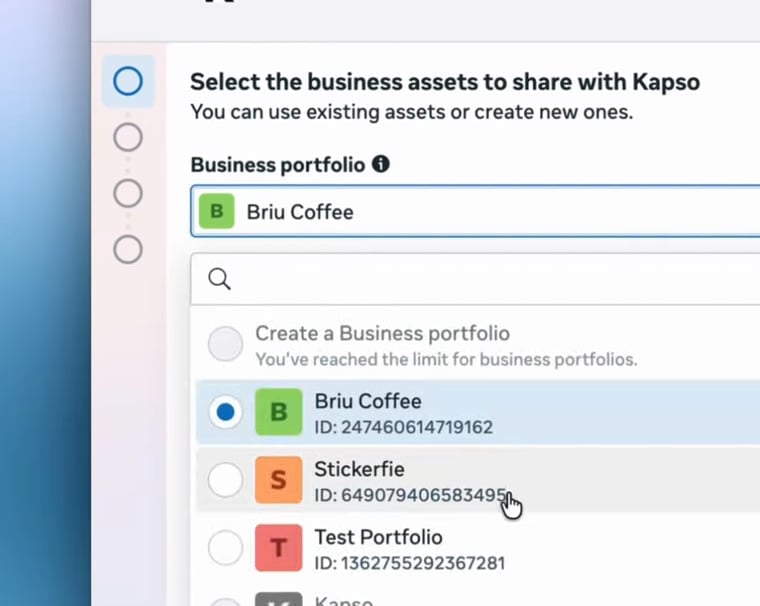
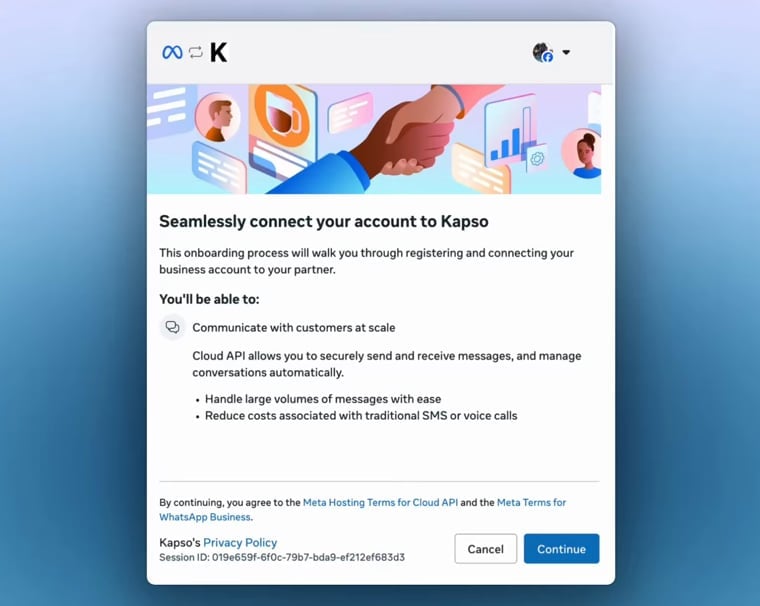 On **Select the business assets**, choose the **Business portfolio** for the business you want to connect.
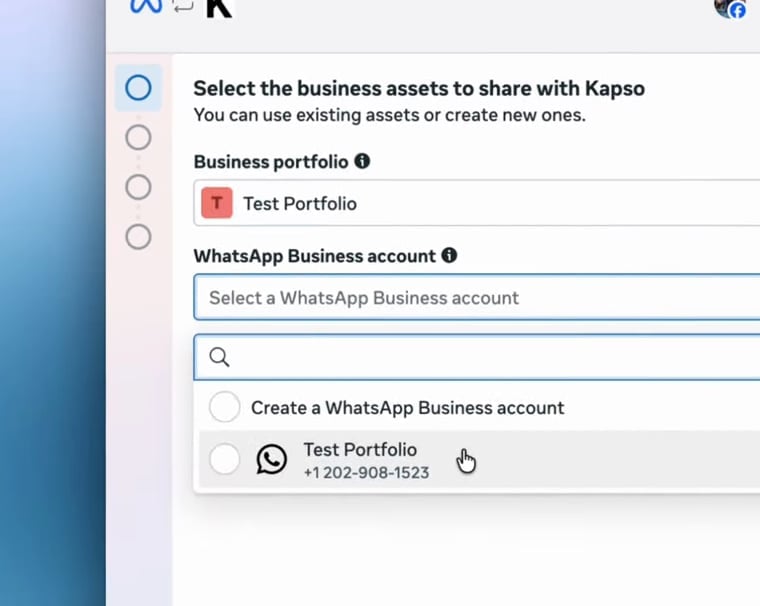
 Choose an existing **WhatsApp Business account**, or create one if Meta asks you to.
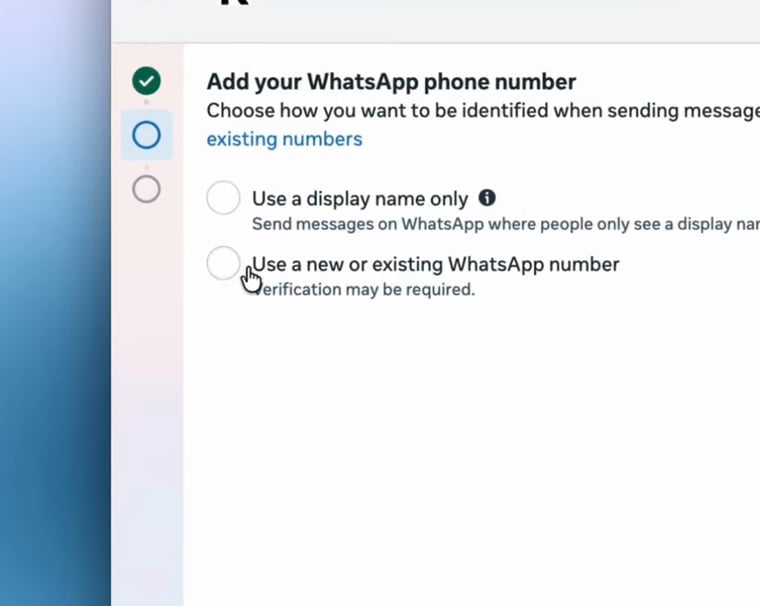
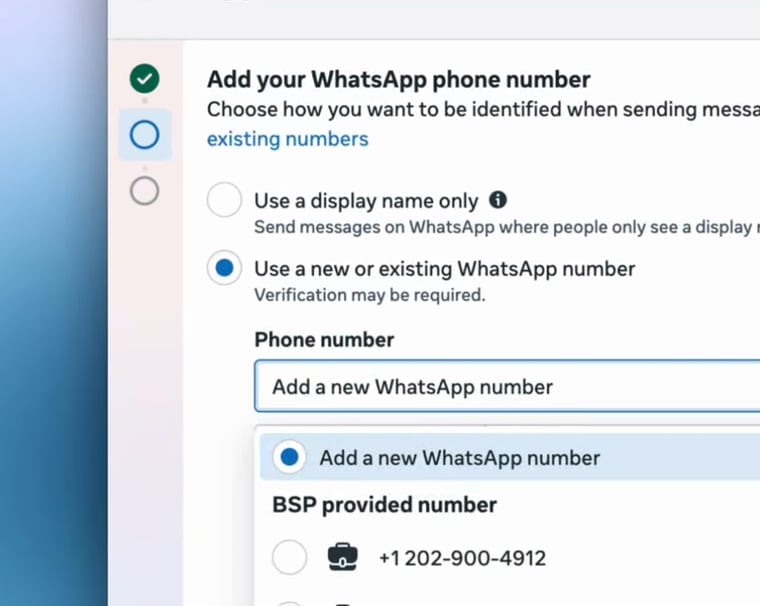
 On **Add your WhatsApp phone number**, do not choose **Use a display name only** (it produces a limited Meta-managed number). Choose **Use a new or existing WhatsApp number**.
 Open the **Phone number** dropdown, select a number under **BSP provided number** (BSP = Business Solution Provider; the pre-verified number Nexor provides), and click **Next**.
 When Meta shows **Your account is connected**, click **Finish** to return to Nexor.
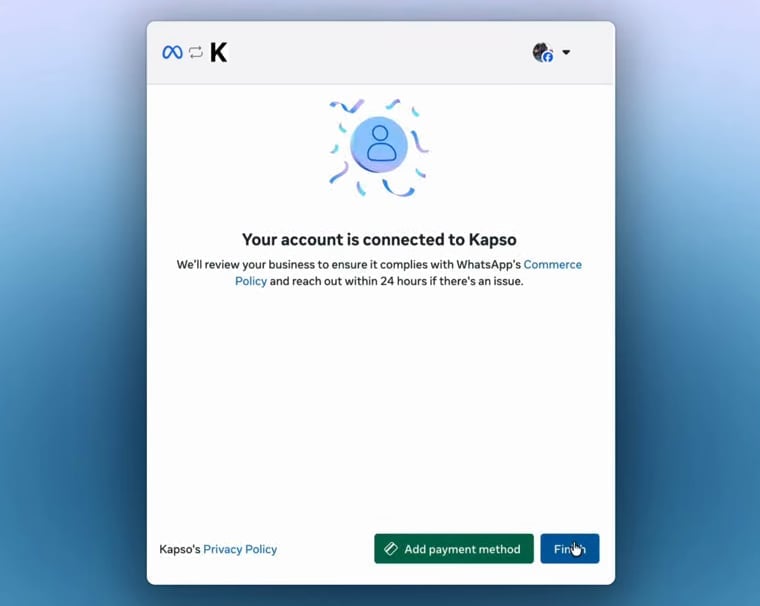 When Meta confirms and you click **Finish**, you return to Nexor and the number appears as connected.
If Meta asks for SMS verification instead, cancel and retry.
## WhatsApp Business App (coexistence)
Keep using the WhatsApp Business app alongside Nexor. The number must be active in the **WhatsApp Business App** (not personal WhatsApp), and you'll need that phone with a working camera. Choose **WhatsApp Business App**, then open Meta's embedded signup.
Log in with the Facebook account that manages your business and click **Continue**.
When Meta confirms and you click **Finish**, you return to Nexor and the number appears as connected.
If Meta asks for SMS verification instead, cancel and retry.
## WhatsApp Business App (coexistence)
Keep using the WhatsApp Business app alongside Nexor. The number must be active in the **WhatsApp Business App** (not personal WhatsApp), and you'll need that phone with a working camera. Choose **WhatsApp Business App**, then open Meta's embedded signup.
Log in with the Facebook account that manages your business and click **Continue**.
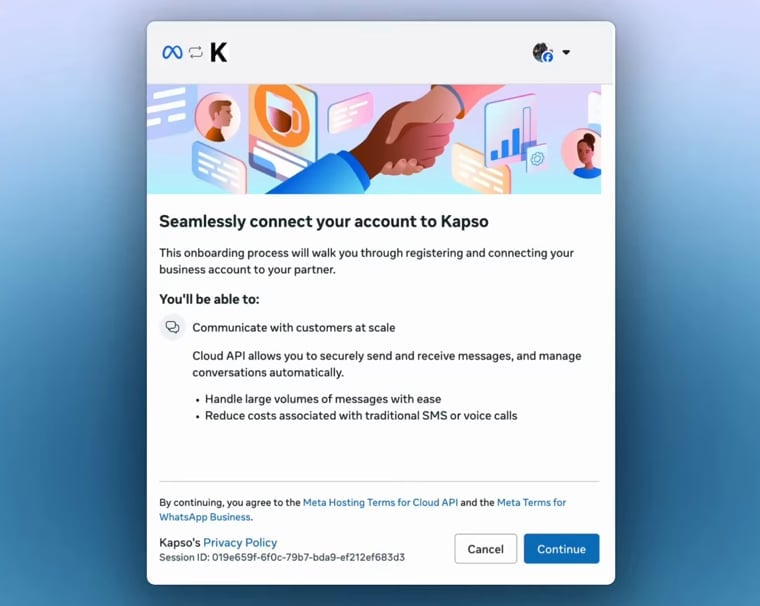 Choose the **Business portfolio** for the business that owns this WhatsApp number.
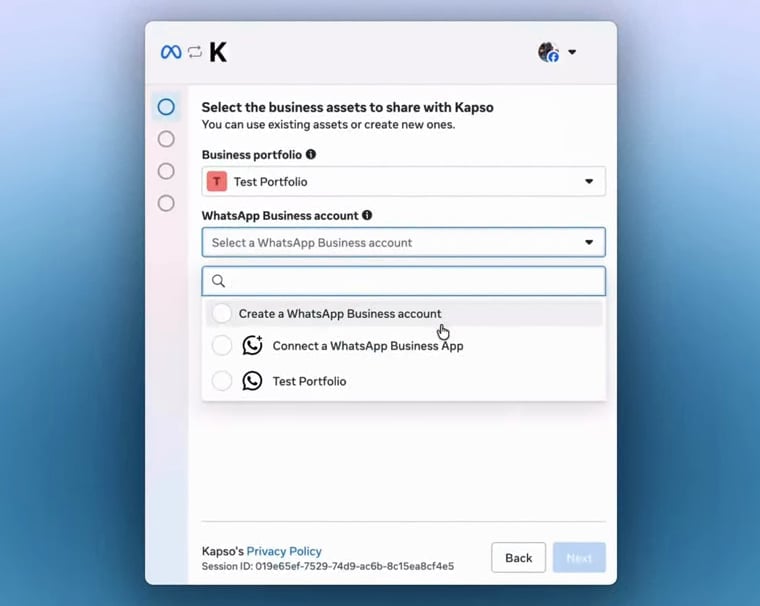 In **WhatsApp Business account**, choose **Connect a WhatsApp Business App** and click **Next**.
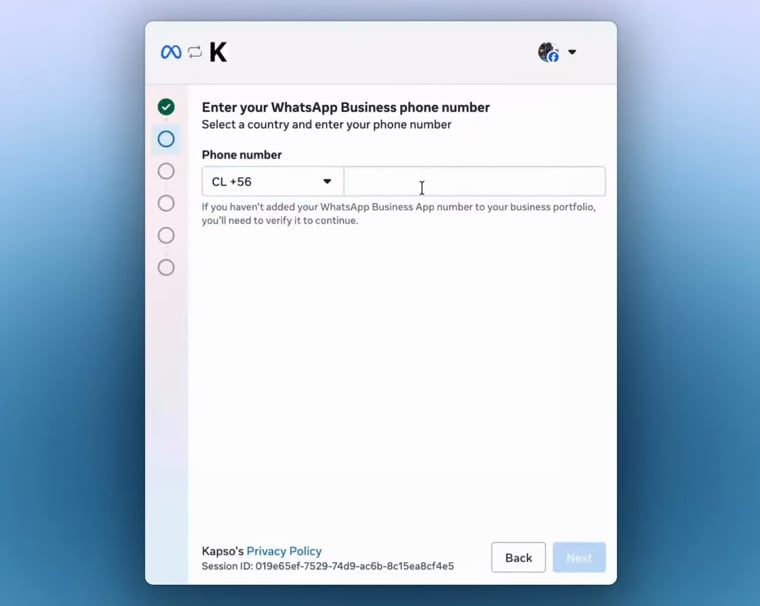
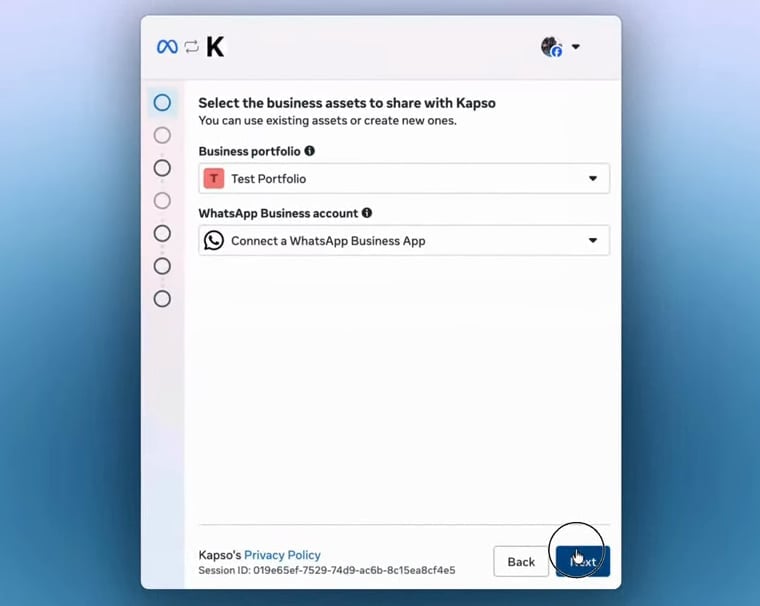 Select the country code, enter the number already active in your WhatsApp Business App, and click **Next**.
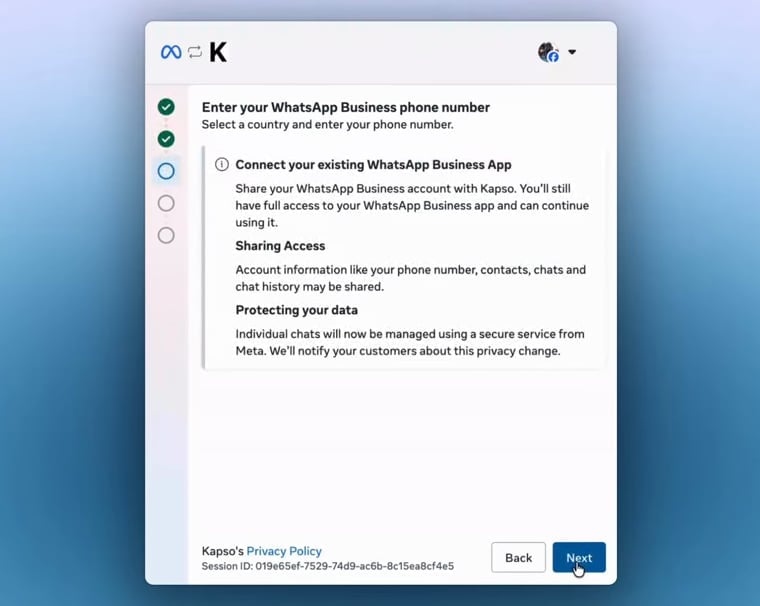
 On **Connect your existing WhatsApp Business App**, review the sharing and protection info, then click **Next**.
 When the QR code appears, keep the browser open and open the WhatsApp Business App on your phone.
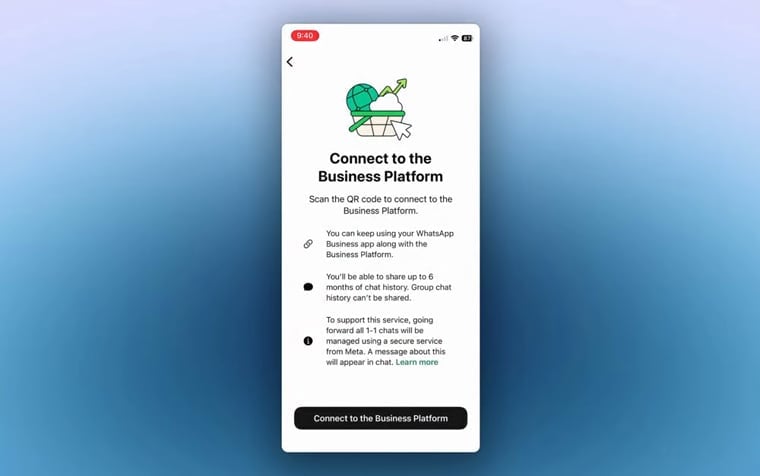
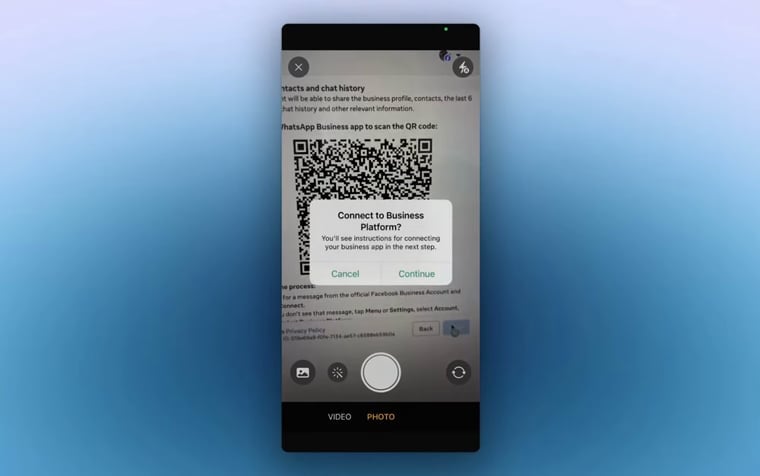 On your phone, tap **Connect to the Business Platform** in the WhatsApp Business App.
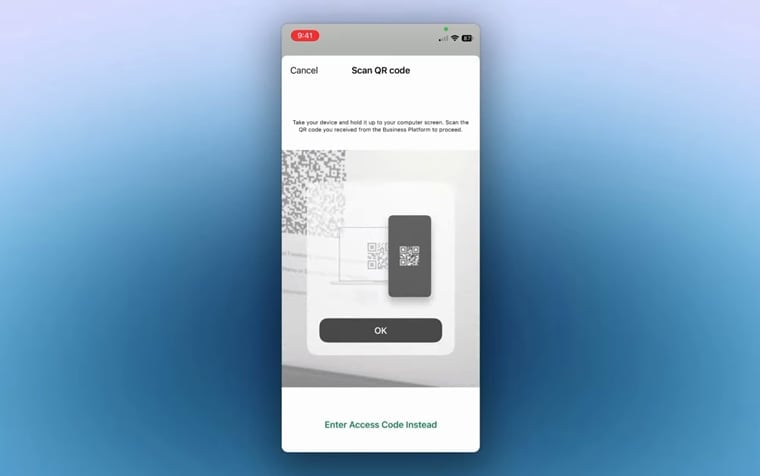
 Use the WhatsApp Business App camera to scan the QR code shown by Meta.
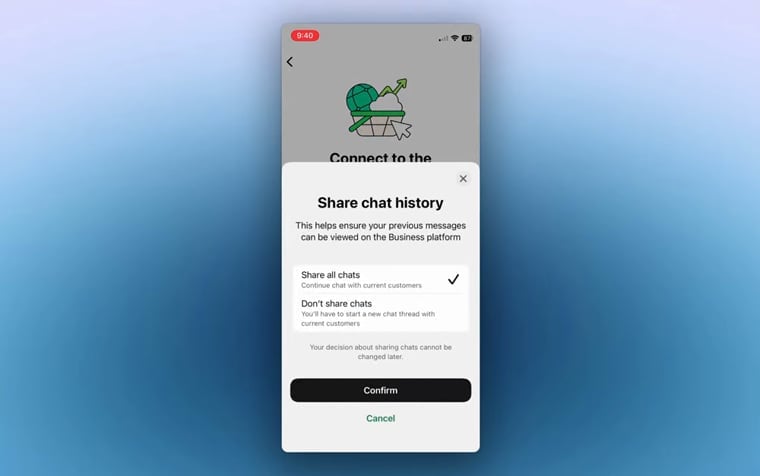
 Choose whether to share chat history, then confirm your choice.
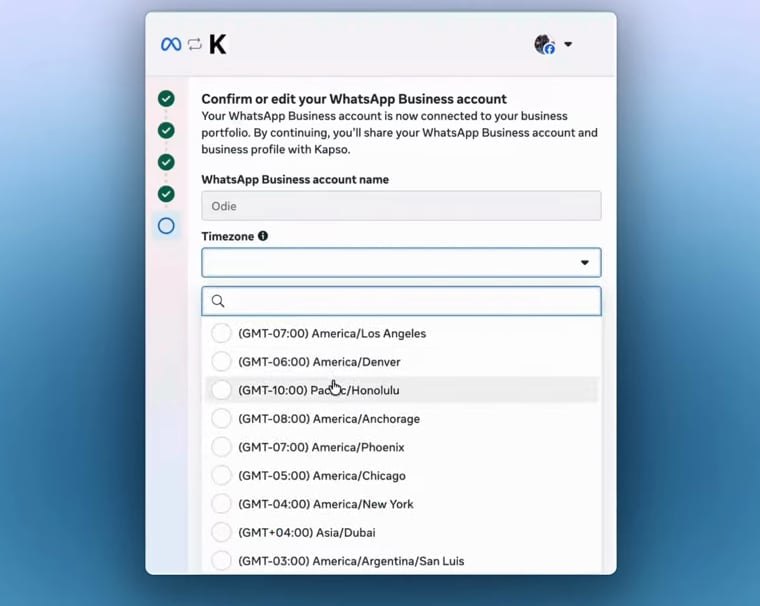
 Back in Meta, confirm the WhatsApp Business account name, select the **Timezone**, and click **Next**.
 Review the requested access and click **Confirm**.
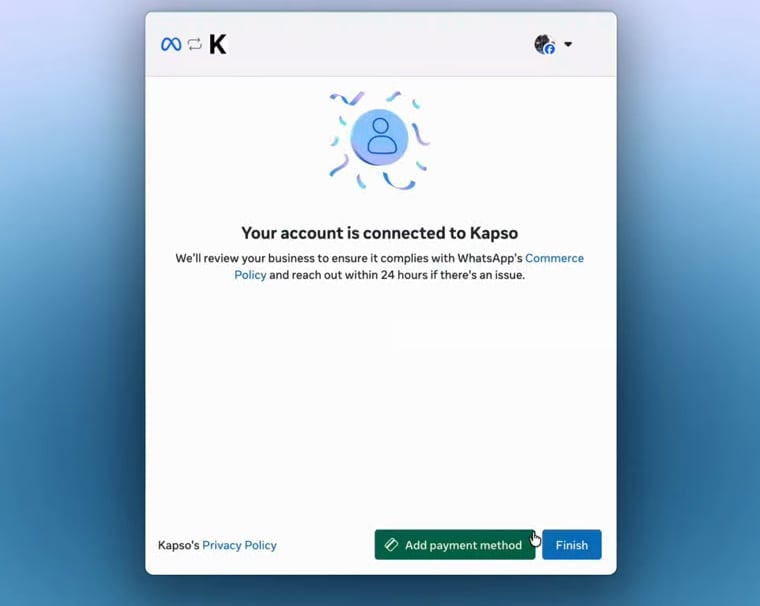
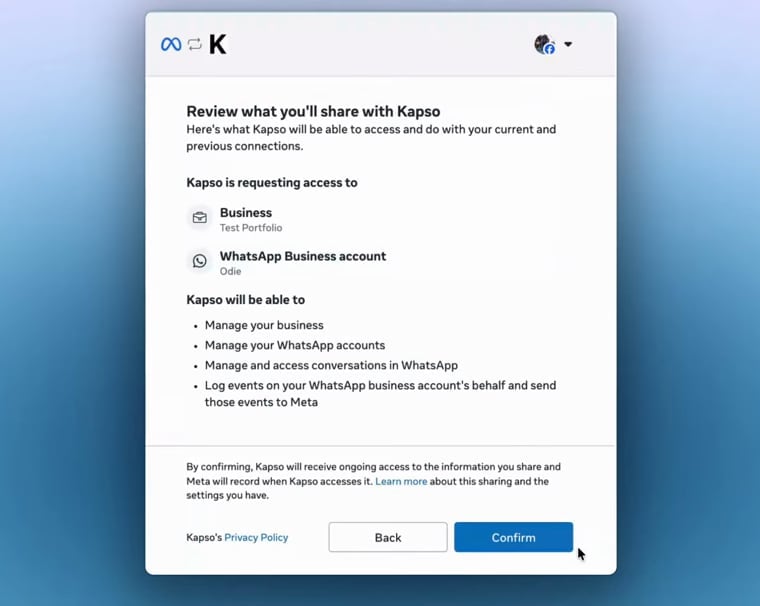 When Meta shows **Your account is connected**, click **Finish** to return to Nexor.
 Back in Nexor, the coexistence number starts syncing and appears as connected. Messages then show up in both the WhatsApp Business App and Nexor.
If Meta sends you to SMS or voice verification instead of the QR flow, restart from Nexor with **WhatsApp Business App** selected. That path is for a different connection mode.
## Bring your own number (SIM)
Use a number you control as a dedicated Cloud API number. It moves fully to Nexor's API connection, so it can't stay active in the WhatsApp Business App. Keep the SIM or line available and verifiable by SMS or voice. Choose **Bring your own number**, then open Meta's embedded signup.
Log in with the Facebook account that manages your business and click **Continue**.
Back in Nexor, the coexistence number starts syncing and appears as connected. Messages then show up in both the WhatsApp Business App and Nexor.
If Meta sends you to SMS or voice verification instead of the QR flow, restart from Nexor with **WhatsApp Business App** selected. That path is for a different connection mode.
## Bring your own number (SIM)
Use a number you control as a dedicated Cloud API number. It moves fully to Nexor's API connection, so it can't stay active in the WhatsApp Business App. Keep the SIM or line available and verifiable by SMS or voice. Choose **Bring your own number**, then open Meta's embedded signup.
Log in with the Facebook account that manages your business and click **Continue**.
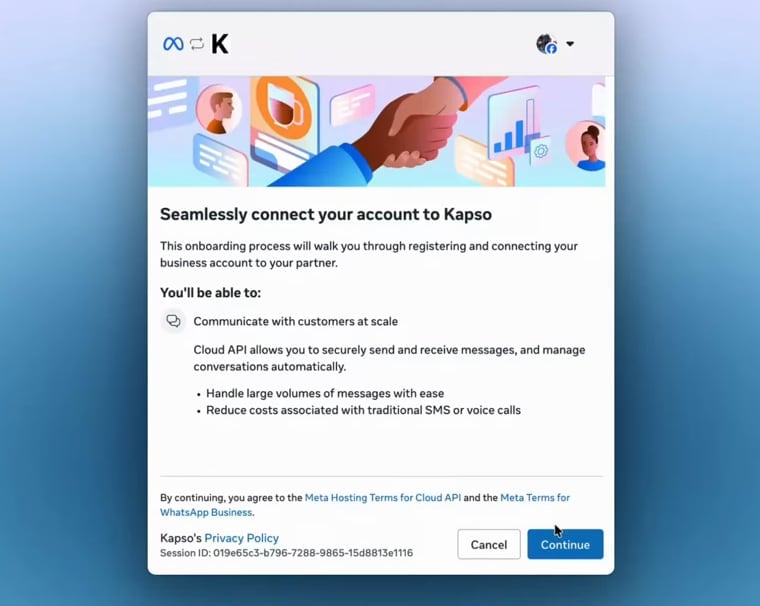 Choose the **Business portfolio** for the business that owns this phone number.
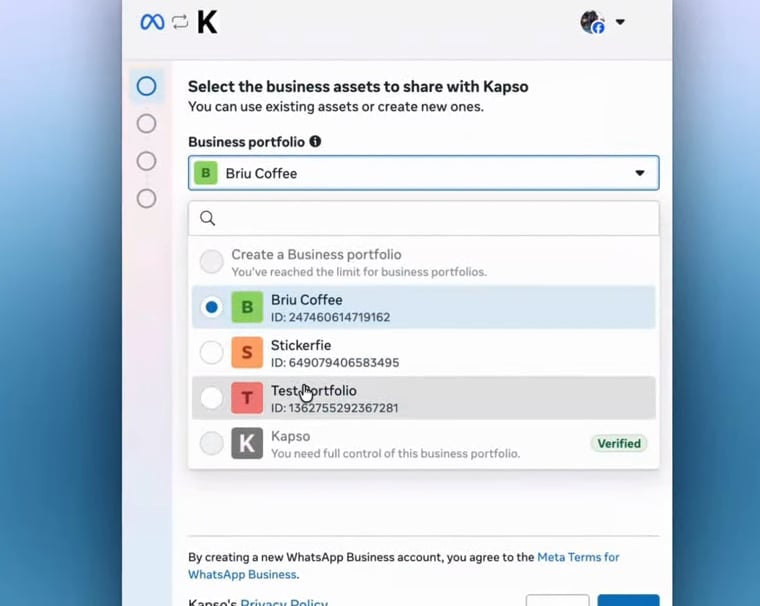 Choose an existing **WhatsApp Business account**, or create one if Meta asks you to.
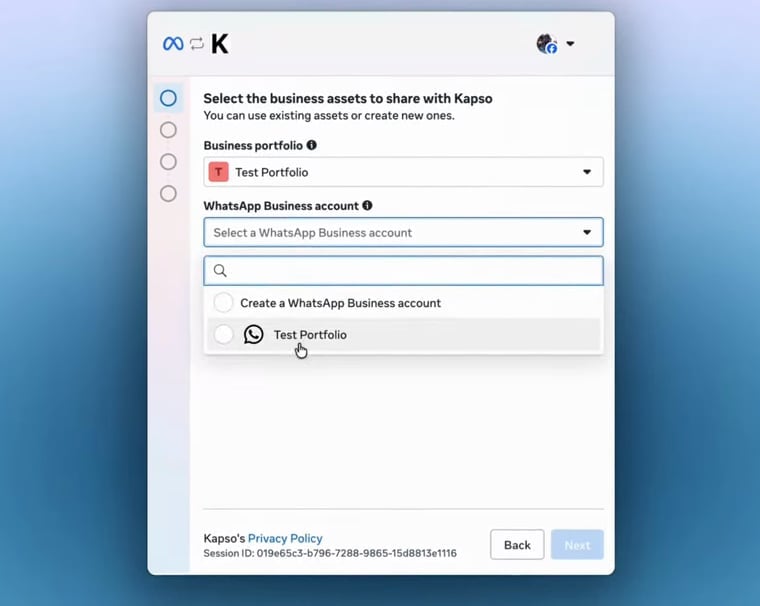 On **Add your WhatsApp phone number**, do not choose **Use a display name only**. Choose **Add a new number**.
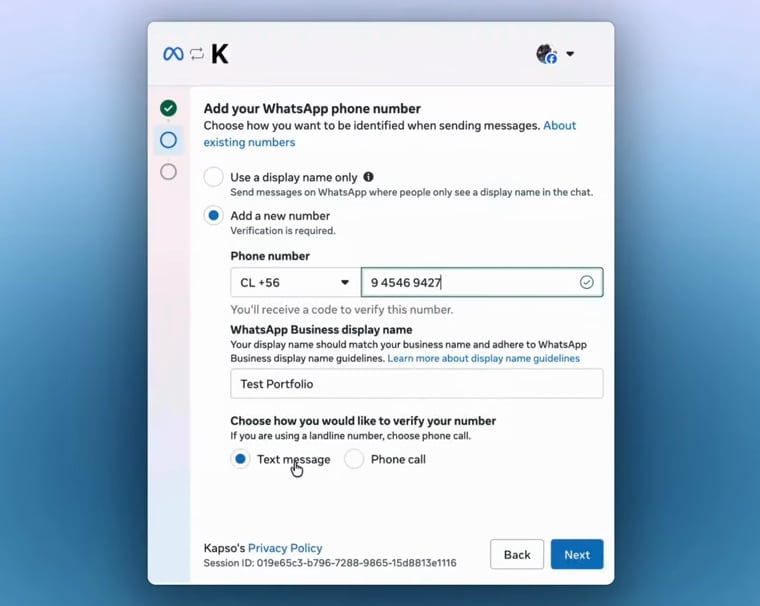
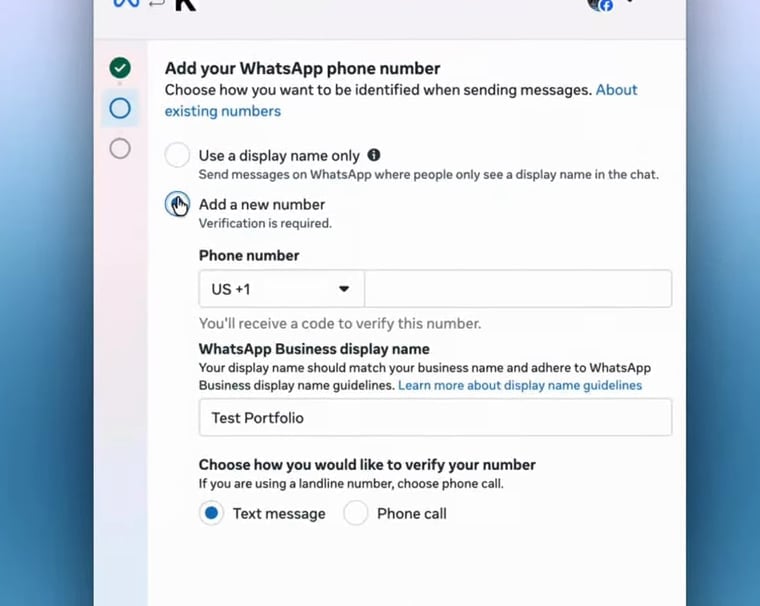 Select the country code, enter the number and a **WhatsApp Business display name**, pick **Text message** or **Phone call**, and click **Next**.
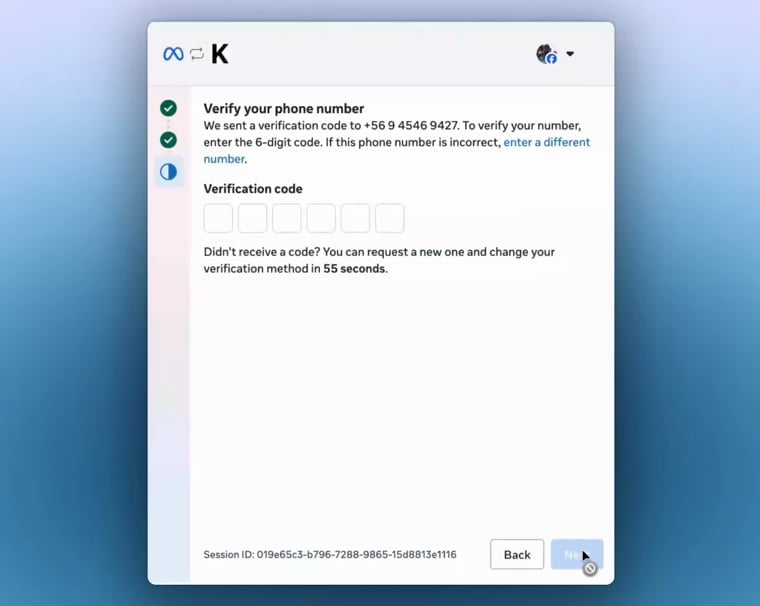
 Enter the 6-digit verification code from Meta and click **Next**.
 When Meta shows **Your account is connected**, click **Finish** to return to Nexor.
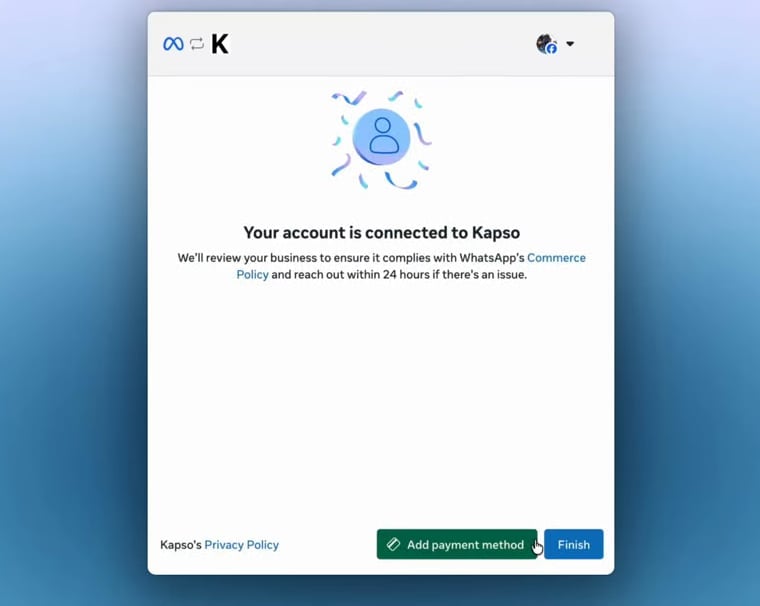 Nexor registers the number, creates the production WhatsApp configuration, and shows it as connected.
If verification keeps failing, stop before Meta rate-limits the number, and confirm it isn't still attached to another WABA, provider, WhatsApp Business App account, or Nexor project.
## If the popup doesn't load
Disable ad blockers and privacy extensions, since they block Meta's SDK. Try Chrome or Firefox if Safari isn't working.
## Next steps
Create and submit the templates you need to start conversations and re-engage leads.
Resolve pending reviews, verification failures, and numbers that won't connect.
This guide is adapted from the [Kapso documentation](https://docs.kapso.ai/docs/how-to/whatsapp/connect-whatsapp). Nexor uses Kapso as its WhatsApp infrastructure provider — credit and thanks to the Kapso team.
Nexor registers the number, creates the production WhatsApp configuration, and shows it as connected.
If verification keeps failing, stop before Meta rate-limits the number, and confirm it isn't still attached to another WABA, provider, WhatsApp Business App account, or Nexor project.
## If the popup doesn't load
Disable ad blockers and privacy extensions, since they block Meta's SDK. Try Chrome or Firefox if Safari isn't working.
## Next steps
Create and submit the templates you need to start conversations and re-engage leads.
Resolve pending reviews, verification failures, and numbers that won't connect.
This guide is adapted from the [Kapso documentation](https://docs.kapso.ai/docs/how-to/whatsapp/connect-whatsapp). Nexor uses Kapso as its WhatsApp infrastructure provider — credit and thanks to the Kapso team.