> ## Documentation Index
> Fetch the complete documentation index at: https://docs.getnexor.ai/llms.txt
> Use this file to discover all available pages before exploring further.
# Agent map: what happens when a lead comes in
> See every task of an agent on one map: how a lead is contacted, which data and answers change the conversation, where it hands off to another task and where it drops off. Edit a stage from the map.
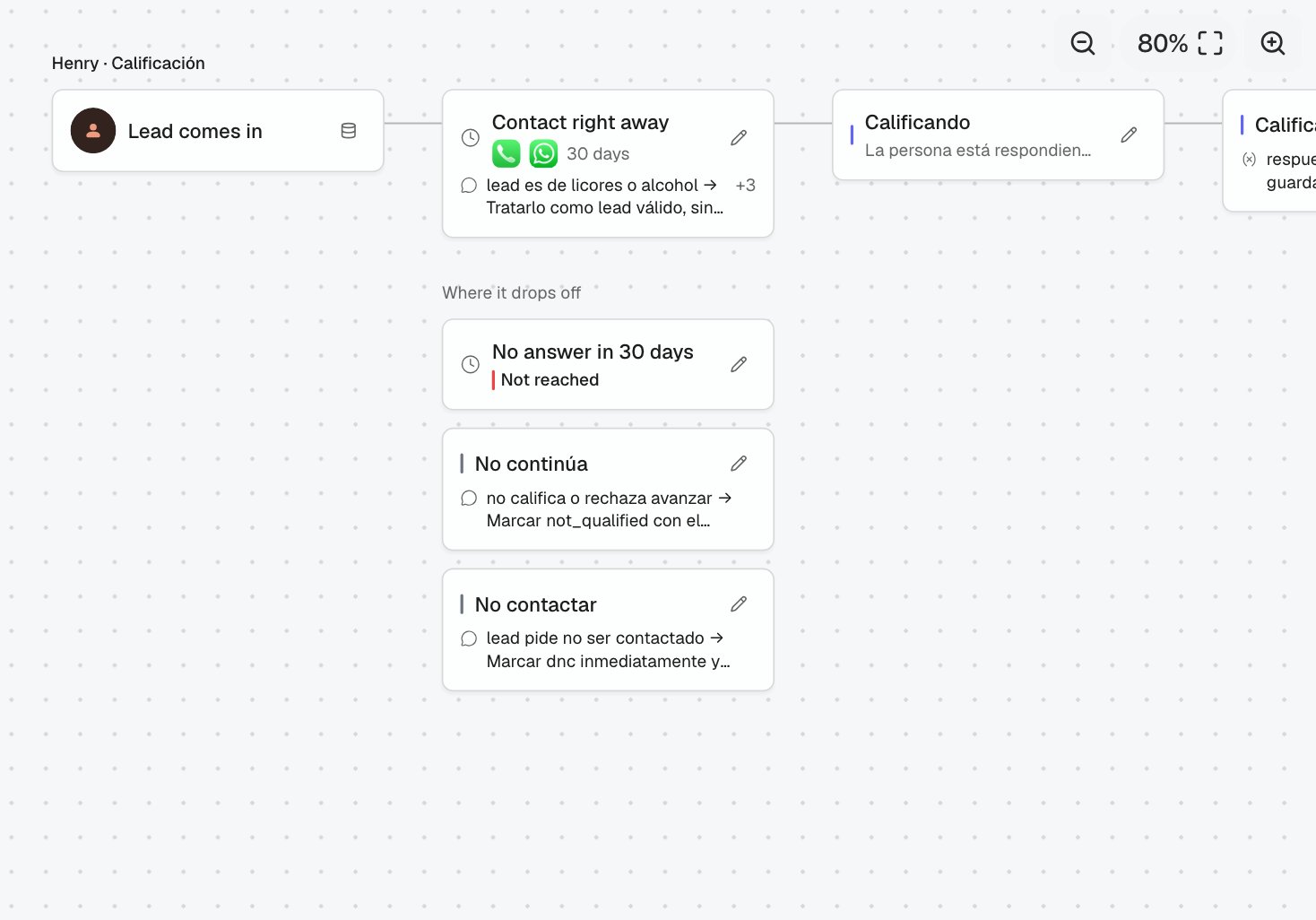
The agent map shows on one screen what happens when a lead comes in: how the agent contacts it, which stages it goes through, which data or answers change the conversation, which task it moves to and where it drops off. It is built from the saved configuration of every task and its prompt, and it updates after every save.
 ## Open the map
* In the agent's right pane, open **Agent map → What happens when a lead comes in**.
* In **Nexor AI**, ask "How does my agent work?". Nexor AI explains it in a few sentences and offers the map under its answer.
Drag to move around the map. Pinch, or hold **Ctrl** and use the wheel, to zoom in or out. The percentage button fits the whole map.
## Read the map
Each task is a row, read from left to right.
| Card | What it shows |
| - | - |
| **Lead comes in** | How many data points the lead arrives with (its metadata). |
| **Contact** | The channels of the first contact and for how many days the agent keeps trying. |
| **Reminders** | Dated reminders, such as the day before an event or when it starts. |
| **Stage** | When the lead lands there and the main prompt rule, written as "condition → action". **+N** means more rules. |
| **Where it drops off** | No answer after the contact days and the stages where a lead leaves. |
When a stage hands the lead to another task, that task starts right under the stage, joined by a dashed arrow.
## See where a data point changes the conversation
Open **Lead comes in**, or any card, and tap one of the chips under **Data it uses**. Every card that does not use that data point fades, so the cards that stay lit are the ones where it changes what the agent says or where the lead goes.
Each prompt rule in the side panel shows the exact words of the prompt it comes from.
## Change a stage from the map
## Open the map
* In the agent's right pane, open **Agent map → What happens when a lead comes in**.
* In **Nexor AI**, ask "How does my agent work?". Nexor AI explains it in a few sentences and offers the map under its answer.
Drag to move around the map. Pinch, or hold **Ctrl** and use the wheel, to zoom in or out. The percentage button fits the whole map.
## Read the map
Each task is a row, read from left to right.
| Card | What it shows |
| - | - |
| **Lead comes in** | How many data points the lead arrives with (its metadata). |
| **Contact** | The channels of the first contact and for how many days the agent keeps trying. |
| **Reminders** | Dated reminders, such as the day before an event or when it starts. |
| **Stage** | When the lead lands there and the main prompt rule, written as "condition → action". **+N** means more rules. |
| **Where it drops off** | No answer after the contact days and the stages where a lead leaves. |
When a stage hands the lead to another task, that task starts right under the stage, joined by a dashed arrow.
## See where a data point changes the conversation
Open **Lead comes in**, or any card, and tap one of the chips under **Data it uses**. Every card that does not use that data point fades, so the cards that stay lit are the ones where it changes what the agent says or where the lead goes.
Each prompt rule in the side panel shows the exact words of the prompt it comes from.
## Change a stage from the map
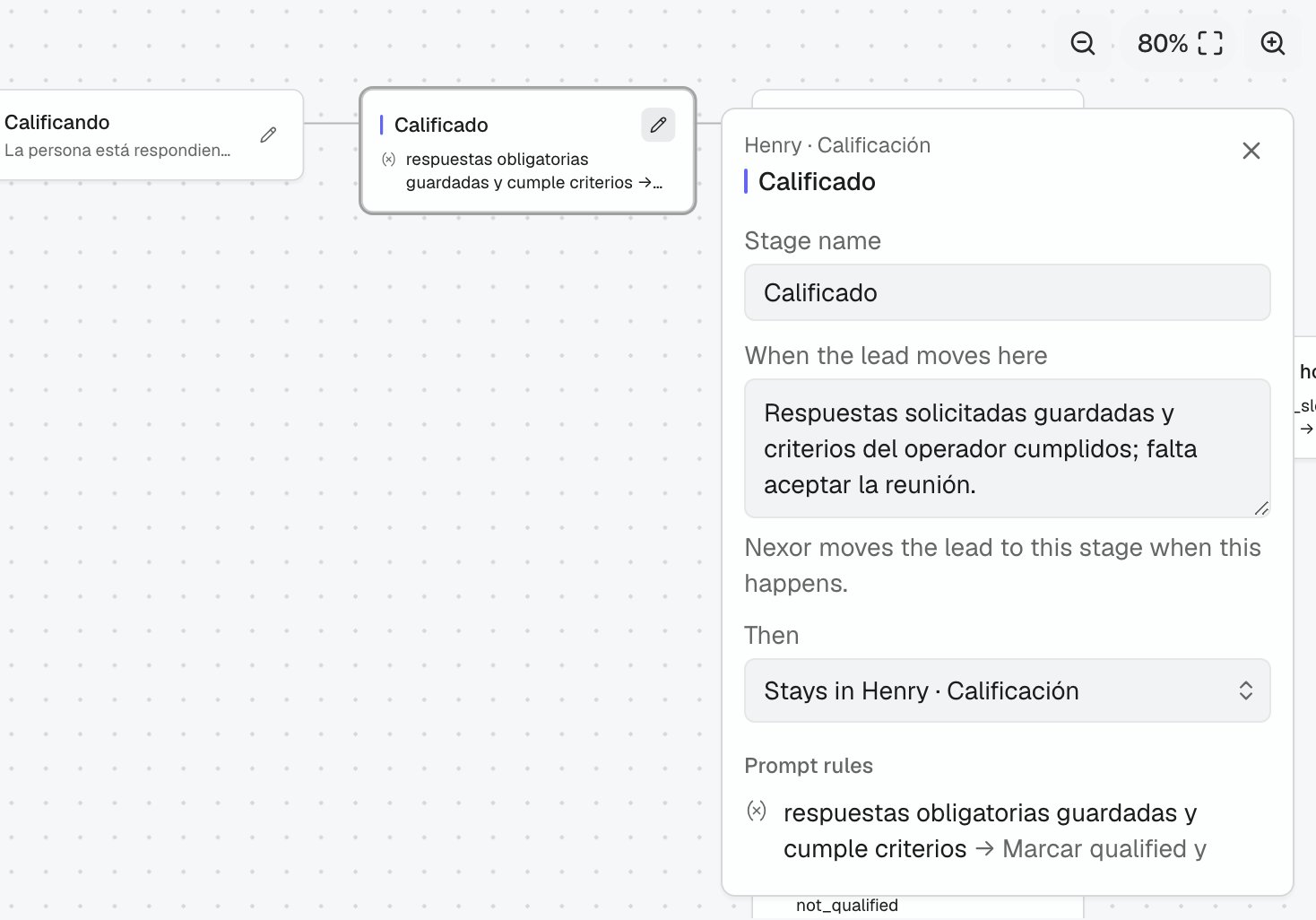 Tap the stage card or its pencil. The panel opens on the right.
Change the **Stage name**, **When the lead moves here** (what Nexor reads to move the lead to this stage) or **Then**, the task the lead hands off to.
The map redraws with the change. Inside an agent with a draft, the change goes to the draft like any other setting.
To change something the panel does not edit, such as the contact days, a reminder or a prompt rule, write it under **Ask Nexor for a change**. Nexor AI receives it with the task and stage already filled in.
Only admins can save changes from the map. Other roles see the map read only.
This documentation is built and hosted on [Mintlify](https://mintlify.com), a developer documentation platform.
Tap the stage card or its pencil. The panel opens on the right.
Change the **Stage name**, **When the lead moves here** (what Nexor reads to move the lead to this stage) or **Then**, the task the lead hands off to.
The map redraws with the change. Inside an agent with a draft, the change goes to the draft like any other setting.
To change something the panel does not edit, such as the contact days, a reminder or a prompt rule, write it under **Ask Nexor for a change**. Nexor AI receives it with the task and stage already filled in.
Only admins can save changes from the map. Other roles see the map read only.
This documentation is built and hosted on [Mintlify](https://mintlify.com), a developer documentation platform.