> ## Documentation Index
> Fetch the complete documentation index at: https://docs.getnexor.ai/llms.txt
> Use this file to discover all available pages before exploring further.
# Notification settings
> Choose who on your team is notified, in the app and by email, when a lead needs a person, a tool or webhook fails, or a connection stops working.
Last verified: 2026-10-02
Nexor tells your team when something needs a person: a lead waiting for a reply, a tool or webhook that fails, or a connection that stops working. Owners and Admins choose who receives each notification and on which channels.
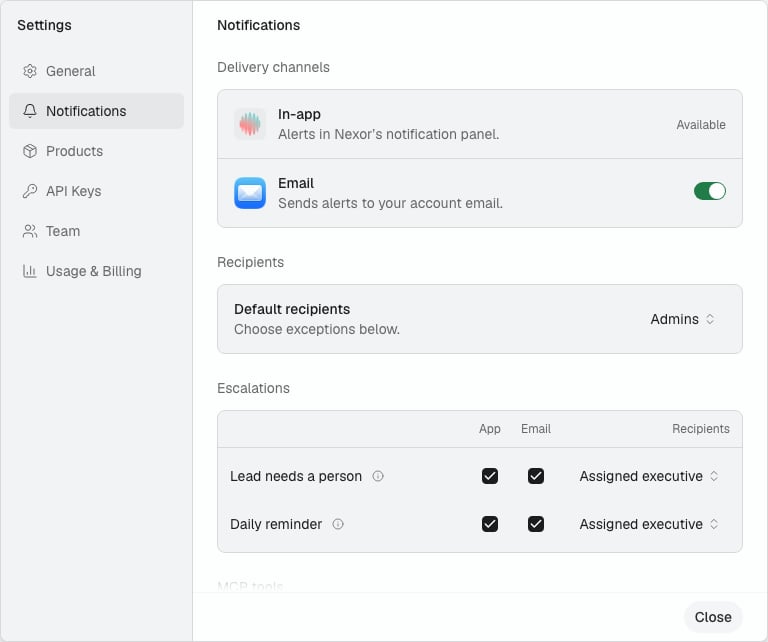
Open **Settings → Notifications**, or search for **Notification settings** with ⌘K.
 ## Default: on, to Owners and Admins
Every notification is on by default. It goes to the workspace's Owners and Admins, in the app and by email. You do not need to set anything up.
## Choose who receives them
**Default recipients** applies to every notification at once:
| Option | Who is notified |
| - | - |
| **Admins** (default) | Owners and Admins |
| **Everyone** | Owners, Admins, and Members |
| **Specific members** | Only the people you pick |
To make an exception, change **Recipients** on a notification's row. **Default** means the row follows **Default recipients**; the other options apply to that row only.
A change applies to the next notification. Your choice is applied exactly as saved: if you pick specific members and none of them is on the team anymore, nobody is notified. Nexor never falls back to other people.
## Turn a notification off
Uncheck both **App** and **Email** on its row. Nobody receives it.
## Escalations go to the assigned executive first
The two escalation rows, **Lead needs a person** and **Daily reminder**, always notify the lead's assigned executive. Leads with no assigned executive notify the people chosen under **If unassigned, notify:** in the row's **Recipients** menu. If both channels are unchecked, nobody is notified, not even the assigned executive.
The daily reminder is one message per person on weekdays. Each assigned executive counts their own waiting leads, and the row's recipients count the unassigned ones. It is sent when enough leads are waiting: two by default.
## Channels
| Channel | What it does |
| - | - |
| **App** | Shows the notification in Nexor's notification panel. |
| **Email** | Sends the notification to each person's account email. |
Uncheck a channel on a row to stop it for that notification only. The **Email** switch under **Delivery channels** turns email on or off for every notification at once.
## When emails are sent
Emails are sent between 9:00 and 21:00 in your workspace's time zone. An email that comes up outside those hours waits until 9:00. If you turn that notification off, or remove the person, before then, the email is not sent. In-app notifications are never delayed. **Tool server error** is sent at any hour, because a failing server can affect leads right away.
## The notifications
| Group | Notification | When it is sent |
| - | - | - |
| Escalations | Lead needs a person | Your agent hands a lead to a person. |
| Escalations | Daily reminder | Leads are still waiting for a person. |
| MCP tools | Tool credentials rejected | A custom tool is rejected for its credentials. |
| MCP tools | Tool server error | Your server fails while handling a lead. |
| MCP tools | Cannot connect to tool | Your agent cannot reach a custom tool. |
| MCP tools | Repeated tool failures | A custom tool fails repeatedly. |
| Webhooks | Webhook credentials rejected | Your endpoint rejects Nexor's credentials. |
| Webhooks | Webhook delivery failed | Nexor cannot deliver events to your endpoint. |
| Connections | GoHighLevel connection lost | The GoHighLevel connection stops working. |
| Connections | Cannot connect to GoHighLevel | Your agent cannot reach GoHighLevel. |
| Connections | GoHighLevel using fallback credentials | Your agent's GoHighLevel credentials fail. |
| Connections | Instagram or Messenger connection issue | The account's status changes and needs action. |
| Connections | Outlook connection lost | The Outlook Calendar connection breaks. |
| Connections | Cannot load Calendly | Your agent cannot load Calendly. |
| Connections | Booking calendars unavailable | Your agent cannot use the booking calendar. |
The same alert is not repeated for 24 hours, so a broken connection does not flood your team. **Tool server error** is the exception: it is sent once for each lead the failure affects.
## Who can change these settings
Only Owners and Admins can change these settings.
Who is notified about escalations is set only on this page. A task's **Escalation** settings no longer include a list of people to notify.
This documentation is built and hosted on [Mintlify](https://mintlify.com), a developer documentation platform.
## Default: on, to Owners and Admins
Every notification is on by default. It goes to the workspace's Owners and Admins, in the app and by email. You do not need to set anything up.
## Choose who receives them
**Default recipients** applies to every notification at once:
| Option | Who is notified |
| - | - |
| **Admins** (default) | Owners and Admins |
| **Everyone** | Owners, Admins, and Members |
| **Specific members** | Only the people you pick |
To make an exception, change **Recipients** on a notification's row. **Default** means the row follows **Default recipients**; the other options apply to that row only.
A change applies to the next notification. Your choice is applied exactly as saved: if you pick specific members and none of them is on the team anymore, nobody is notified. Nexor never falls back to other people.
## Turn a notification off
Uncheck both **App** and **Email** on its row. Nobody receives it.
## Escalations go to the assigned executive first
The two escalation rows, **Lead needs a person** and **Daily reminder**, always notify the lead's assigned executive. Leads with no assigned executive notify the people chosen under **If unassigned, notify:** in the row's **Recipients** menu. If both channels are unchecked, nobody is notified, not even the assigned executive.
The daily reminder is one message per person on weekdays. Each assigned executive counts their own waiting leads, and the row's recipients count the unassigned ones. It is sent when enough leads are waiting: two by default.
## Channels
| Channel | What it does |
| - | - |
| **App** | Shows the notification in Nexor's notification panel. |
| **Email** | Sends the notification to each person's account email. |
Uncheck a channel on a row to stop it for that notification only. The **Email** switch under **Delivery channels** turns email on or off for every notification at once.
## When emails are sent
Emails are sent between 9:00 and 21:00 in your workspace's time zone. An email that comes up outside those hours waits until 9:00. If you turn that notification off, or remove the person, before then, the email is not sent. In-app notifications are never delayed. **Tool server error** is sent at any hour, because a failing server can affect leads right away.
## The notifications
| Group | Notification | When it is sent |
| - | - | - |
| Escalations | Lead needs a person | Your agent hands a lead to a person. |
| Escalations | Daily reminder | Leads are still waiting for a person. |
| MCP tools | Tool credentials rejected | A custom tool is rejected for its credentials. |
| MCP tools | Tool server error | Your server fails while handling a lead. |
| MCP tools | Cannot connect to tool | Your agent cannot reach a custom tool. |
| MCP tools | Repeated tool failures | A custom tool fails repeatedly. |
| Webhooks | Webhook credentials rejected | Your endpoint rejects Nexor's credentials. |
| Webhooks | Webhook delivery failed | Nexor cannot deliver events to your endpoint. |
| Connections | GoHighLevel connection lost | The GoHighLevel connection stops working. |
| Connections | Cannot connect to GoHighLevel | Your agent cannot reach GoHighLevel. |
| Connections | GoHighLevel using fallback credentials | Your agent's GoHighLevel credentials fail. |
| Connections | Instagram or Messenger connection issue | The account's status changes and needs action. |
| Connections | Outlook connection lost | The Outlook Calendar connection breaks. |
| Connections | Cannot load Calendly | Your agent cannot load Calendly. |
| Connections | Booking calendars unavailable | Your agent cannot use the booking calendar. |
The same alert is not repeated for 24 hours, so a broken connection does not flood your team. **Tool server error** is the exception: it is sent once for each lead the failure affects.
## Who can change these settings
Only Owners and Admins can change these settings.
Who is notified about escalations is set only on this page. A task's **Escalation** settings no longer include a list of people to notify.
This documentation is built and hosted on [Mintlify](https://mintlify.com), a developer documentation platform.